
Replying to a client's message
Open a conversation from the inbox, reply, assign it to a colleague, and mark it done.
Who this is for: Clinician, Associate clinician, Scheduler, Practice manager, Practice administrator
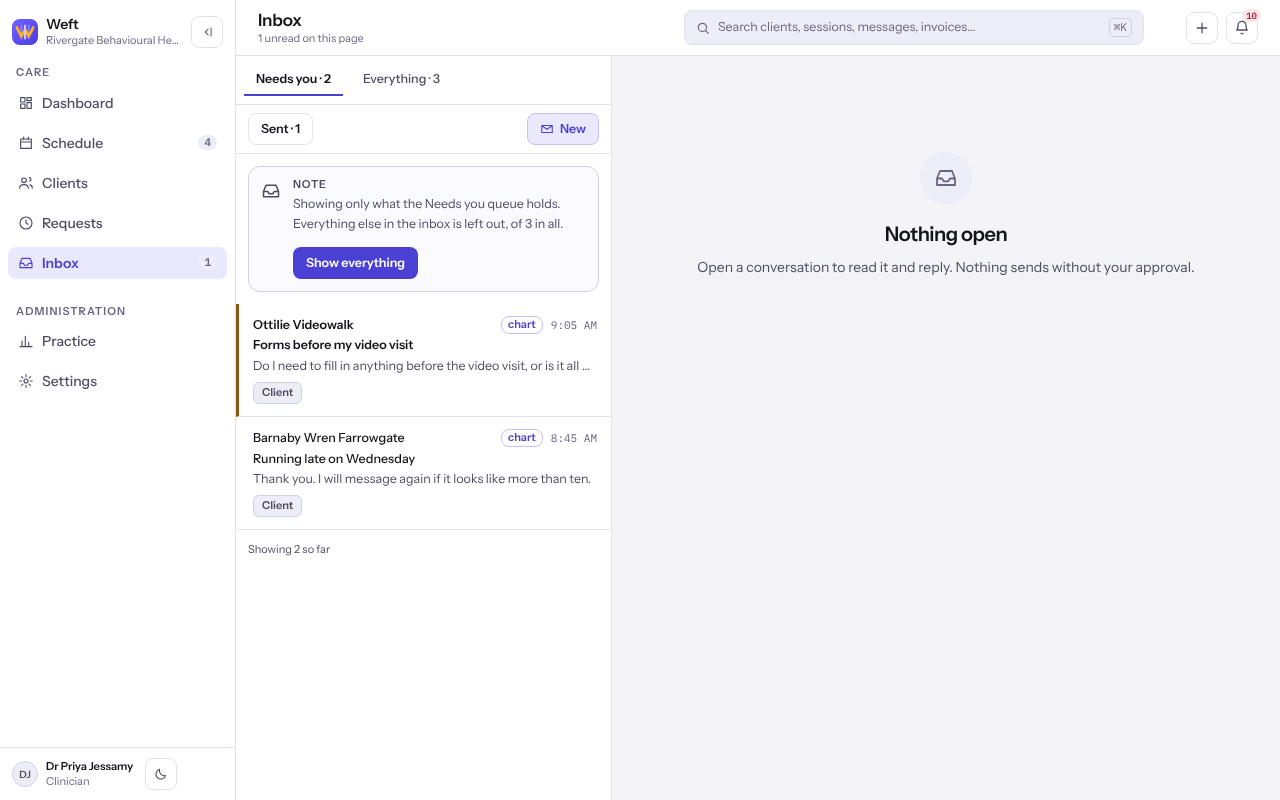
The inbox shows the conversations your role works with, and every status sits in one list, and the switch across the top cuts it by who the conversation is with: All, Clients or Colleagues.
Reply
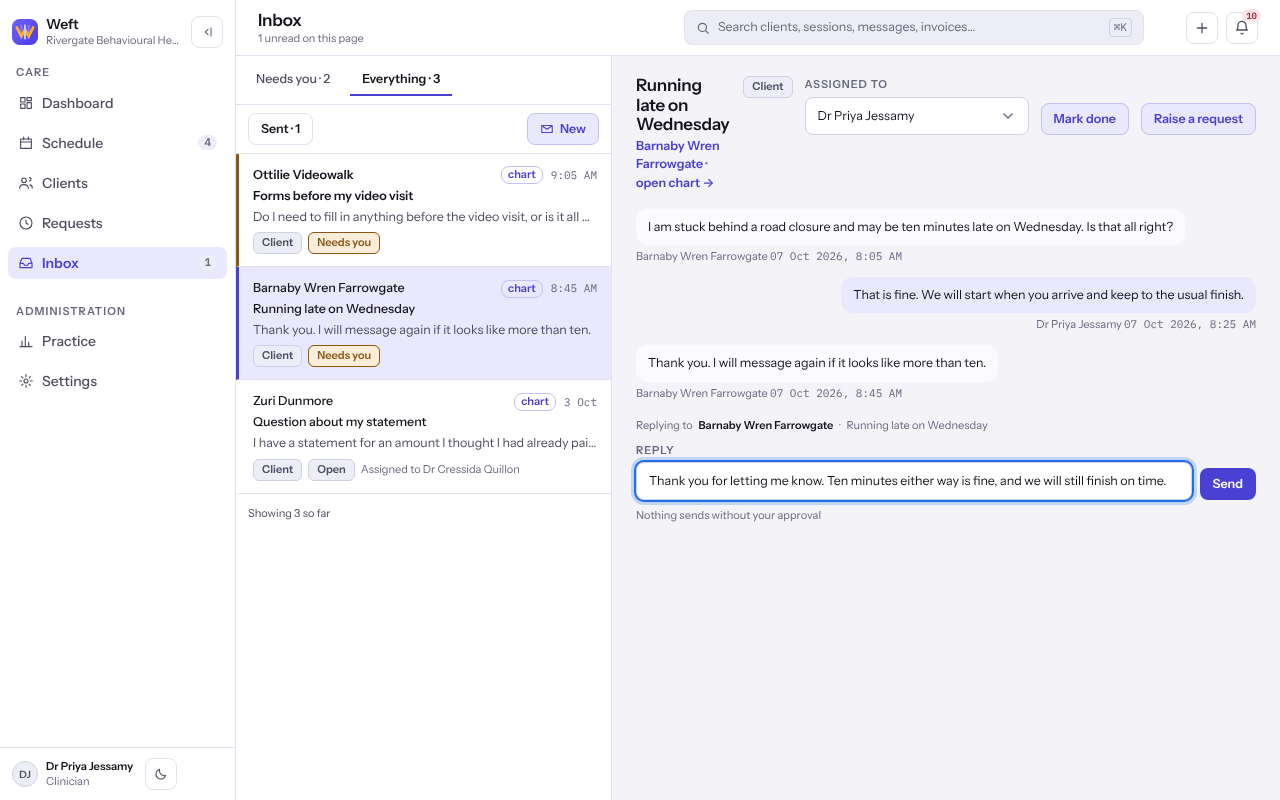
- Select Inbox and choose a queue. Narrow it by category if you need to, and select a conversation to open it.
- Read the conversation. Opening it marks it read.
- Type under Reply and select Send.
Pass it on
- To hand it to a colleague, choose them under Assigned to. Choose Nobody to leave it unassigned.
- If the client is asking for an appointment, select Raise a request, choose how urgent it is under Reason, write the ask under Request in your own words, and select Raise it. The ask goes to Requests and the conversation stays where it is.
Note: Some colleagues, such as the front desk or a biller, may see Content withheld on a clinical conversation. They can still assign and route it from what is shown.
Last checked against Weft on 07 Oct 2026. Something on your screen reads differently? Tell us at support@weftary.com.