
Inviting a colleague
Invite somebody to your practice with the one role they will hold, and name their supervising clinician where the role needs one.
Who this is for: Practice administrator, Practice manager
Each colleague holds one role, such as clinician, associate clinician, scheduler or biller. The role decides what they may do and what their screens show.
Send the invitation
- Select Settings, then Team & access.
- Select Invite a colleague.
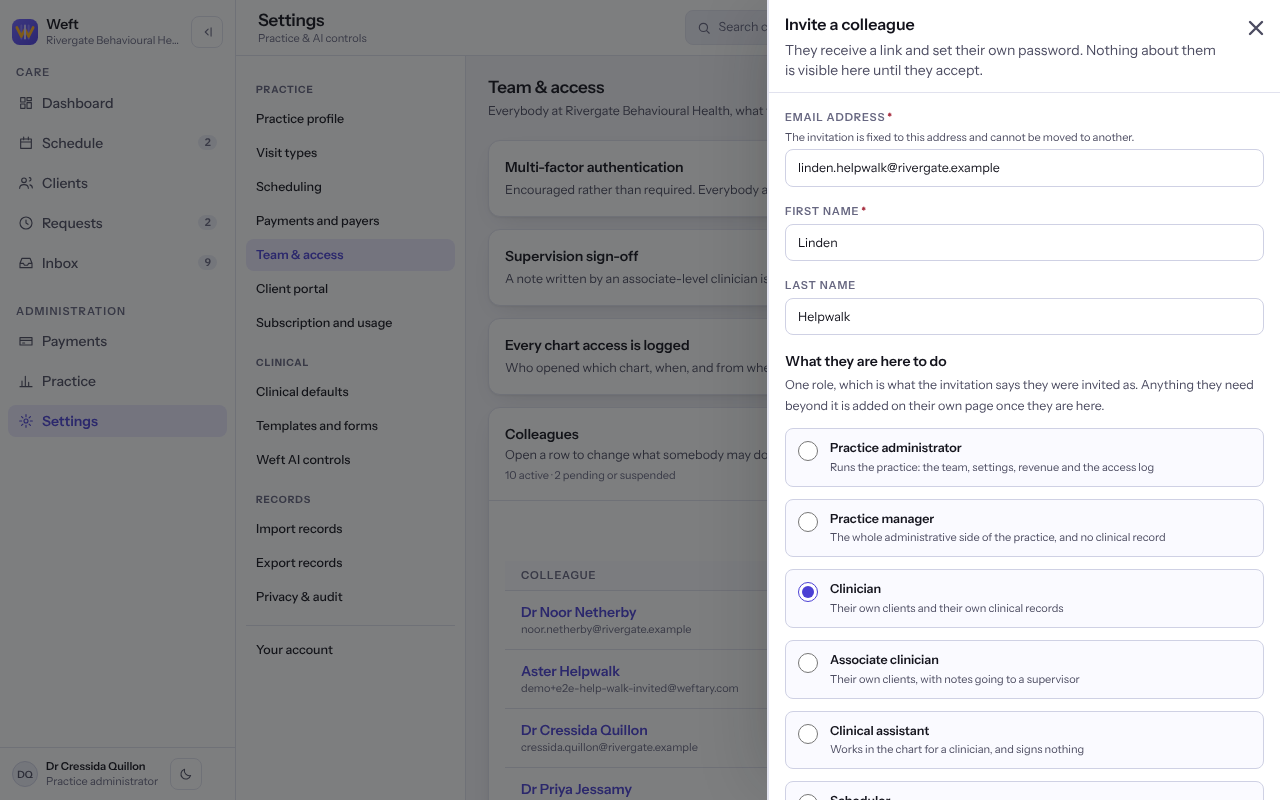
- Enter the Email address, which the invitation is fixed to, and their First name and Last name.
- Under Roles, choose one role.
- For a role that sees clients, add their Credentials and NPI if you have it, and say which kind of number it is.
- For a role whose notes are countersigned, choose Supervising provider.
- Select Send the invitation. They receive a link and set their own password.
Note: An invitation link lasts a week and works once.
Withdraw or replace an invitation
- Under Invitations not yet accepted, open the invitation. The link stops working shows when it expires.
- Select Withdraw this invitation, then Withdraw. The link stops working wherever it was forwarded.
- If They asked for a new one shows, withdraw it and invite them again.
Last checked against Weft on 07 Oct 2026. Something on your screen reads differently? Tell us at support@weftary.com.