
Fixing camera, microphone and sound in a video visit
Resolve device permission, connection and sound problems before joining a video visit.
Who this is for: Clinician
The camera and microphone are blocked
- When The camera and microphone are blocked appears, open the browser’s site permissions and allow camera and microphone access.
- Select Ask for the camera again after changing the permission. Select Go back to leave the device check.
No camera or microphone was found
- When No camera or microphone was found appears, plug in a camera or headset, or open the visit on another device. Select Try again.
Free a device and check the sound
- If Something else is using the camera appears, close the other call or camera and select Try again.
- Once the check opens, choose Camera and Microphone to use another connected device.
- If sound comes from the wrong device, choose Speaker where offered. Otherwise change your device’s sound output or plug in a headset.
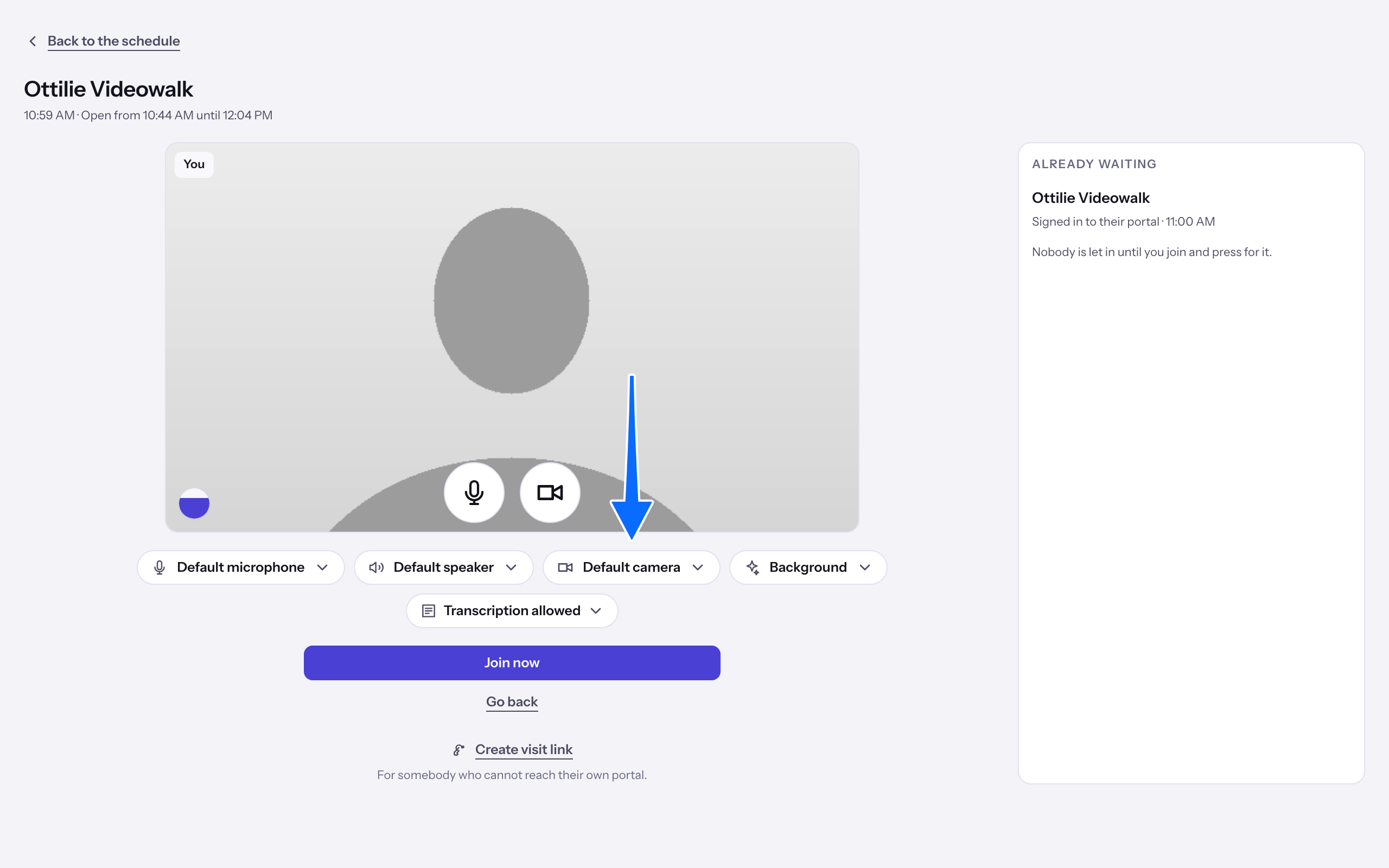
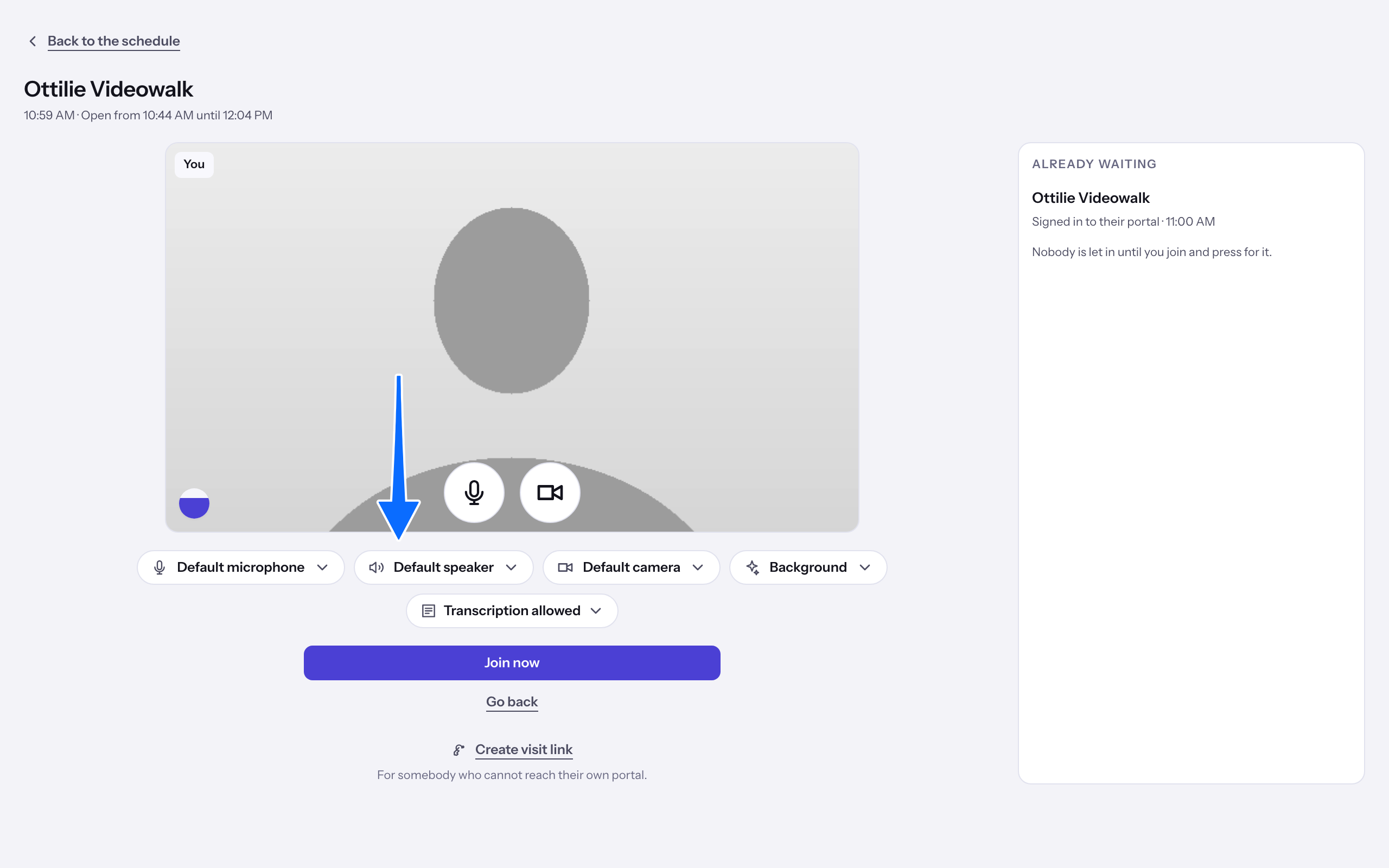
Note: The camera could not be opened means something stopped it and the browser did not say what. Select Try again, and if it keeps happening, join from another device. This browser cannot open a camera here has no Try again button, because the browser or the connection cannot offer a camera: open the link again from the message you were sent, on a phone or a computer.
Help the client at their waiting room
- The client reaches the same device check on the way into their waiting room. If The camera and microphone are blocked appears, ask them to allow access in the browser’s site permissions and select Ask for the camera again.
Note: If only one device works, the check offers Join without a camera or Join without a microphone, with a note on what you give up. It offers neither when both refuse. Agree how you will communicate before joining. See Joining a video appointment.
Choose a background
- If what is behind you is the problem, open Background in the device check, or during the visit, and choose Blur or a picture. Choose Off to take it away. Holding a video visit shows the list. The client has the same list in their device check and in the call.
Note: If the list says This browser cannot change the background., the other person sees the room behind you as your camera shows it, and you can join as usual. If it says Background could not load. Try again., open the list again to retry.
Last checked against Weft on 31 Oct 2026. Something on your screen reads differently? Tell us at support@weftary.com.