Joining a video appointment
Join a video appointment from your portal, a link or a code, check your camera and microphone, and wait to be let in.
Who this is for: Client, Parent or guardian
Open your visit
- Shortly before the start time, select Appointments and then Join your visit on the appointment. If your practice emailed you a link, open that instead.
- If somebody at the practice read you a code on the phone, go to the page they gave you, type it in under Code and select Open my visit.
Wait in the waiting room
- Signed in, you go straight to the waiting room. Your own picture shows there, seen by nobody else, with a Camera and Microphone to choose from. You are in the waiting room means the practice knows you have arrived.
- Keep the page open. Almost there shows once somebody has joined, and you are let in from there.
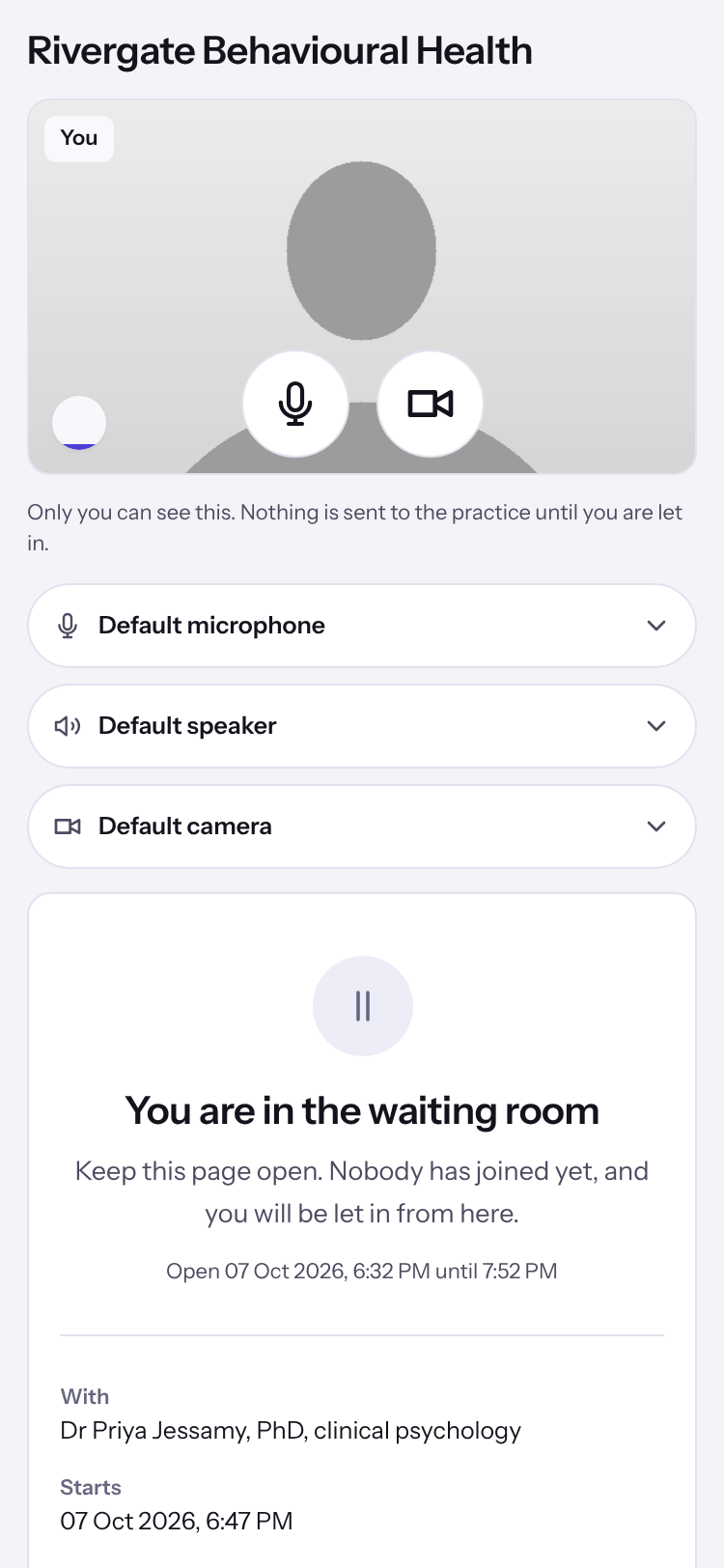
Note: Opened from a link without signing in, the page checks your camera and microphone first. Select Join now when your picture shows.
Tip: To try your devices again, select Check your camera and microphone. If your camera or microphone will not open, the page says why and offers Carry on without a camera or Carry on without a microphone.
Note: If your clinician is writing the session down, the page says so for the whole session. Select Stop writing this down if you no longer agree to it.
Last checked against Weft on 07 Oct 2026. Something on your screen reads differently? Tell us at support@weftary.com.