Signing in to your client portal
Set your password from the email your practice sent, sign in, or have a sign-in link emailed to you.
Who this is for: Client, Parent or guardian
Your practice gives you access and sends you an email with a link. Your portal has an address of its own, which is in that email.
Set your password
- Open the email from your practice and follow the link. On Set a password, type one under Your new password and again under Confirm password.
- Select Set my password. When Your password is set appears, select Go to sign in.
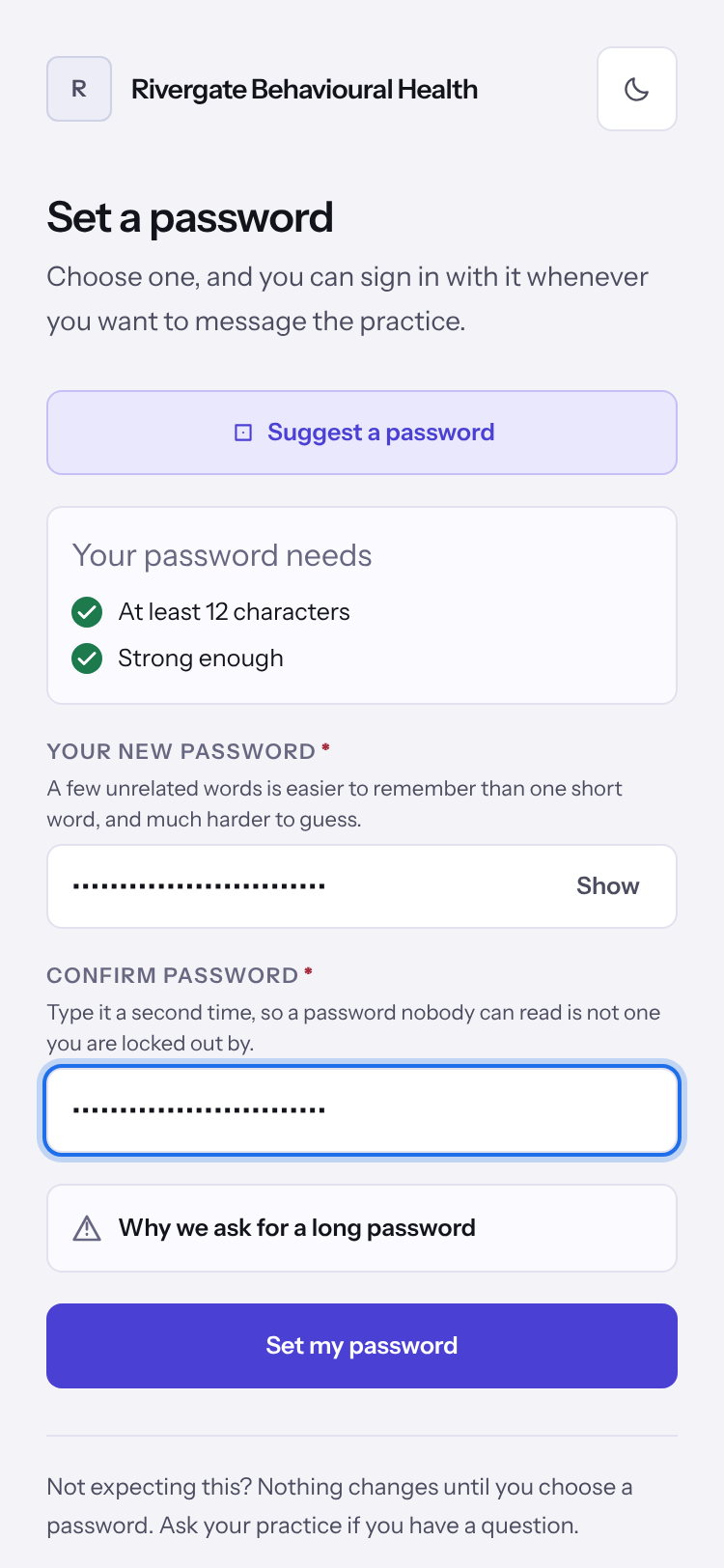
Tip: A few unrelated words are easier to remember than one short word, and much harder to guess.
Sign in
- Go to your portal's address and, under Sign in to your portal, enter your Email and Password.
- Select Sign in.
- Rather not use a password? Select Email me a link instead, then Email me a sign-in link, and open the link in the email.
- If your login reaches more than one person, for example two children, choose who you are reading about.
If you have forgotten your password
- Select Forgotten your password?, then Send me a reset link.
- Open the link in the email and choose a new password.
Last checked against Weft on 07 Oct 2026. Something on your screen reads differently? Tell us at support@weftary.com.
Common questions
The link in my email no longer works.
Ask for a new one from the sign-in page with Forgotten your password?, or ask your practice to send another.
I am not a client yet. Can I still ask for an appointment?
If your practice takes requests from new people, yes. See Asking for a first appointment.