
Approving a request for access
Review a team member's request and grant or decline access.
Who this is for: Practice administrator
Review pending requests
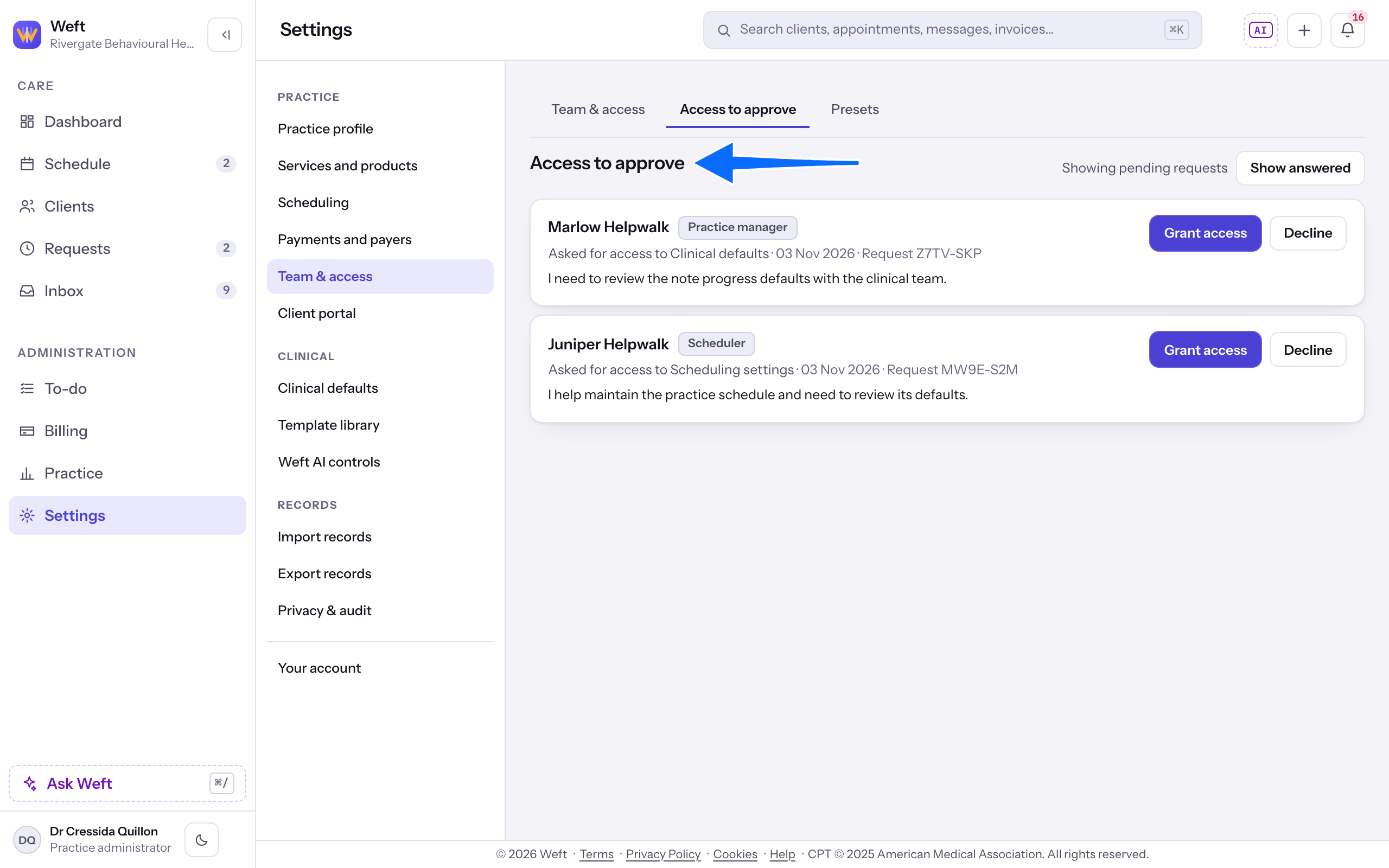
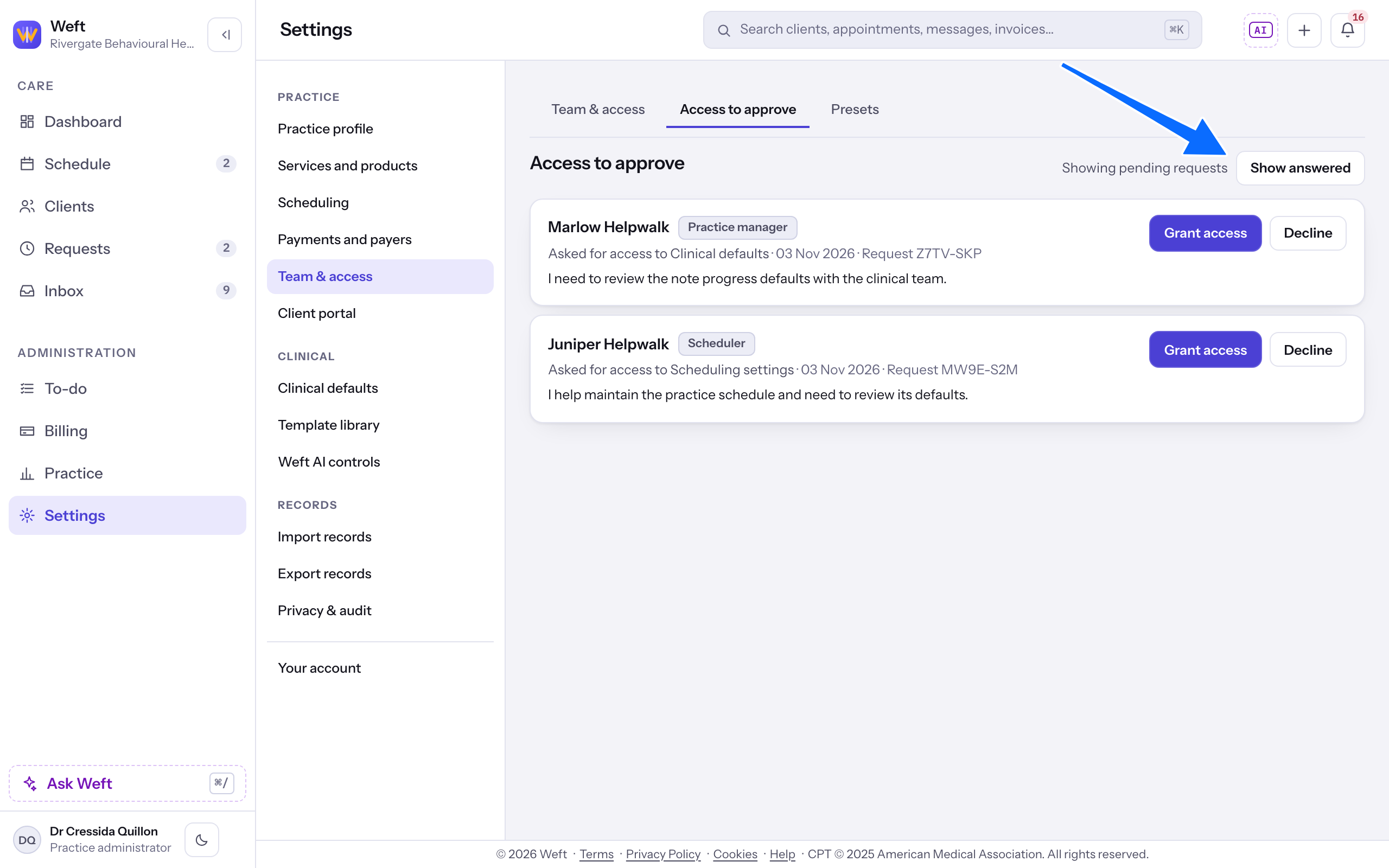
- Open Team & access in Settings and choose Access to approve.
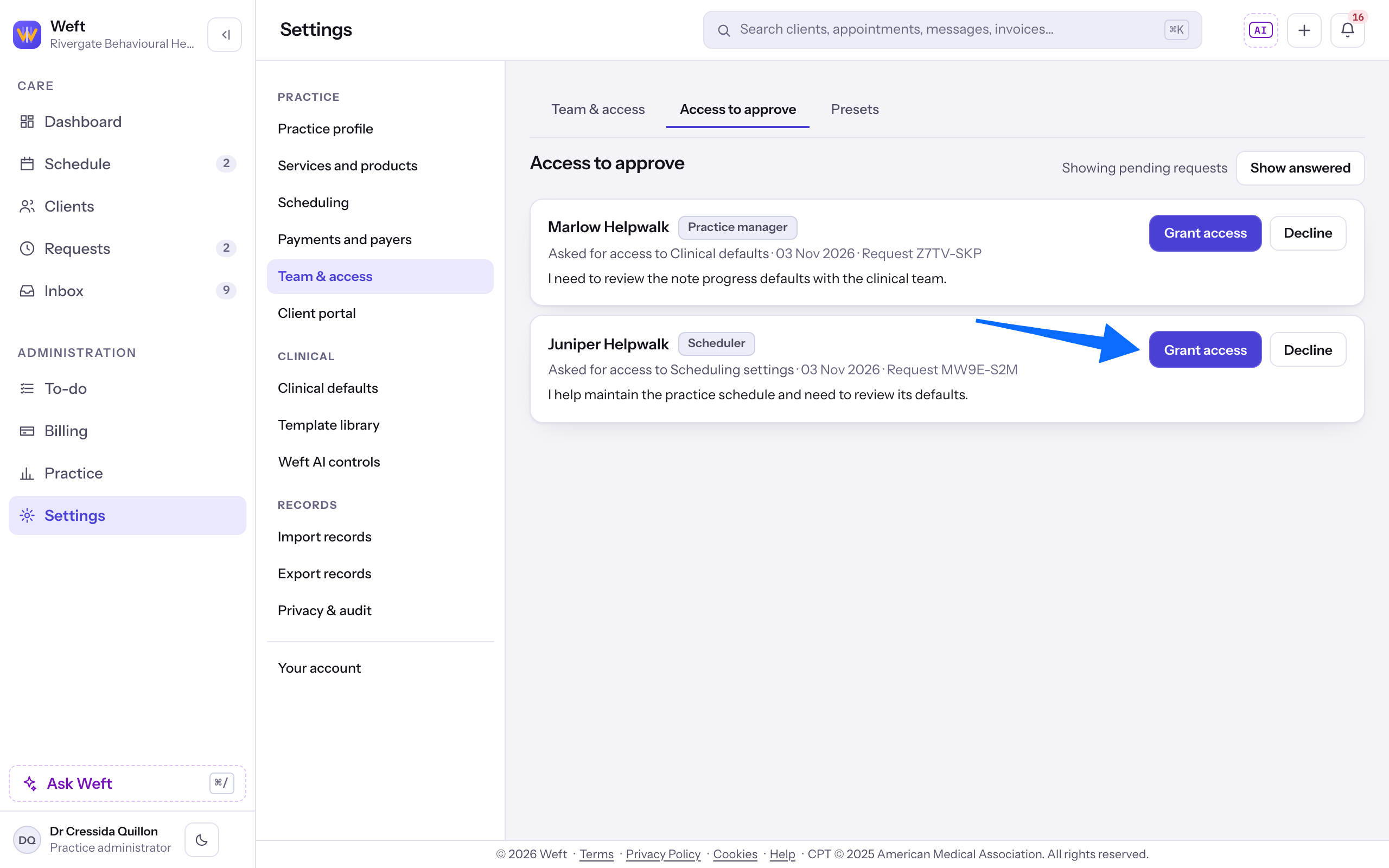
- Select Grant access on the request to review the proposed change.
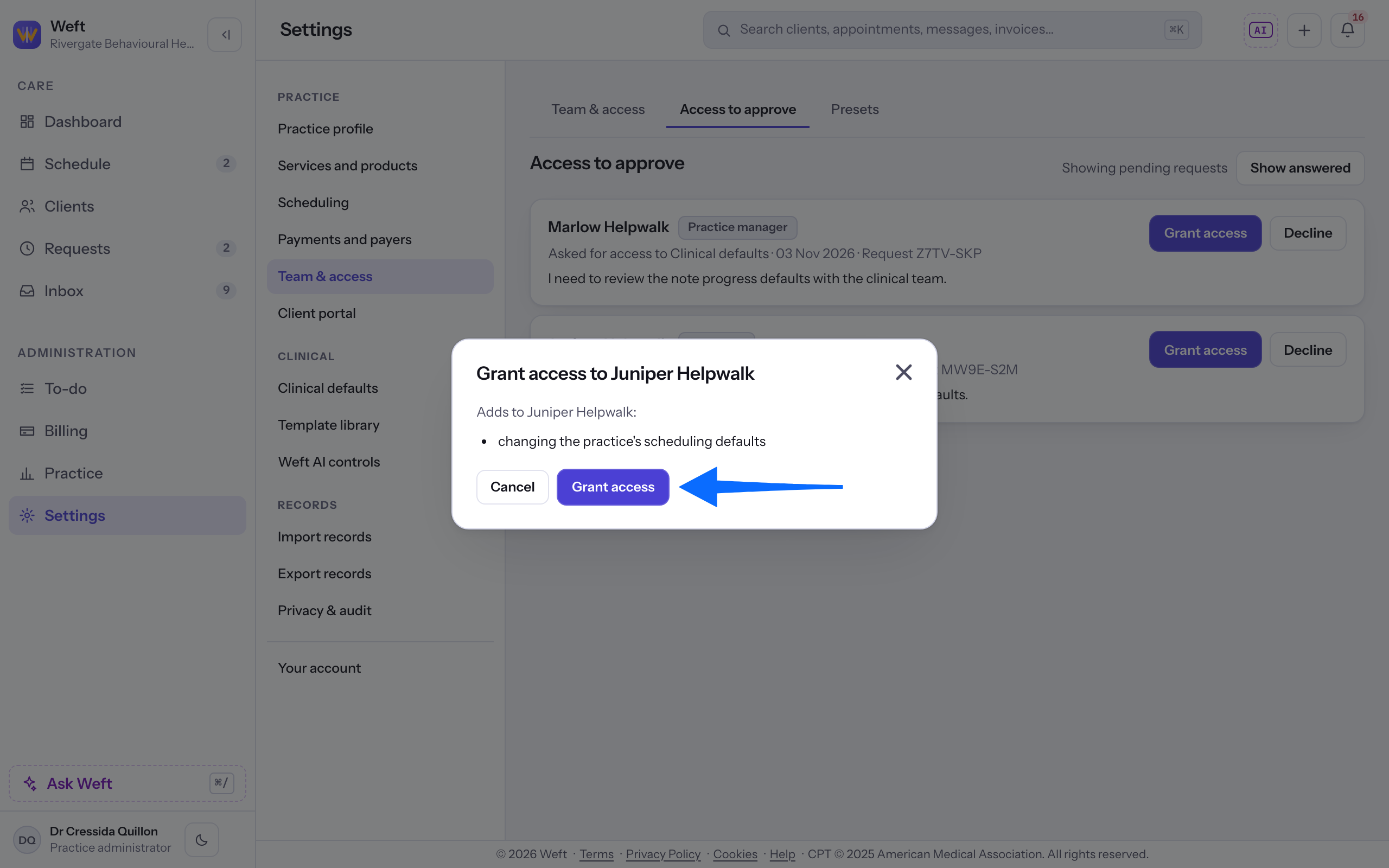
- In the dialog titled Grant access to followed by the person's name, select Grant access to confirm, or Cancel to leave the request pending. If the dialog says no permission opens that area, the confirm button reads Mark as handled; select it once you have dealt with the request. If the dialog says no role lets them hold it, there is no confirm button: decline the request, or change their role first.
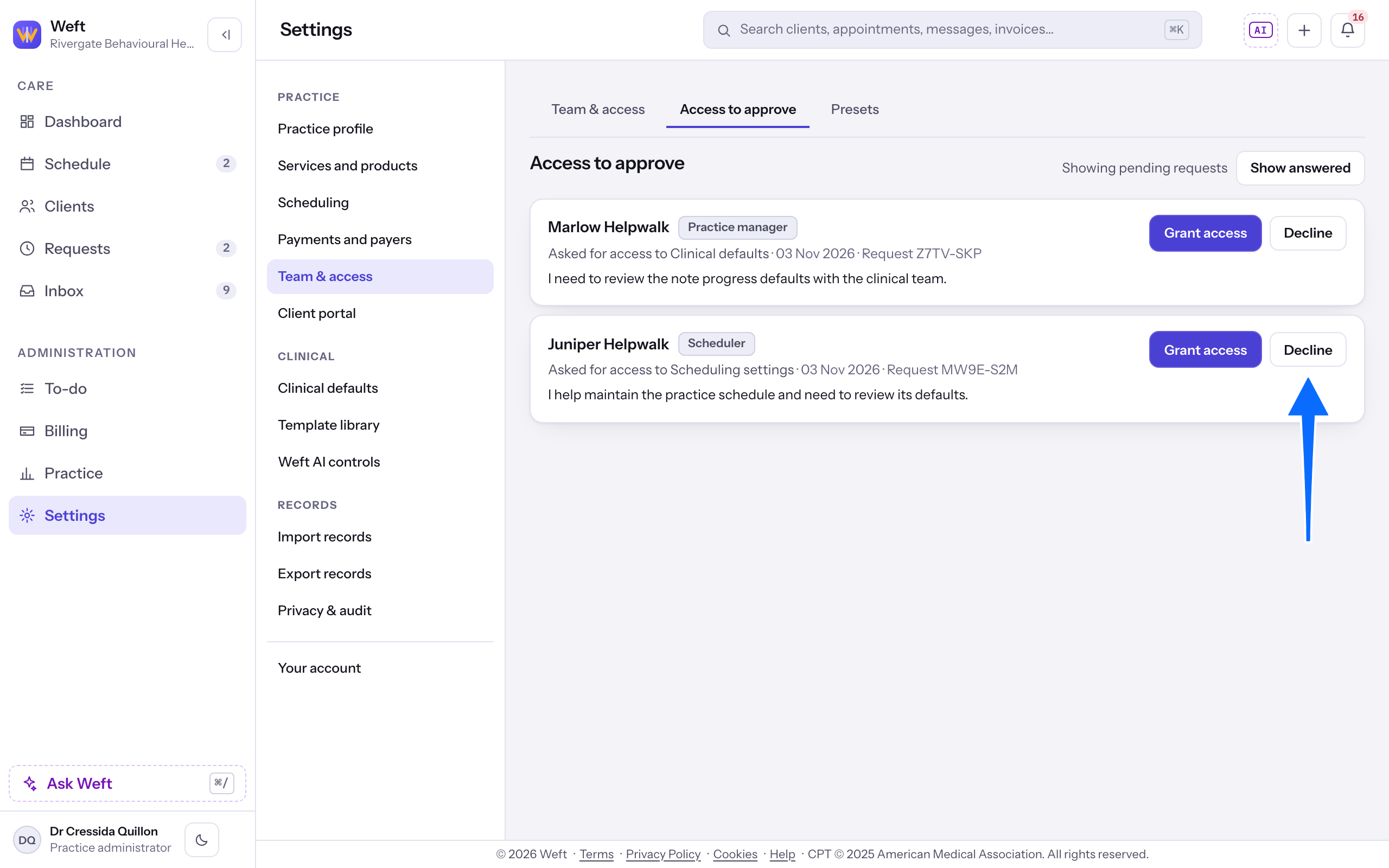
- To refuse a request, select Decline, then Decline request in the confirmation.
Note: The owner can approve by default. A manager with permission to review requests can read and decline them. Granting also requires permission to change team access. Nobody can answer their own request.
Read answered requests
- Select Show answered to see granted, declined and lapsed requests. Granted and declined requests show who answered and when; lapsed requests show when they lapsed. Select Show pending to return to pending requests.
Last checked against Weft on 01 Nov 2026. Something on your screen reads differently? Tell us at support@weftary.com.