
Updating a team member's profile and messaging them
Update a team member's name, provider and contact details, or start a message.
Who this is for: Practice administrator
Update the profile
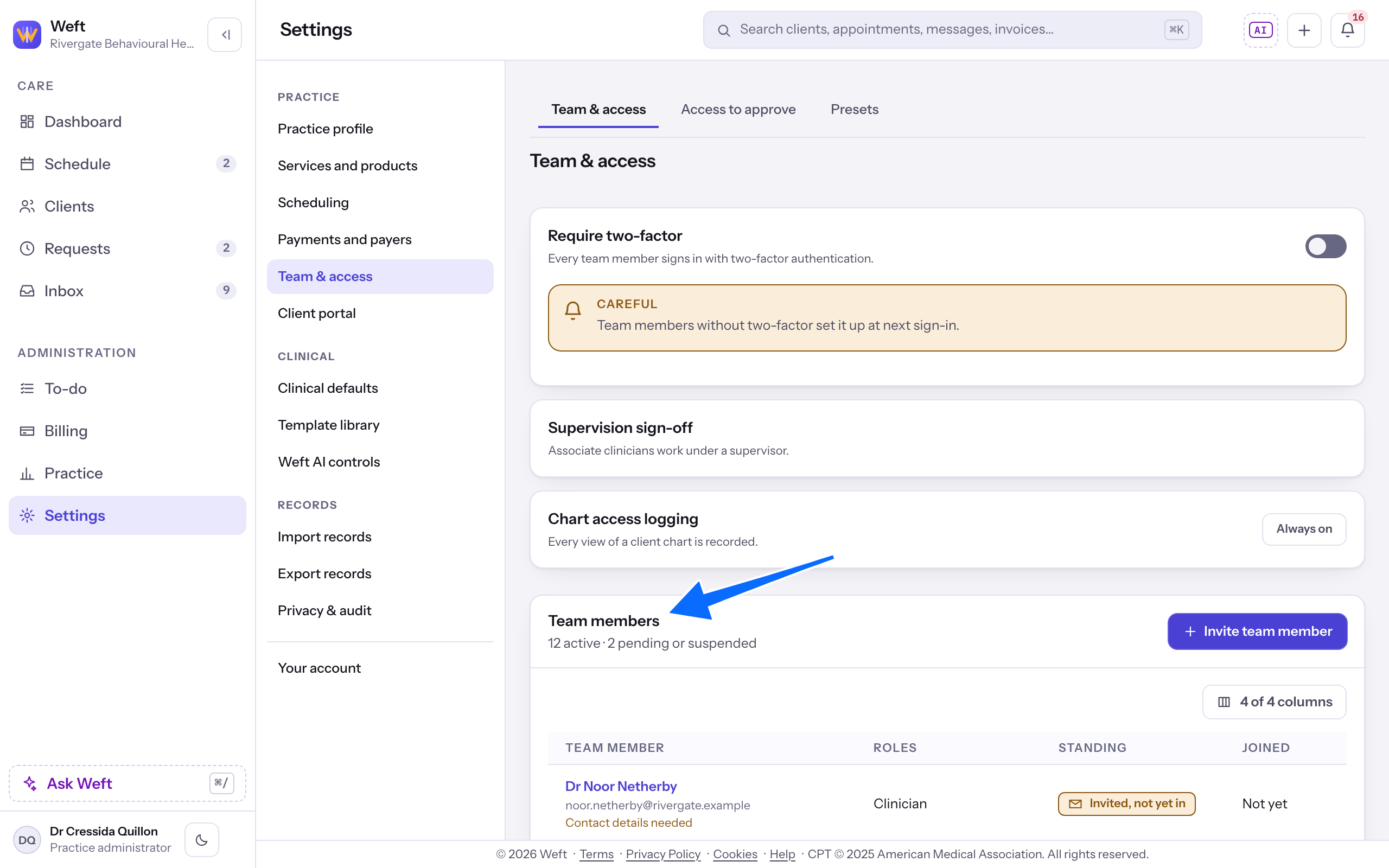
- Open the team member from the Team members card in Team & access.
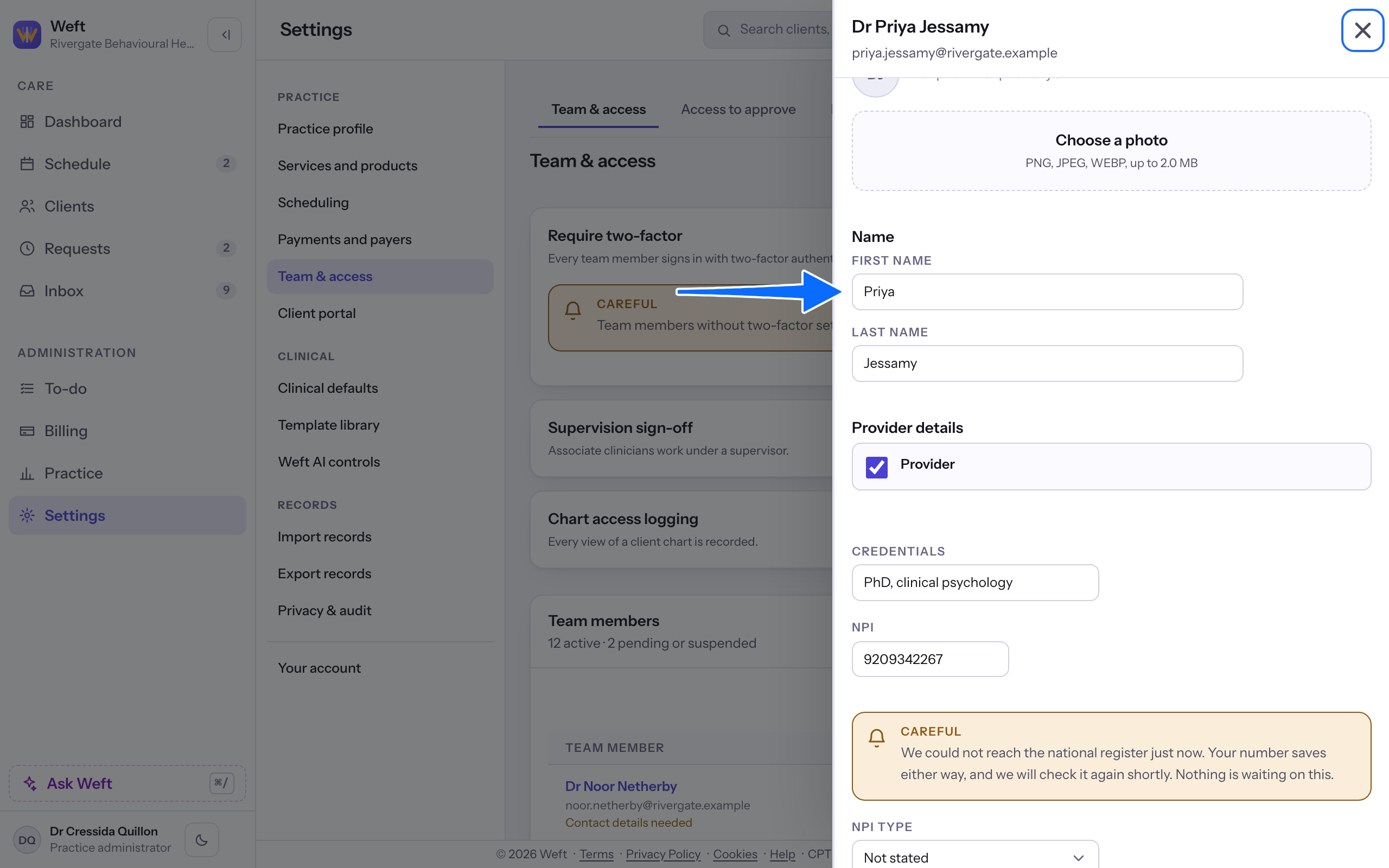
- Change First name or Last name, then select Save their name when it appears.
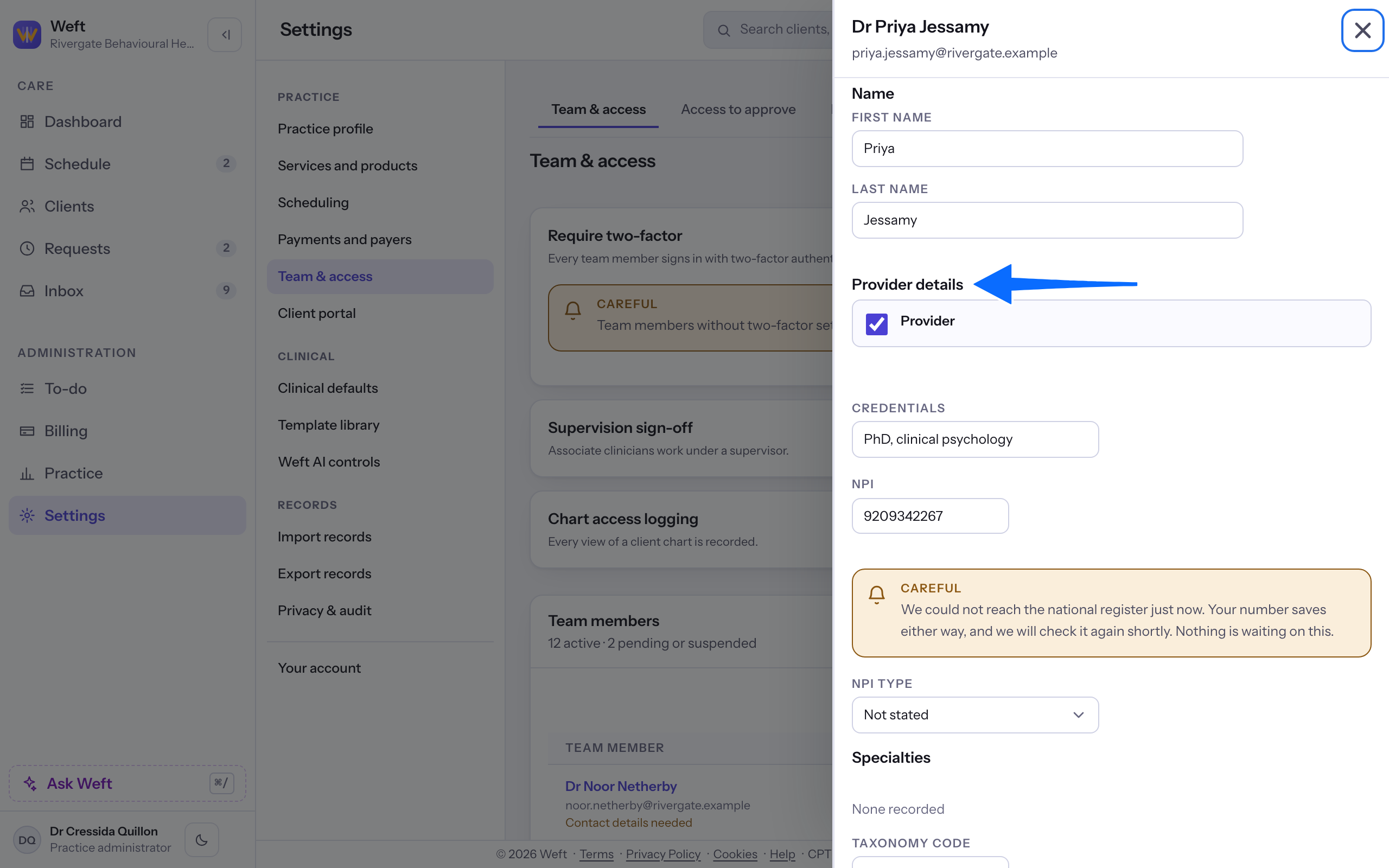
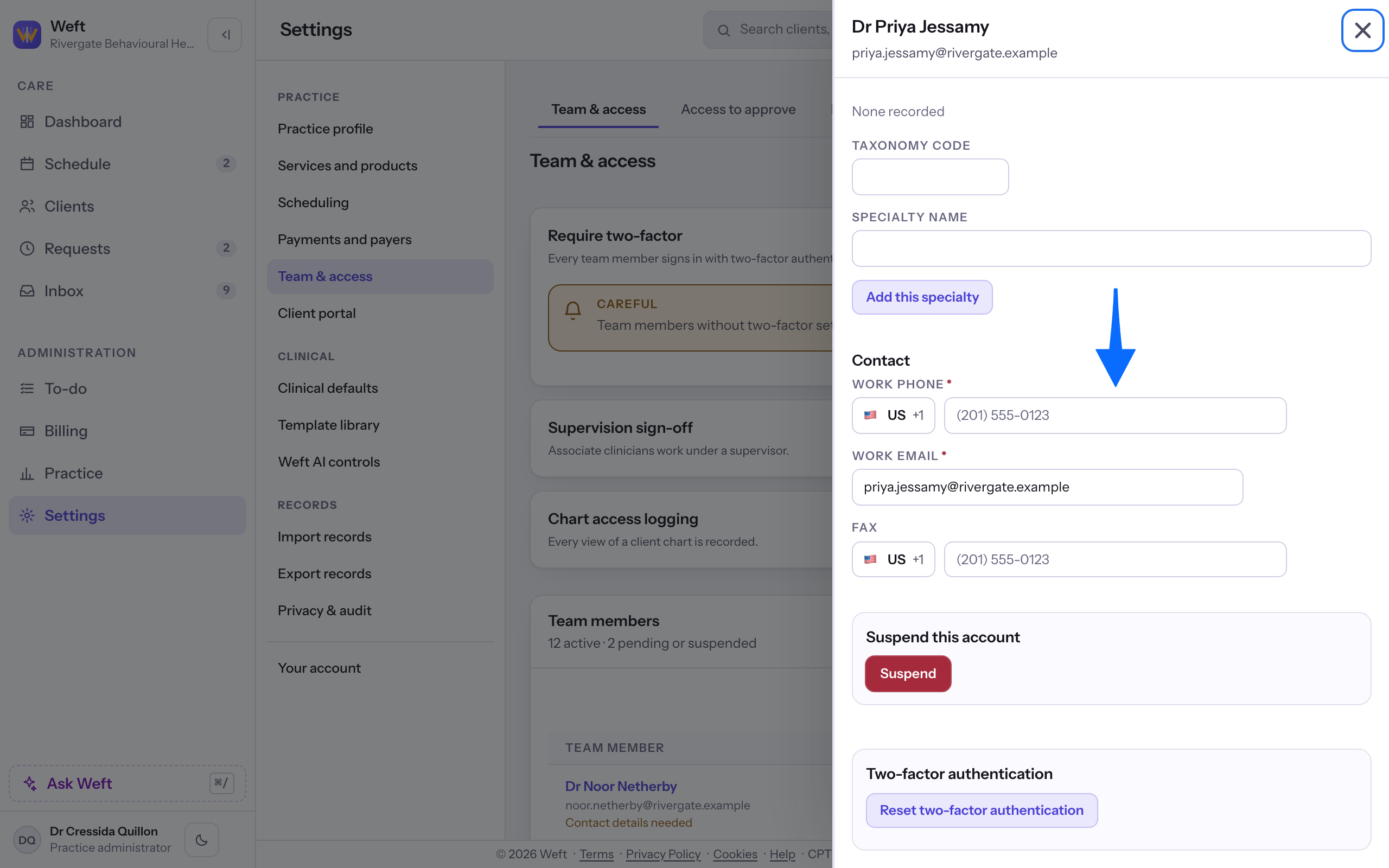
- For a provider, update Credentials, NPI and NPI type under Provider details. Specialties use Taxonomy code, Specialty name and Assert this one by default. Select Save their details when it appears.
- Update Work phone, Work email or Fax, then select Save their contact details when it appears.
- Select Choose a photo, choose an image and select Use this photo.
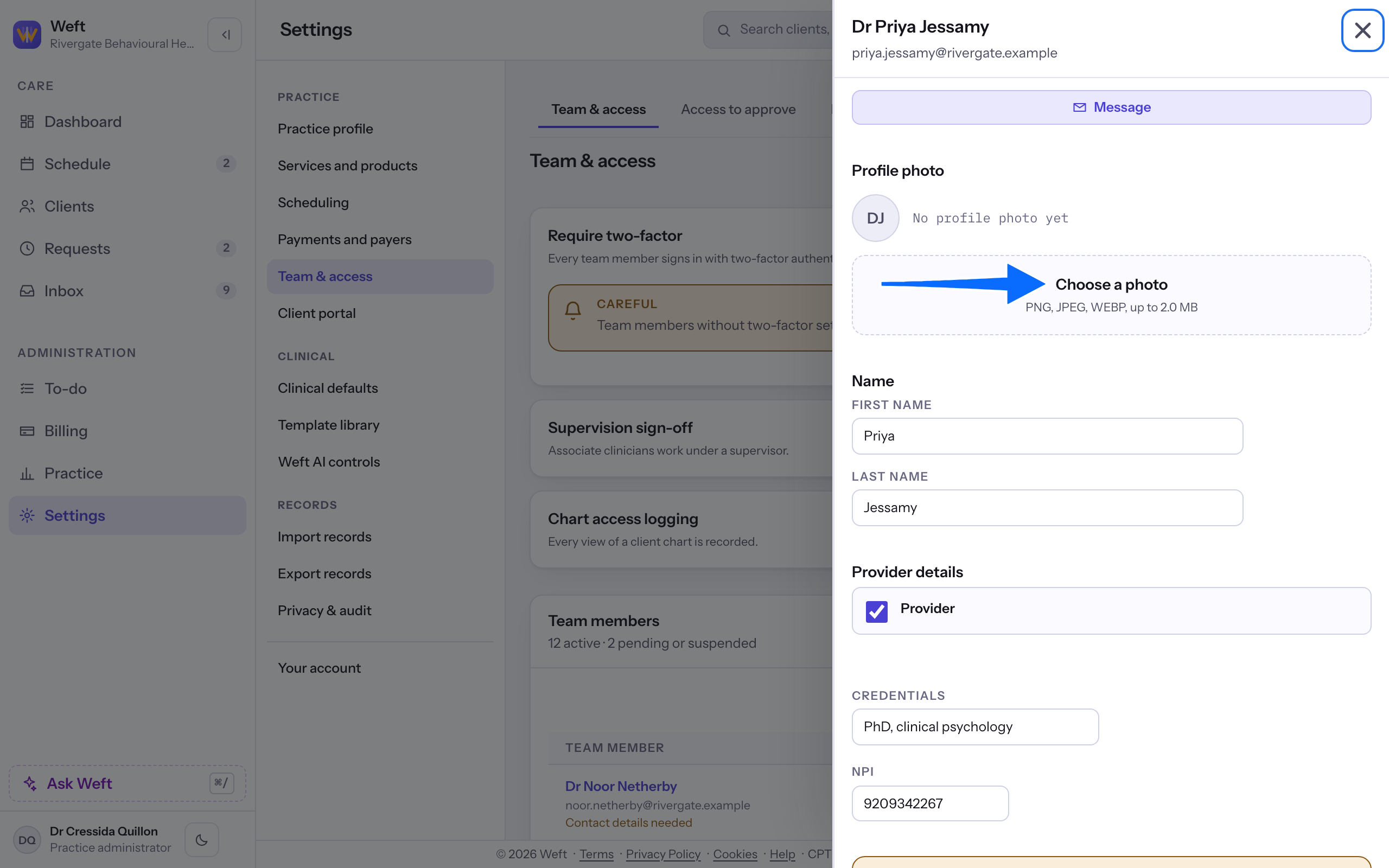
Note: Each Save button appears after a change. Edit on this sheet changes roles, not the profile. See Changing a team member's role.
Message the team member
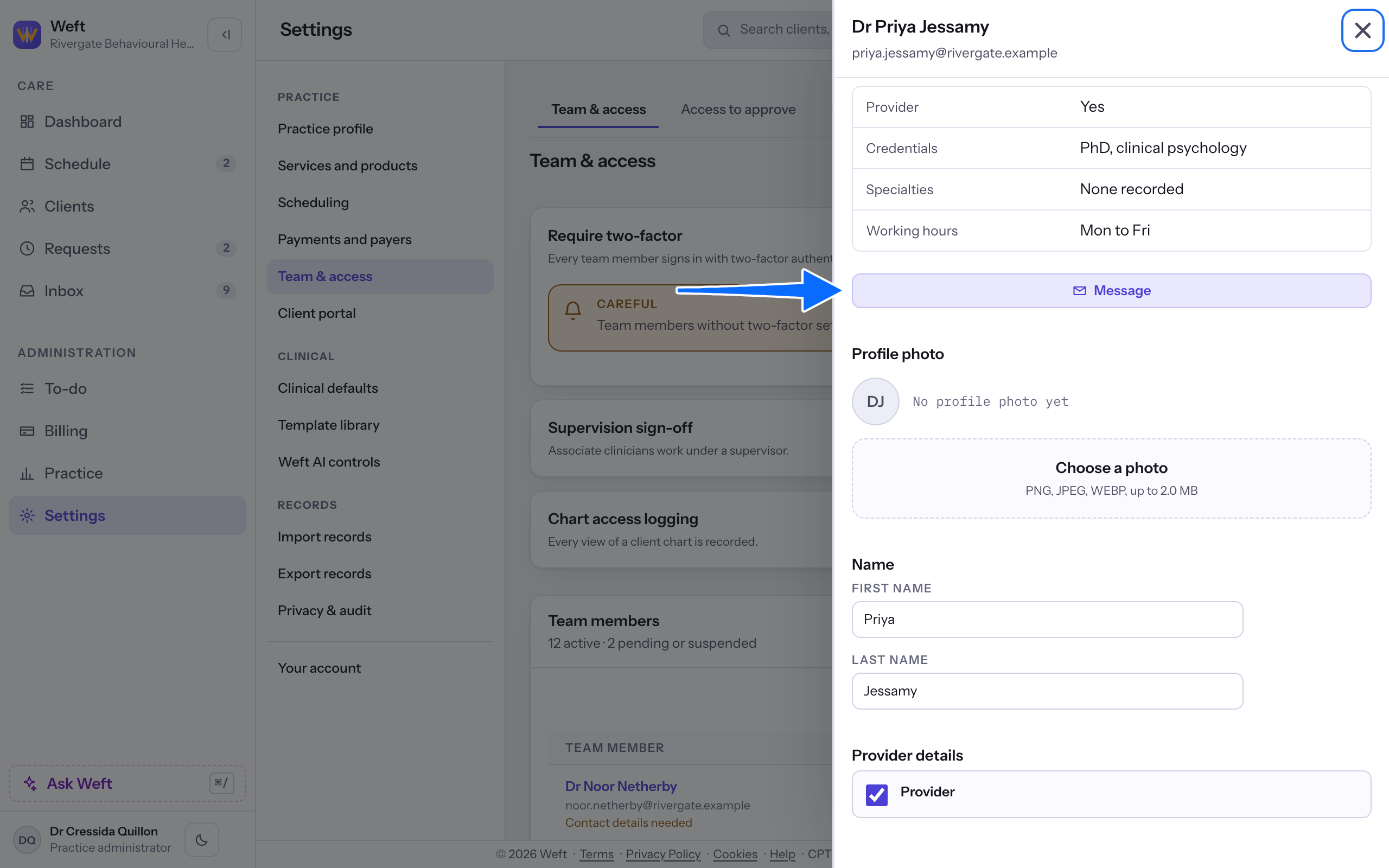
- Select Message on the team member sheet.
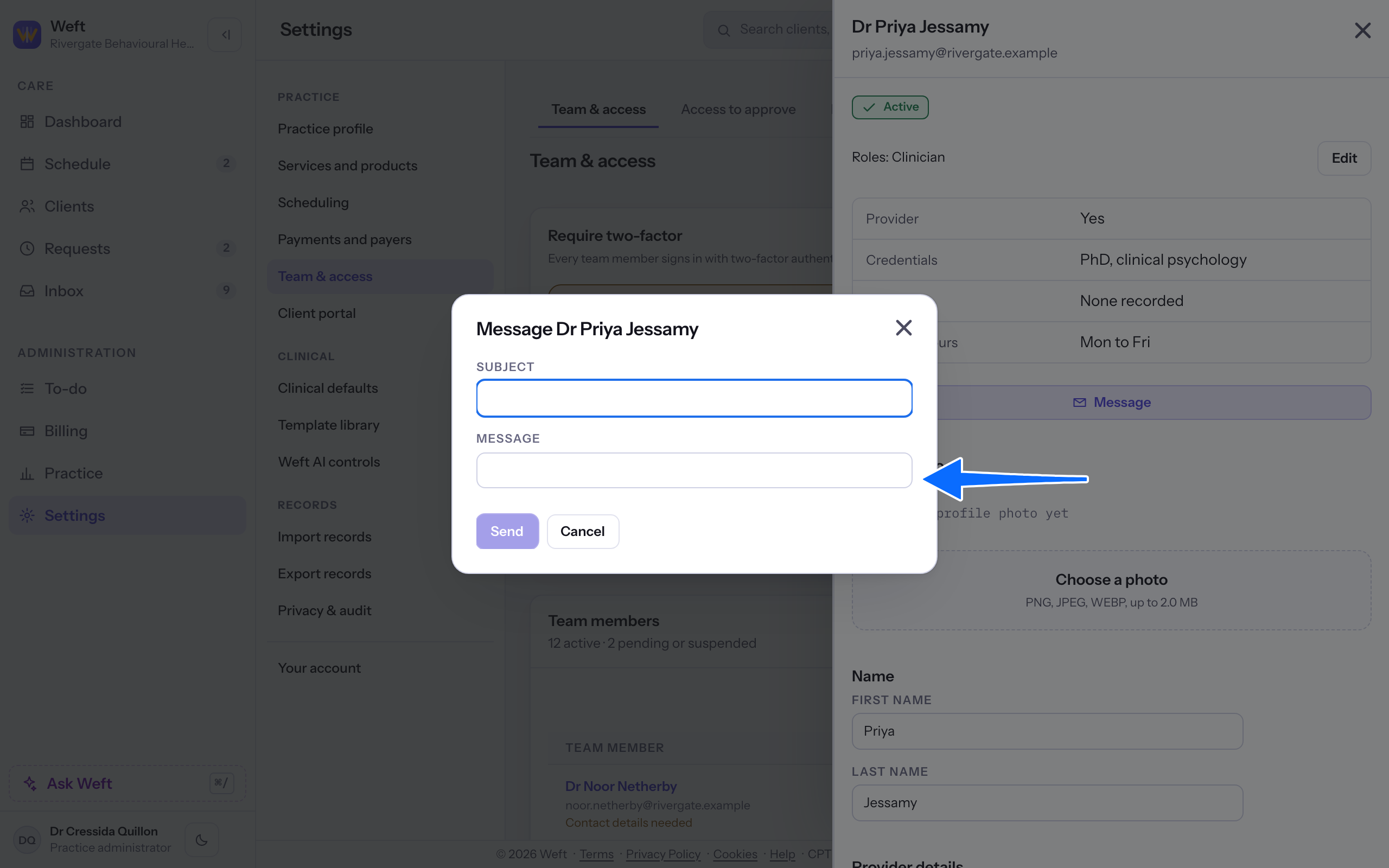
- Enter your Message. Subject is optional.
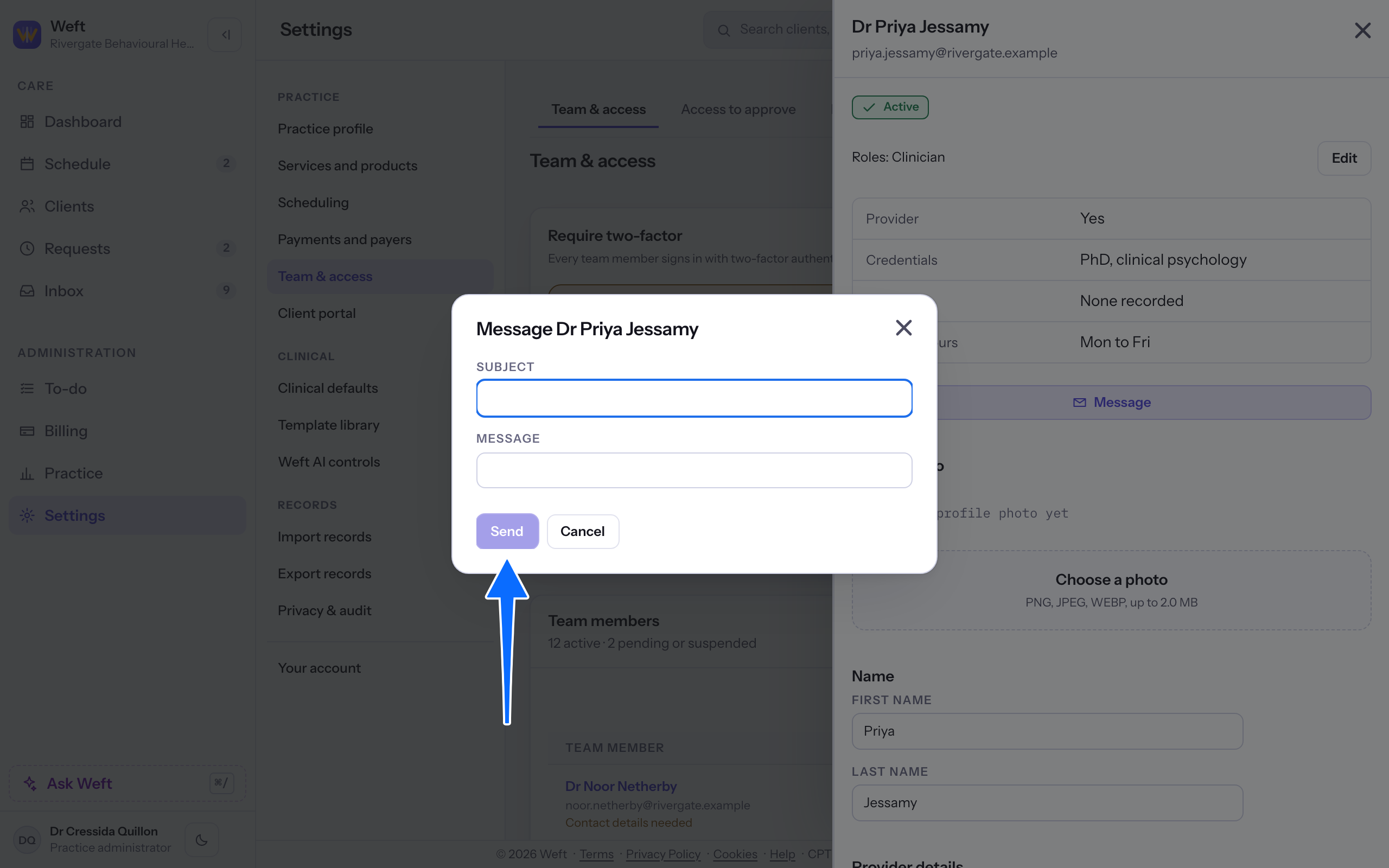
- Select Send, or Cancel to close the form. Send stays unavailable until the message has text.
Note: The Message button is not drawn on your own sheet, or for a team member who holds no inbox.
Last checked against Weft on 01 Nov 2026. Something on your screen reads differently? Tell us at support@weftary.com.