
Choosing the right role for a team member
Compare roles, choose a team member's roles and read what each includes.
Who this is for: Practice administrator
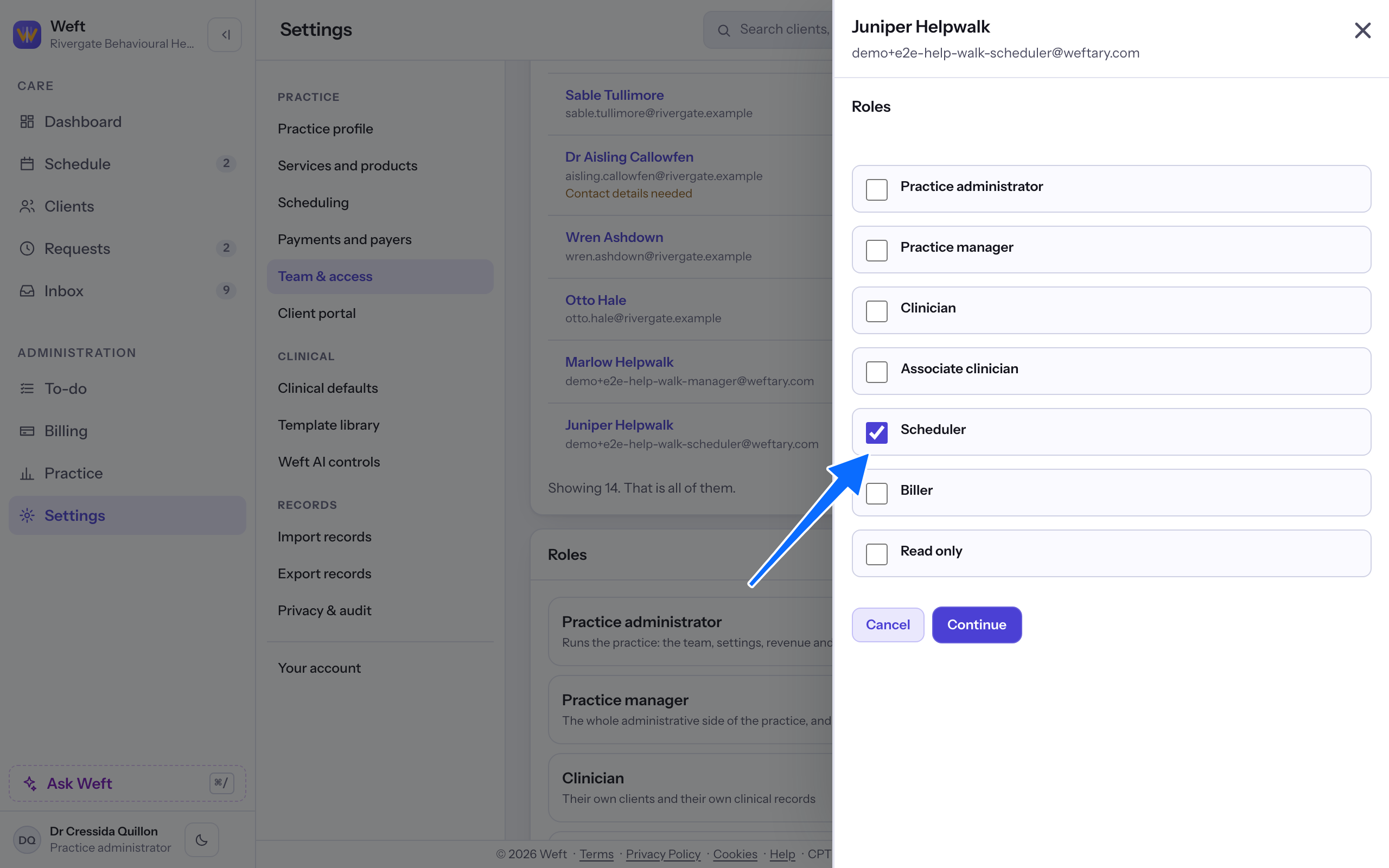
Choose roles for one team member
This is the team member role editor. A team member may hold several roles, so tick every one that fits their work. The next section describes each role.
- Open the team member from the Team members card in Team & access, then select Edit. Under Roles, use the checkboxes to choose one or several roles.
Read what a role includes
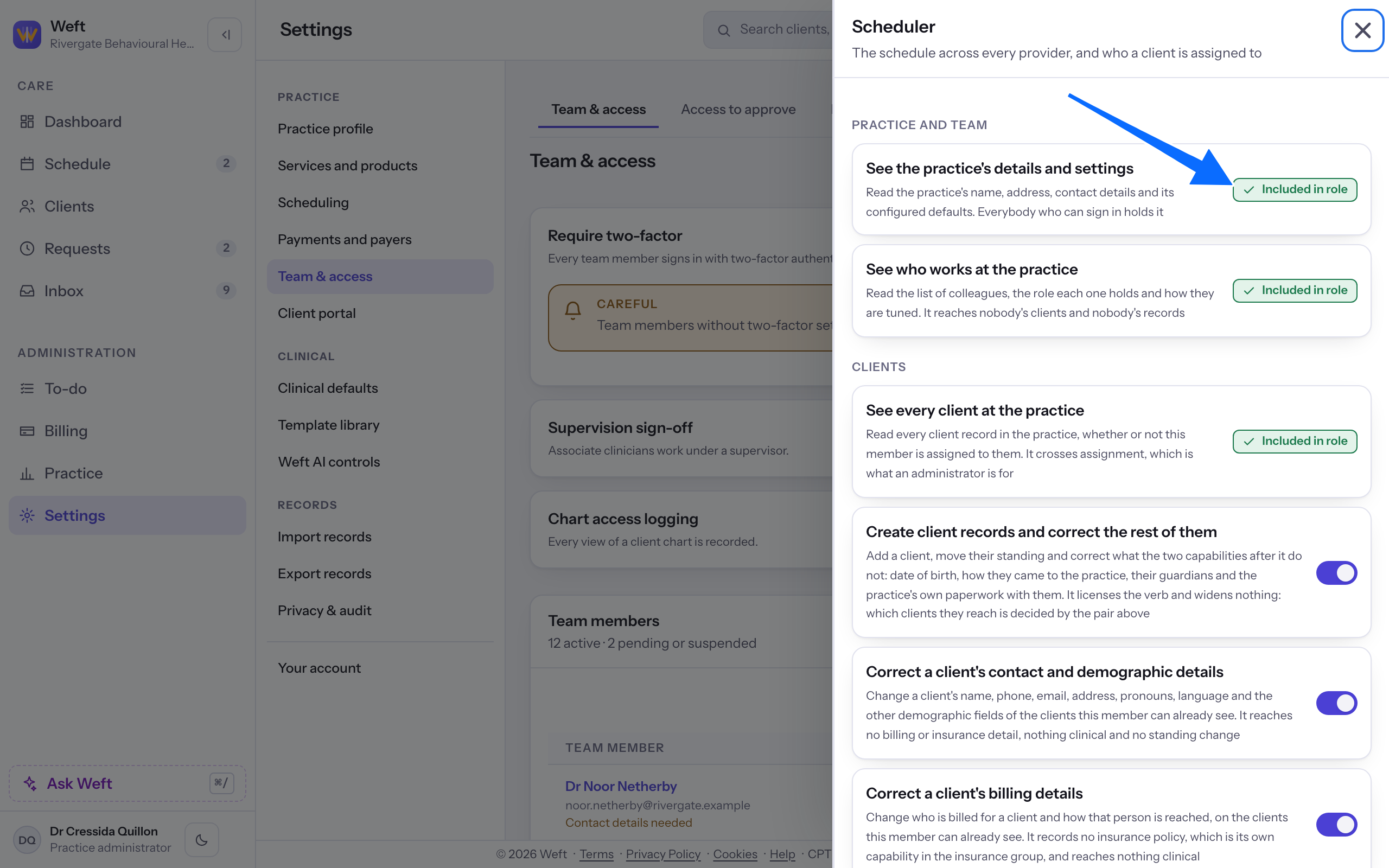
This is the owner's role directory, separate from assigning roles to a team member. Changes here apply to the role. For assignment steps, see Inviting a team member and Changing a team member's role.
- As owner, open a role from the Roles list on the team page. Ticks marked Included in role show its fixed permissions. Permissions that can change show On or Off.
- As owner, turn a permission's switch on or off, then confirm it is you. The change applies to everybody who holds that role.
What each role is for
- Practice administrator: Runs the practice: the team, settings, revenue and the access log.
- Practice manager: The whole administrative side of the practice, and no clinical record.
- Clinician: Their own clients and their own clinical records.
- Associate clinician: Their own clients, with notes going to a supervisor.
- Scheduler: The schedule across every provider, and who a client is assigned to.
- Biller: Every client across providers, for billing, and no clinical record.
- Read only: Signs in and sees that the practice exists.
Last checked against Weft on 01 Nov 2026. Something on your screen reads differently? Tell us at support@weftary.com.