Sending an invoice or payment link to a client
Email an issued invoice or choose a payment link while adding a payment.
Who this is for: Biller
Use the invoice action buttons to email an invoice. Payment links are a choice when adding a payment.
Open the invoice actions
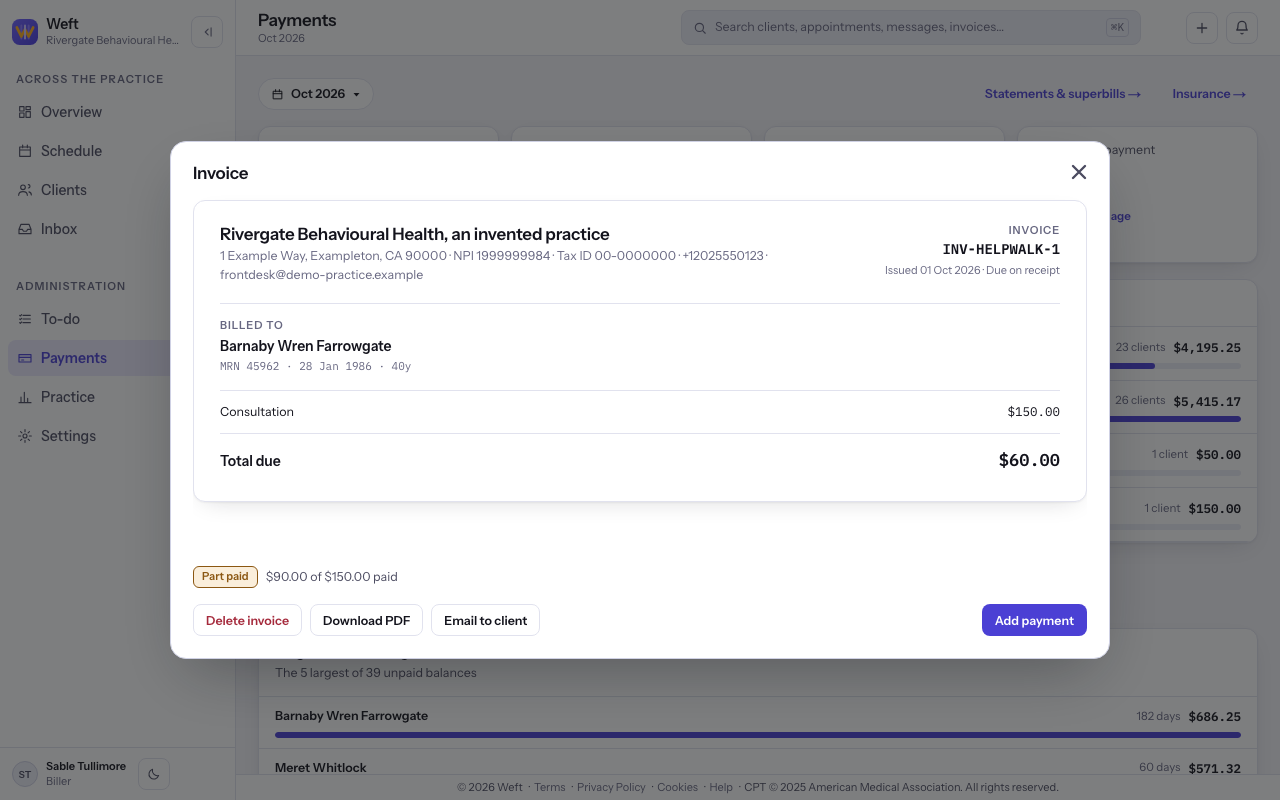
- Open the invoice and find the row of action buttons, including Download PDF and Email to client. See raising an invoice if it is still a draft.
Email the invoice
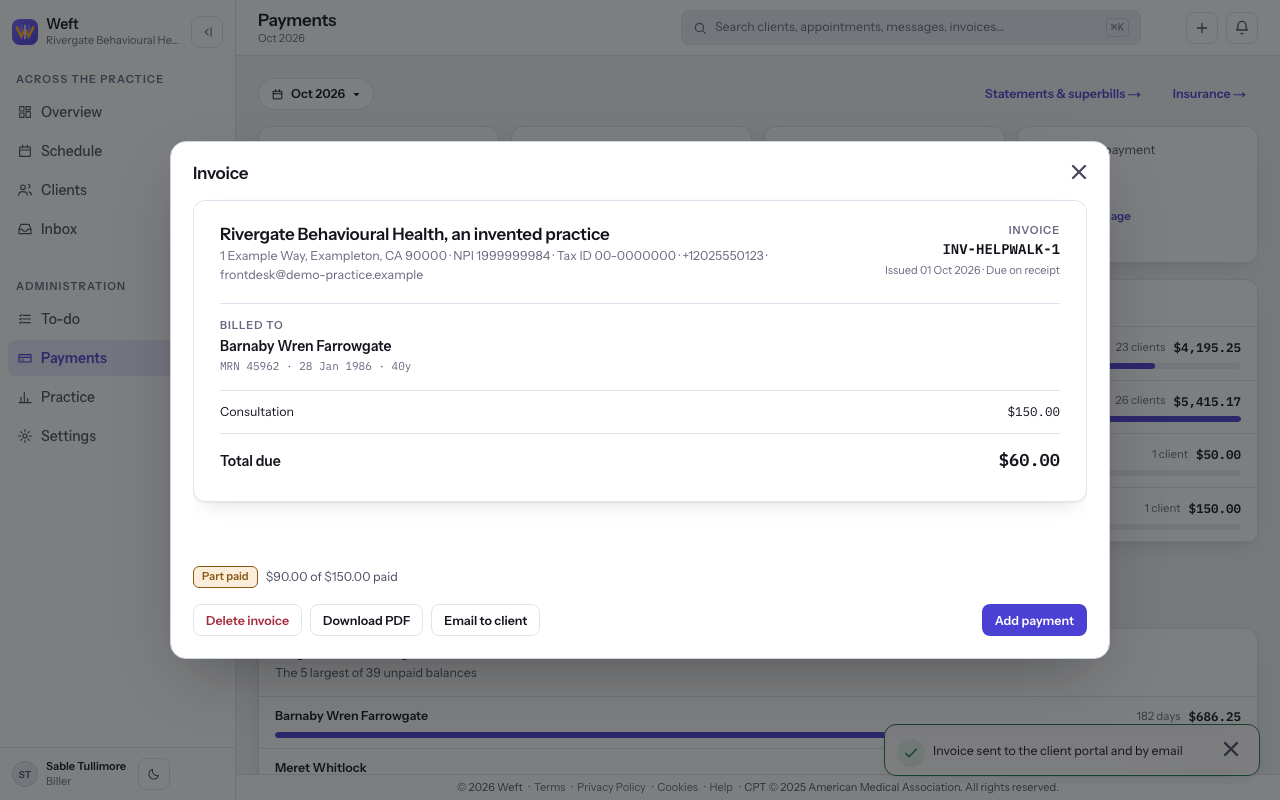
- Select Email to client. It sends immediately; look for Invoice sent to the client portal and by email.
Choose a payment link
- Select Add payment and review Payment method. Choose Payment link to request payment by link.
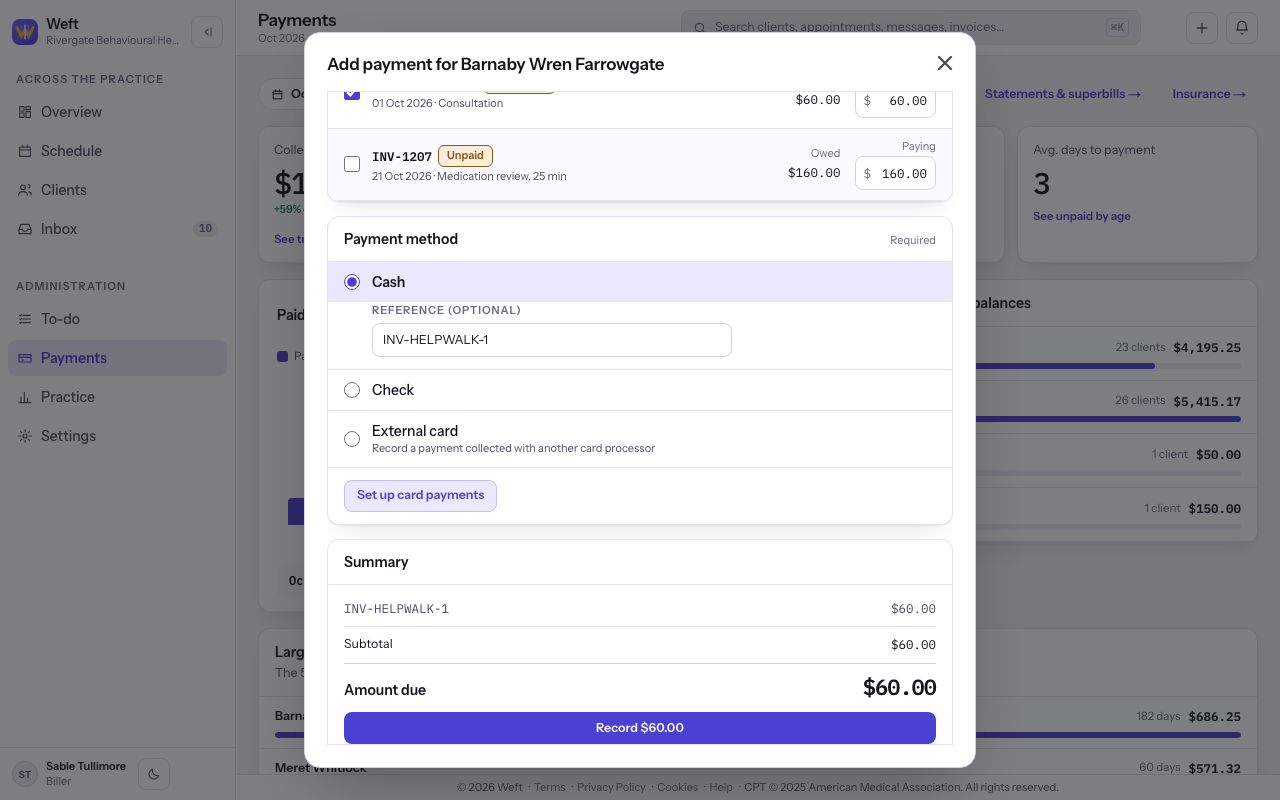
Note: Payment link appears once the practice takes card payments. See setting up card payments. For the rest of the payment steps, see taking a payment.
Last checked against Weft on 31 Oct 2026. Something on your screen reads differently? Tell us at support@weftary.com.