Raising an invoice
Create an invoice from a client's sessions or your practice's services, issue it, and delete it if it was wrong.
Who this is for: Biller, Practice manager, Practice administrator
Create the invoice
- Open the client and select Payments in the chart's rail, then Create an invoice. You can also start from Create an invoice on the Payments screen.
- Select Add a service. Under Uninvoiced appointments of the client, select Add beside an appointment to bring in its lines, priced from the booking; where there are none it says No uninvoiced appointments. Under Practice products, select Add beside a visit type to add it at its usual price.
- To add anything else, select Add line item and give the Date of service, a Description and an Amount. A negative amount, such as -30.00, is an adjustment like a sliding scale.
- Select Generate invoice. It is saved as a draft.
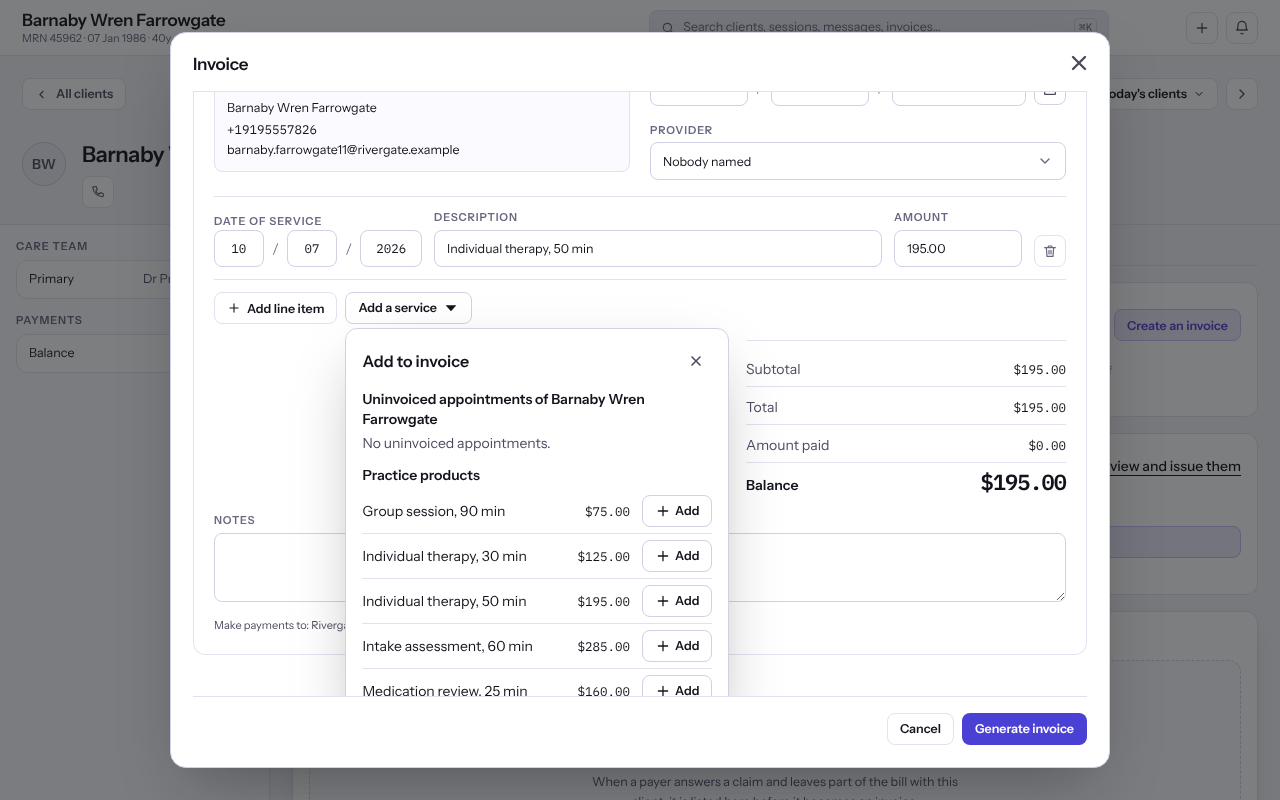
Note: An invoice carries one appointment at most. Once one is on it, the panel names it instead of listing the others.
Issue it
- Open the draft. To change it, select Edit invoice.
- Select Issue invoice, then Issue the invoice. The charges go on the client's balance.
Note: A client with portal access sees an issued invoice in their portal, where they can pay it by card. Drafts are never shown to them.
Delete an invoice
- Select Delete invoice on the invoice, or Delete beside it in the client's Payments area.
- Select Delete invoice again to confirm. Any payment already taken on the invoice becomes the client's account credit.
Important: A deleted invoice is no longer shown to anyone, and an emailed payment link for it stops opening. An invoice that an insurance claim, an insurance payment or a payment dispute still depends on cannot be deleted until that is cleared.
Last checked against Weft on 07 Oct 2026. Something on your screen reads differently? Tell us at support@weftary.com.