
Reading reports and exporting them
Open the rows behind an Insights figure, read them for your own clients or the whole practice, and export them as a CSV file or an Excel workbook.
Who this is for: Practice administrator, Practice manager, Scheduler, Biller, Clinician, Associate clinician
Each figure on Insights is counted from rows you can read. A report lists those rows, so you can see what a figure is made of and take the rows away as a spreadsheet. Which reports you see, and whose rows they count, depend on your role.
Find the reports
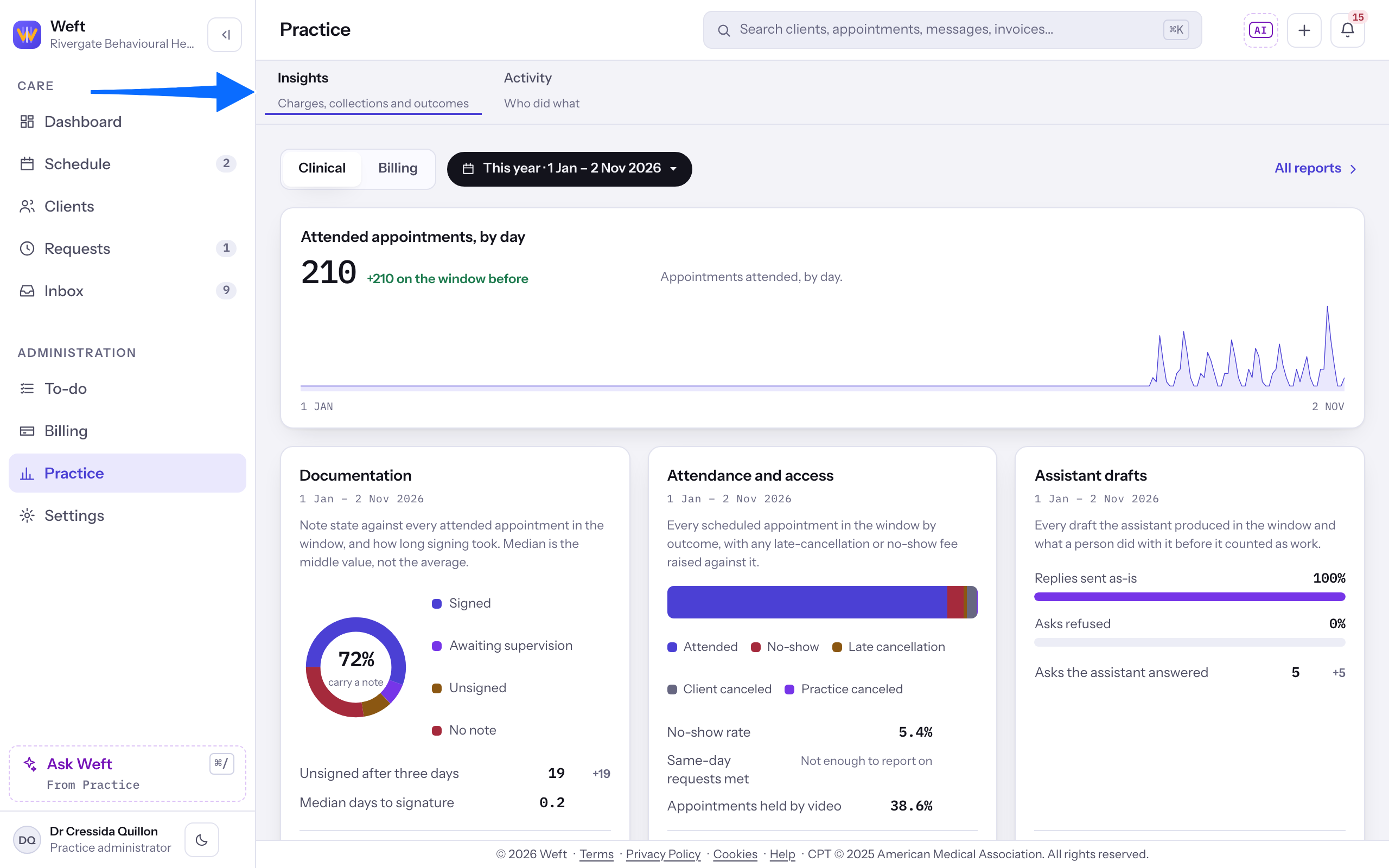
- Select Practice in the side rail, then Insights. A reader of billing can also select the Reports tab in Billing, which opens the same list.
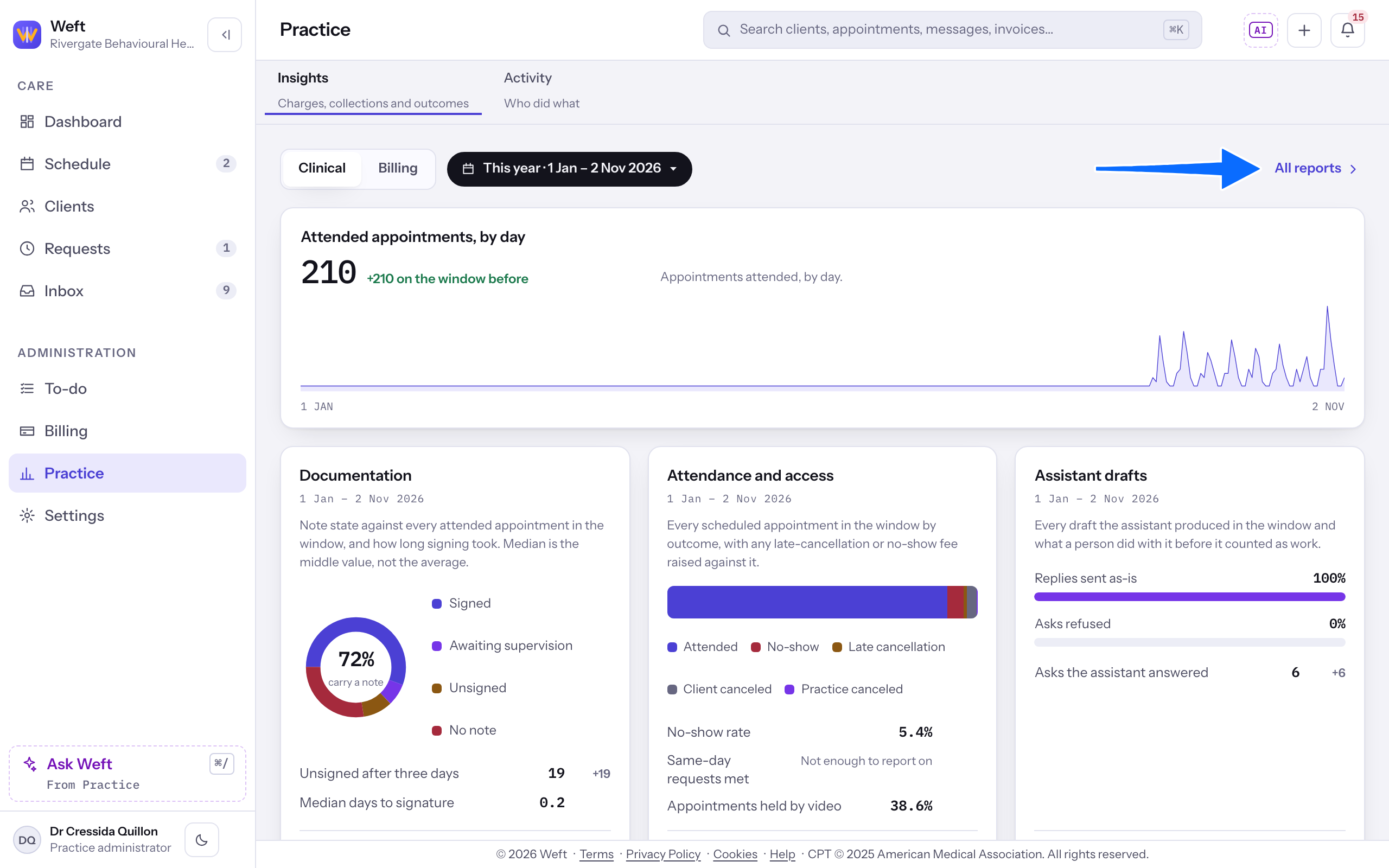
- Select All reports, at the right end of the row that holds the period button, to list every report open to you. A figure whose rows you can open also ends in a name followed by an arrow; select that to open its report directly. Five of those names differ from the report they open: Documentation opens Writing up, Attendance and access opens Access and attendance, Assistant drafts opens What the assistant is worth, Ledger movements opens Payment flow, and Claims and adjudication opens Claims by adjudication status.
Choose from the report list
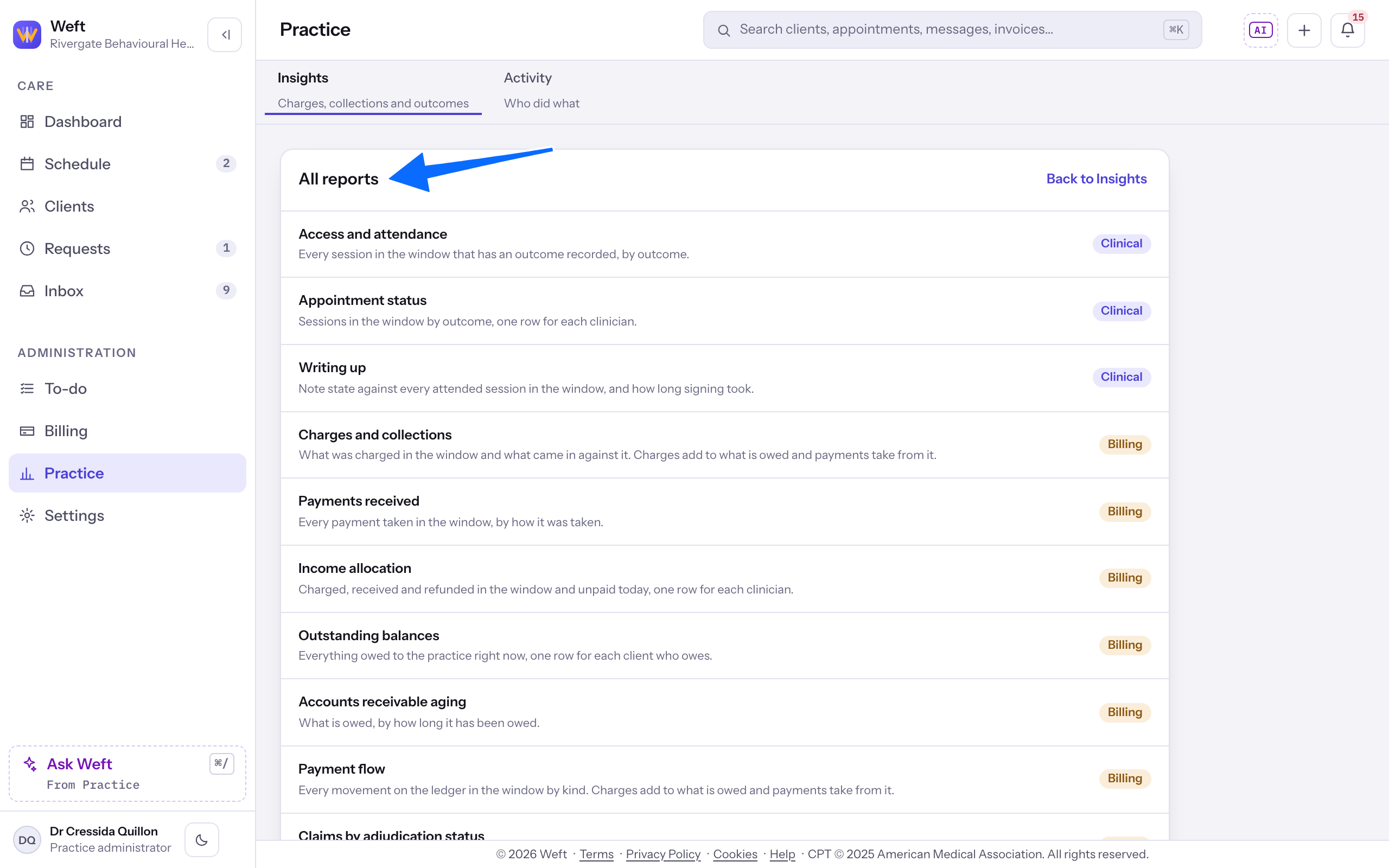
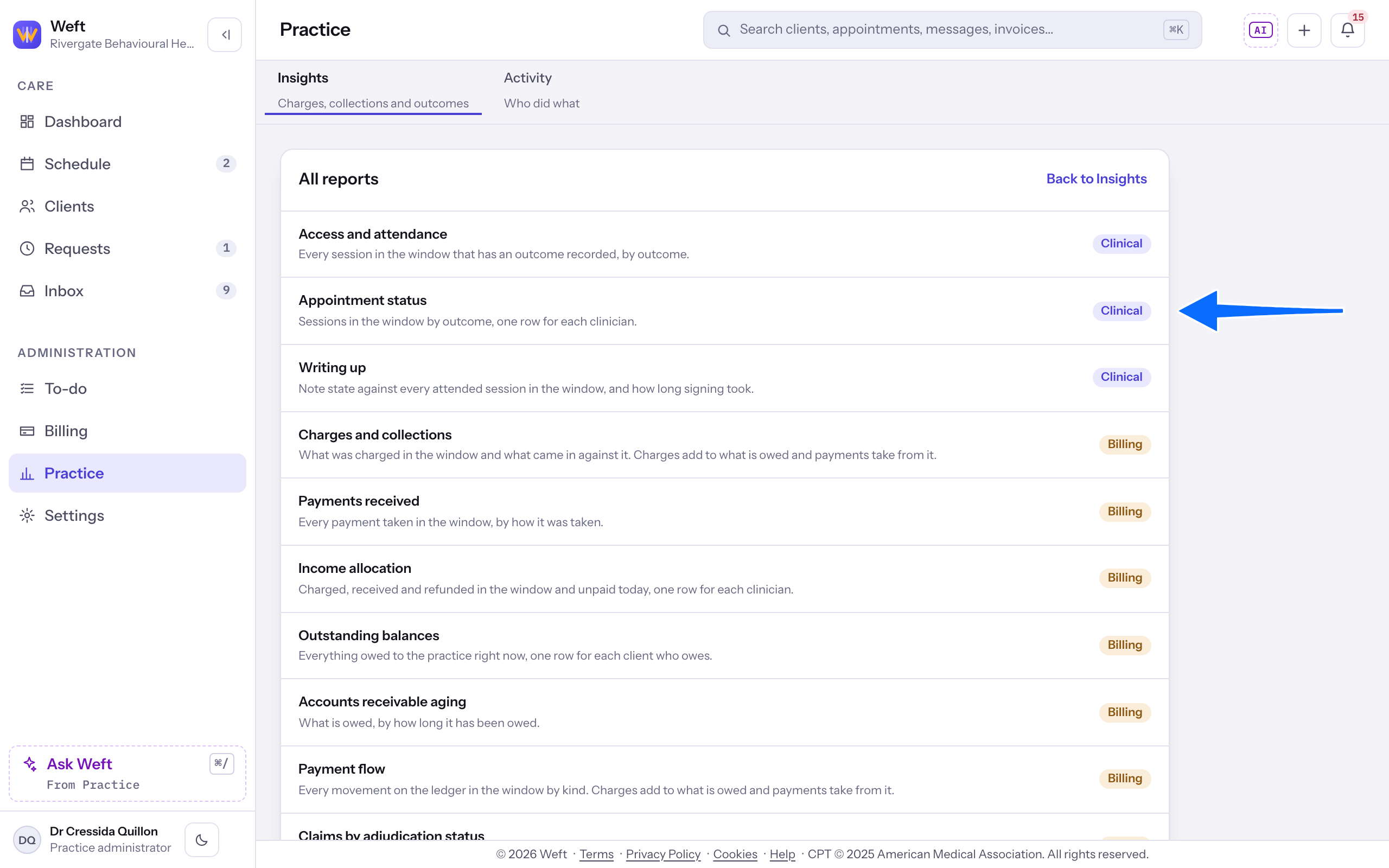
- The list is headed All reports. Each row gives the report's title, a line saying what it counts, and a tag, Clinical or Billing.
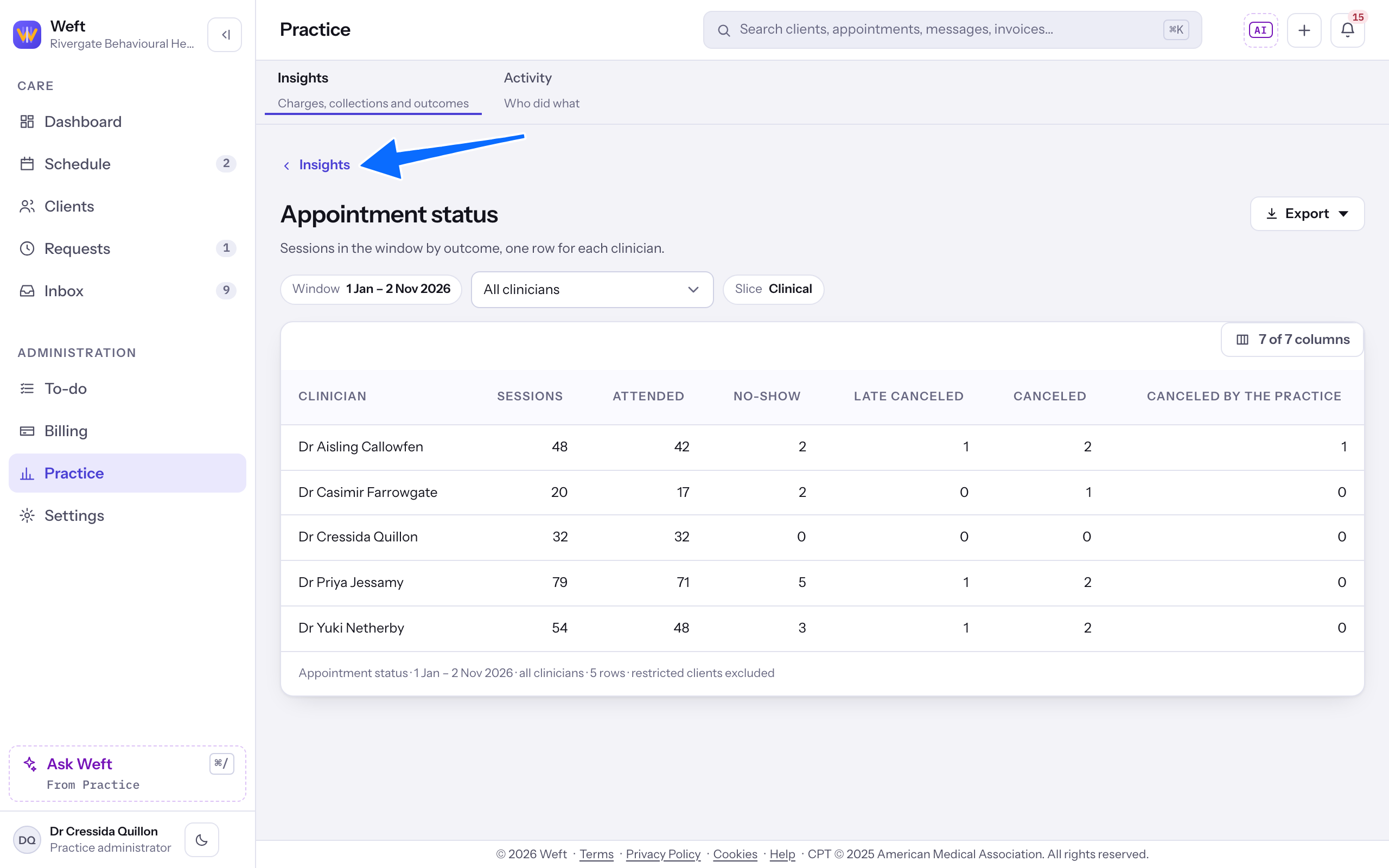
- Select a report to open it. Select Back to Insights to return to the figures.
Note: The list follows your role. Appointment status, Access and attendance and Telehealth appointments are open to every role this article is for. Writing up is open to a practice administrator, a clinician and an associate clinician. Charges and collections, Payment flow, Income allocation, Accounts receivable aging, Outstanding balances, Payments received, Invoices, Invoicing by clinician, Client and payer balances and Monthly income are open to a practice administrator, a practice manager and a biller. Claims by adjudication status, Unpaid insurance appointments, Outstanding claims by payer, Submitted claims and Remittances received are open to those same three, Eligibility check history is also open to a clinician, who see only their own clients, and What the assistant is worth to a practice administrator and a practice manager. A clinician or associate clinician sees Outstanding balances, Payments received and Invoices only if an administrator has given them access to billing, a clinician sees the other billing reports only if they have been given billing for the whole practice, and a clinician sees the claim and remittance reports only if they have been given every client at the practice. Client details and Emails sent are open to a practice administrator and to anyone given every client at the practice, and to a clinician or associate clinician, who see only their own clients. A scheduler sees no billing report. An administrator can widen any role, and the list shows what you were given. If none is open to you, the list says No reports and No reports are open to you.
Note: While the practice's Default record classification is 42 CFR Part 2, Writing up and What the assistant is worth are left out of the list for everybody.
Read one report
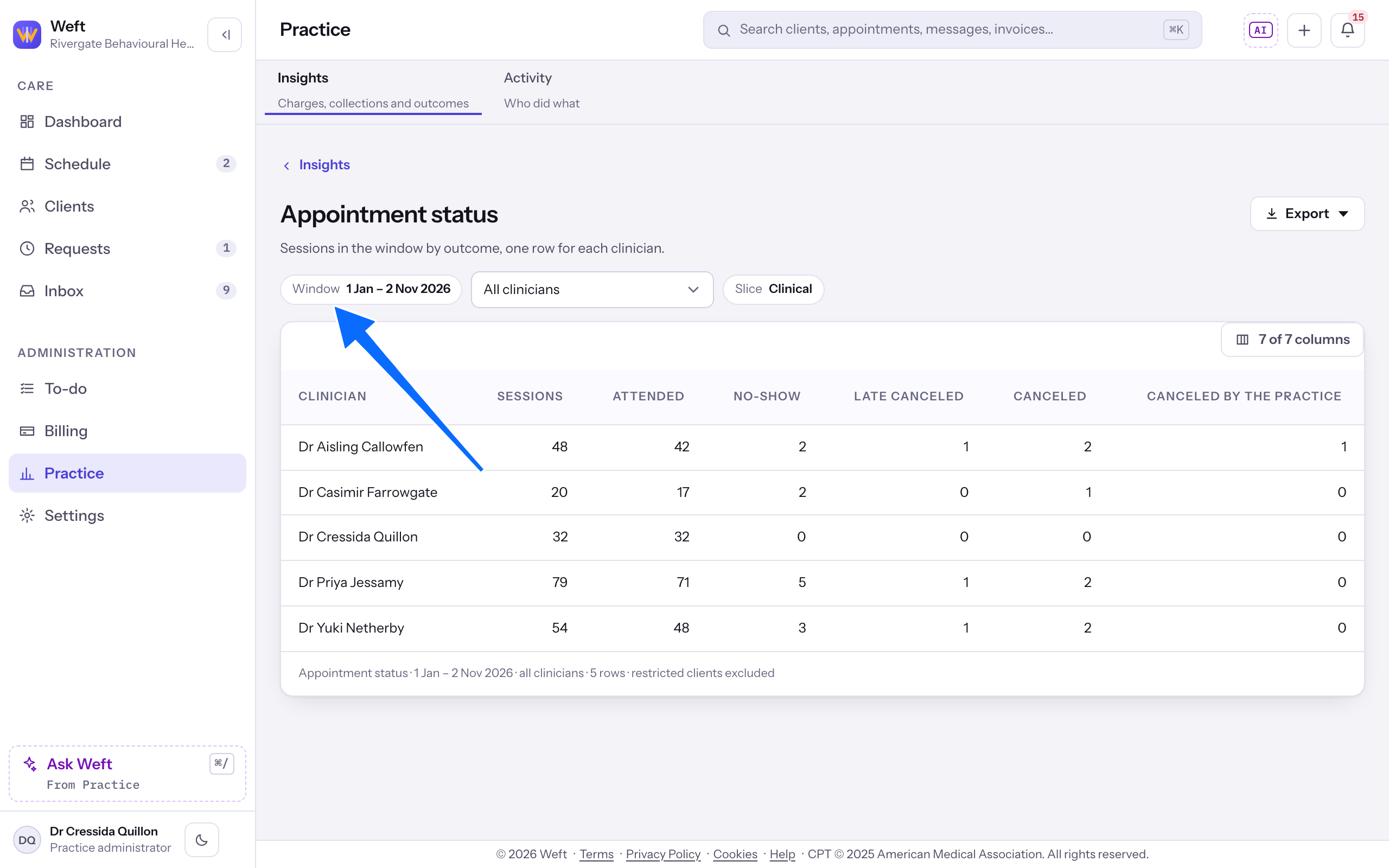
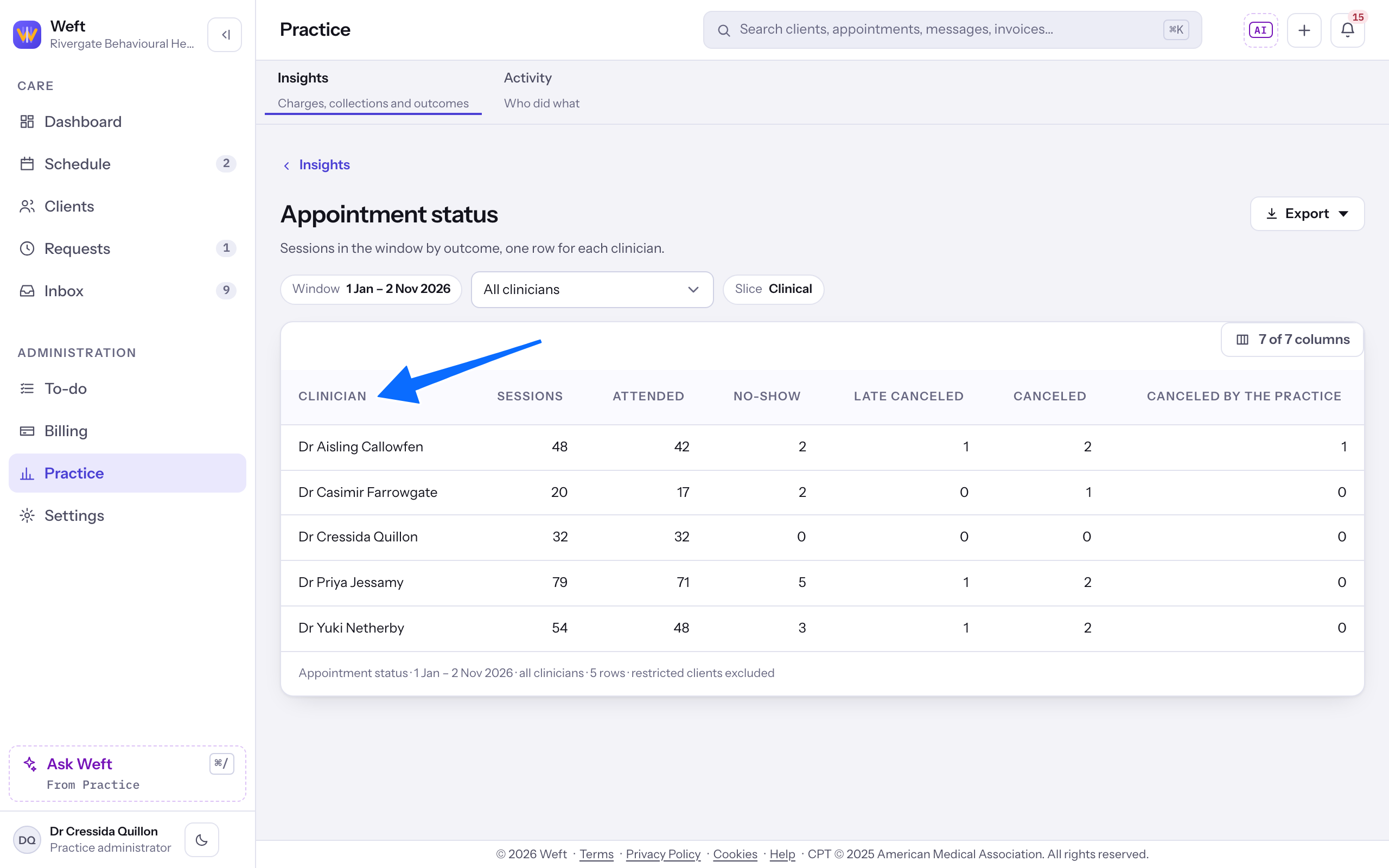
- Under the report's title is a line saying what it counts. Below them is a row of tags that only show what the report covers; none of them can be selected. Window gives the dates the rows are counted over, or As of today for a balance. A second tag names whose rows are counted, and a last one reads Clinical or Billing. If you read every client at the practice, the second one is a list instead, which you can change (see Whose rows you see).
- Read the table. Its columns differ by report, and every amount is in dollars. A report with nothing to count says Nothing was counted in this window. Choose a longer window., or Nothing is outstanding as of today. for a balance.
- Under the table, one line repeats the report, the window, whose rows these are and the row count, and ends restricted clients excluded. A long report shows its first rows only, and the line then says how many of the total are showing, such as 200 of 340 rows. The file you export holds all of them.
- To count other days, select Insights, above the report's title, open the period button, choose This month, Last 30 days, Last month, This year or Custom, and select the button beginning Show. Then open the report again; it keeps the period.
Note: Outstanding balances, Accounts receivable aging, Outstanding claims by payer, Client and payer balances and Client details are as of today, so the period does not change them.
Whose rows you see
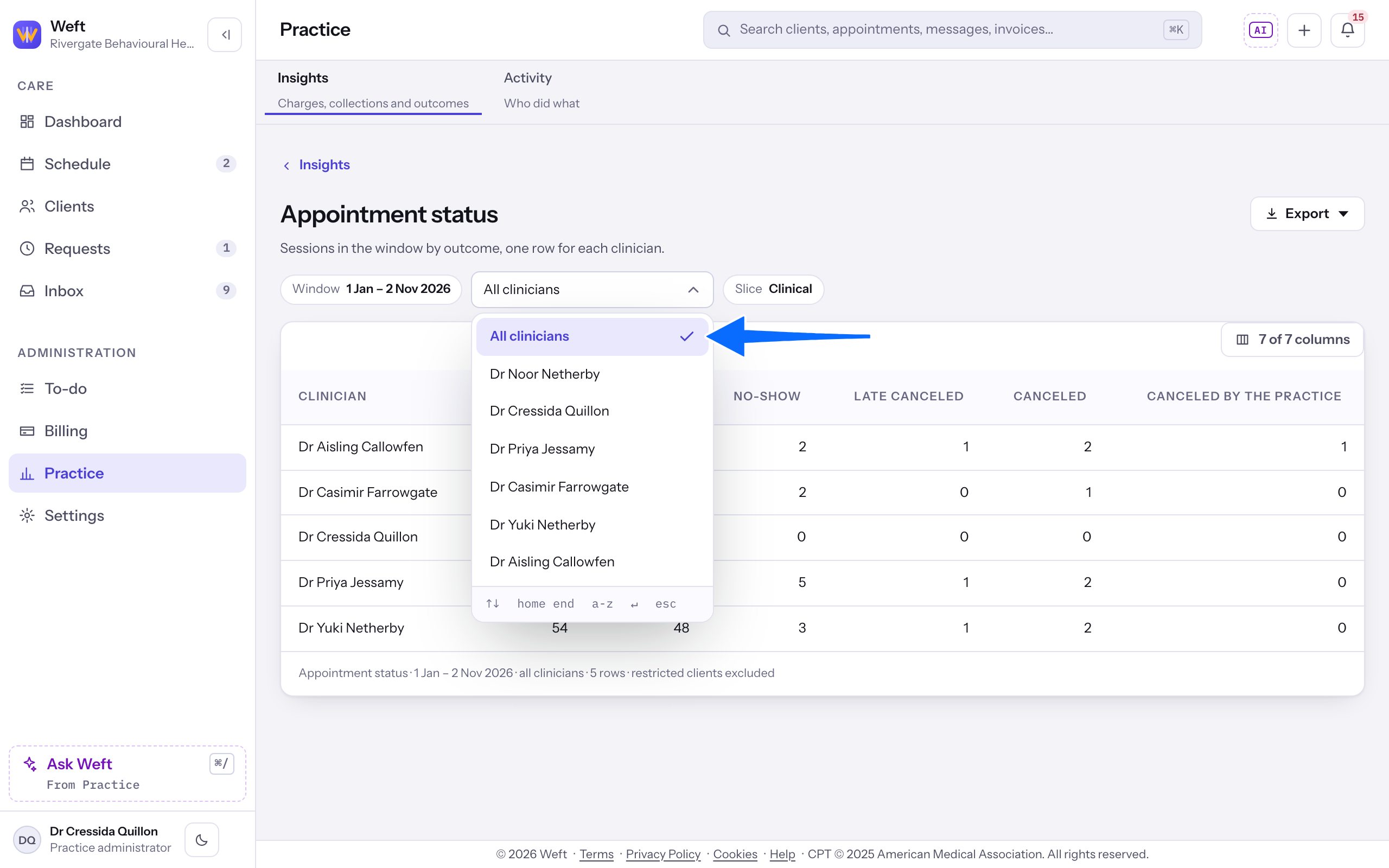
- If you can read every client at the practice, the report counts all clinicians. Open the list that reads All clinicians and choose a team member to see only their rows, or choose All clinicians to go back.
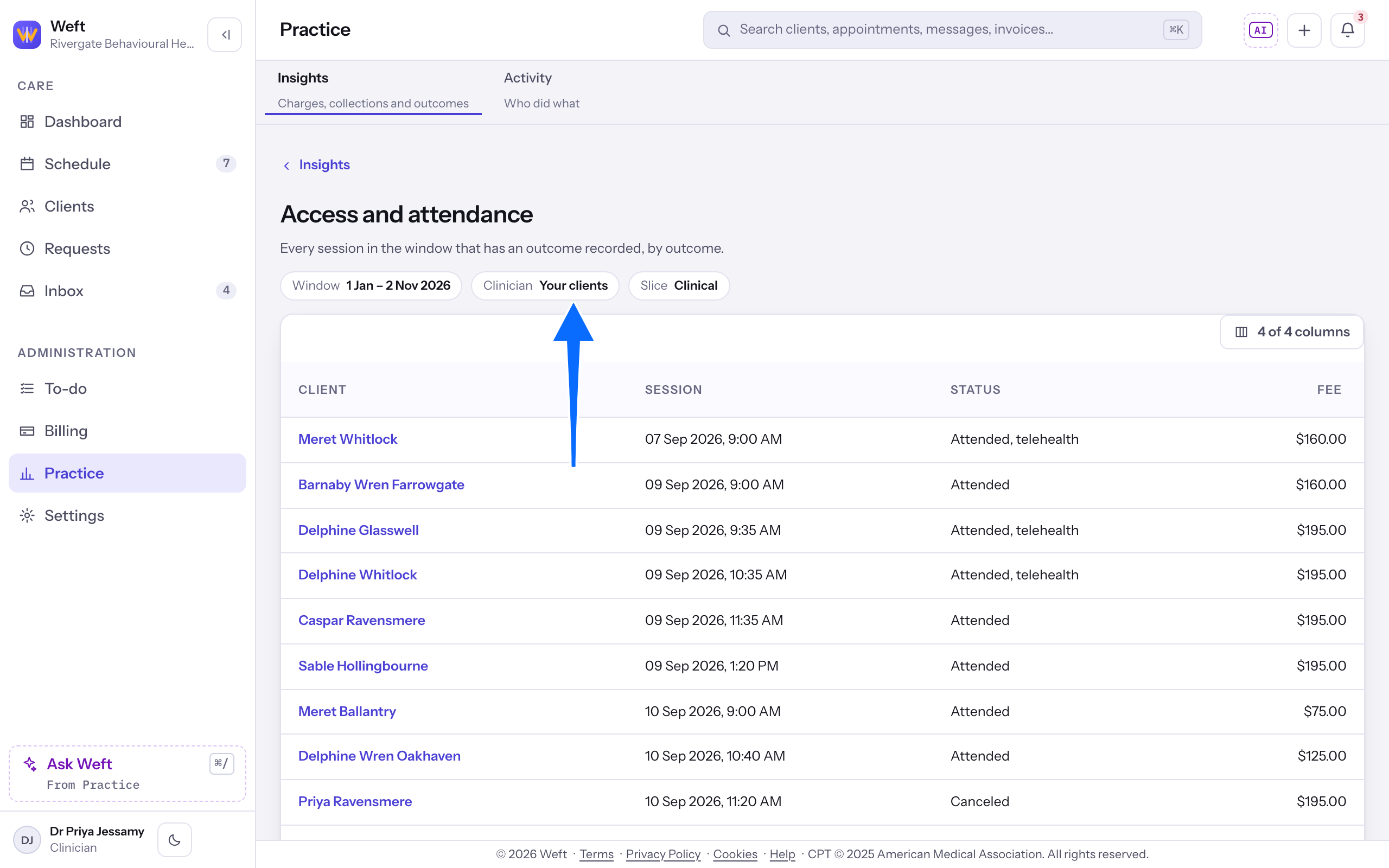
- If you can read only your own clients, there is no list. The Clinician tag reads Your clients, and the report counts those clients and no one else's.
Note: A clinician always sees their own rows, and asking for a team member's rows is refused. A client whose record is restricted from you is left out of the rows and of any file you export, and a report that cannot be opened for your role says You don't have permission to view this report.
Sort a report and open a row
- Select a column heading to put the rows in that order, and select it again to reverse it. The address keeps the sort, so a link you send opens the rows in the same order, and the file you export follows it.
- On a phone the rows are cards, so choose a column and direction under Sort by instead.
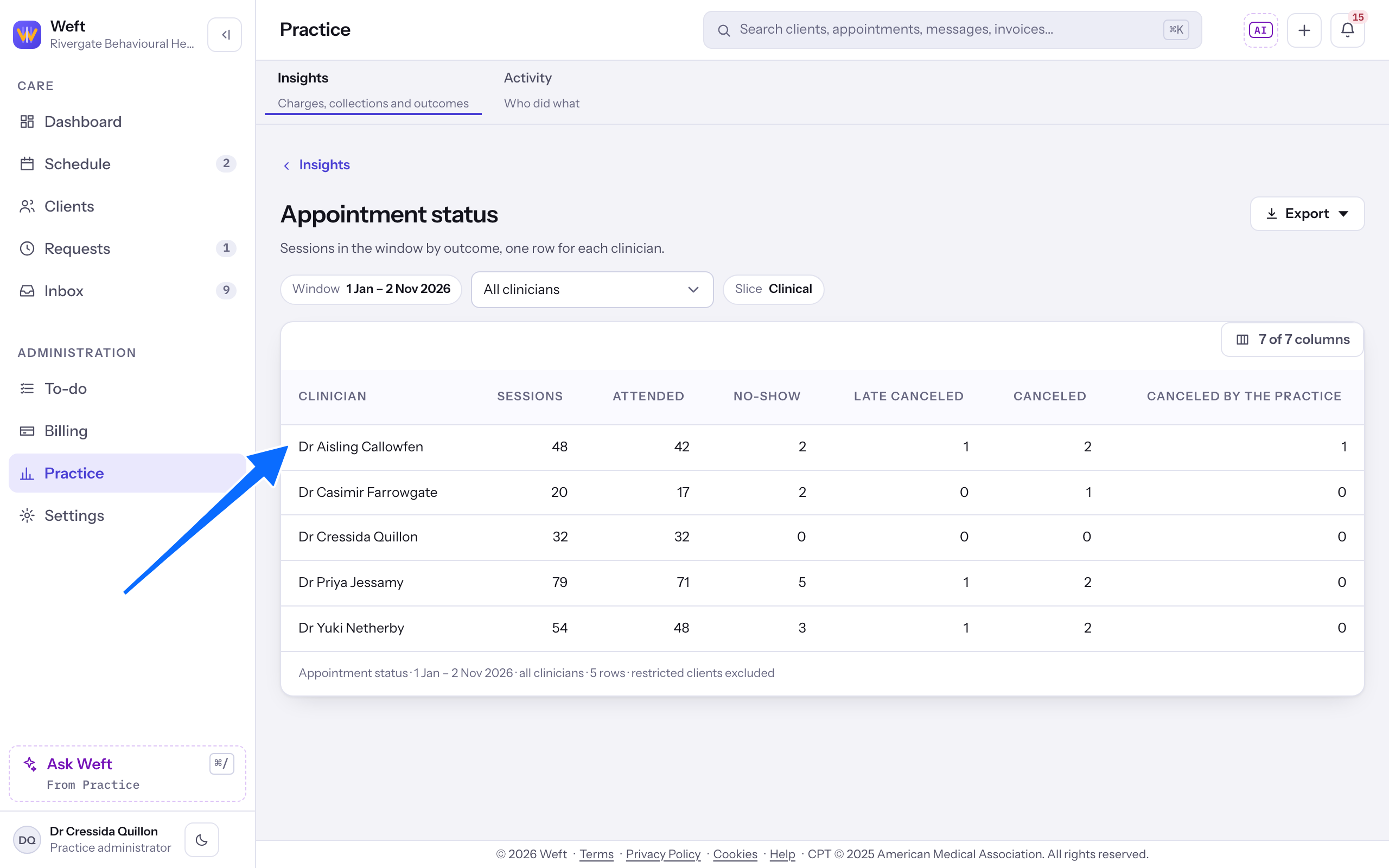
- Select the first cell of a row to open what it was counted from: the appointment, the claim, the remittance, the client's payments, or the client's insurance. A row opens something only when your role can open that screen, and a row that counts many records, such as one clinician's totals, opens nothing.
Export a report
- Choose the period first, on Insights, before you open the report (see Read one report). On the report, choose the clinician if you can, then select Export, which opens a menu of two choices: CSV, for your own analysis, and Excel workbook, with the same columns, formatted. The workbook has amounts as numbers and dates as dates. The button reads Preparing while the file is made, and the browser saves it.
- The file holds every row the report counts, not only the rows on screen, with the same columns. Amounts are in dollars, and the heading of each amount column names the currency. In a CSV, text that begins with =, +, - or @ is saved with a leading apostrophe, so a spreadsheet shows it rather than running it. The workbook keeps it as typed and never runs it.
- Each export is recorded in Activity with who took it, the window, the filters and the row count. The report page says so under its table.
- If the file cannot be made, Couldn't export this report appears with the reason and Nothing was saved to this device. Choose Export again.
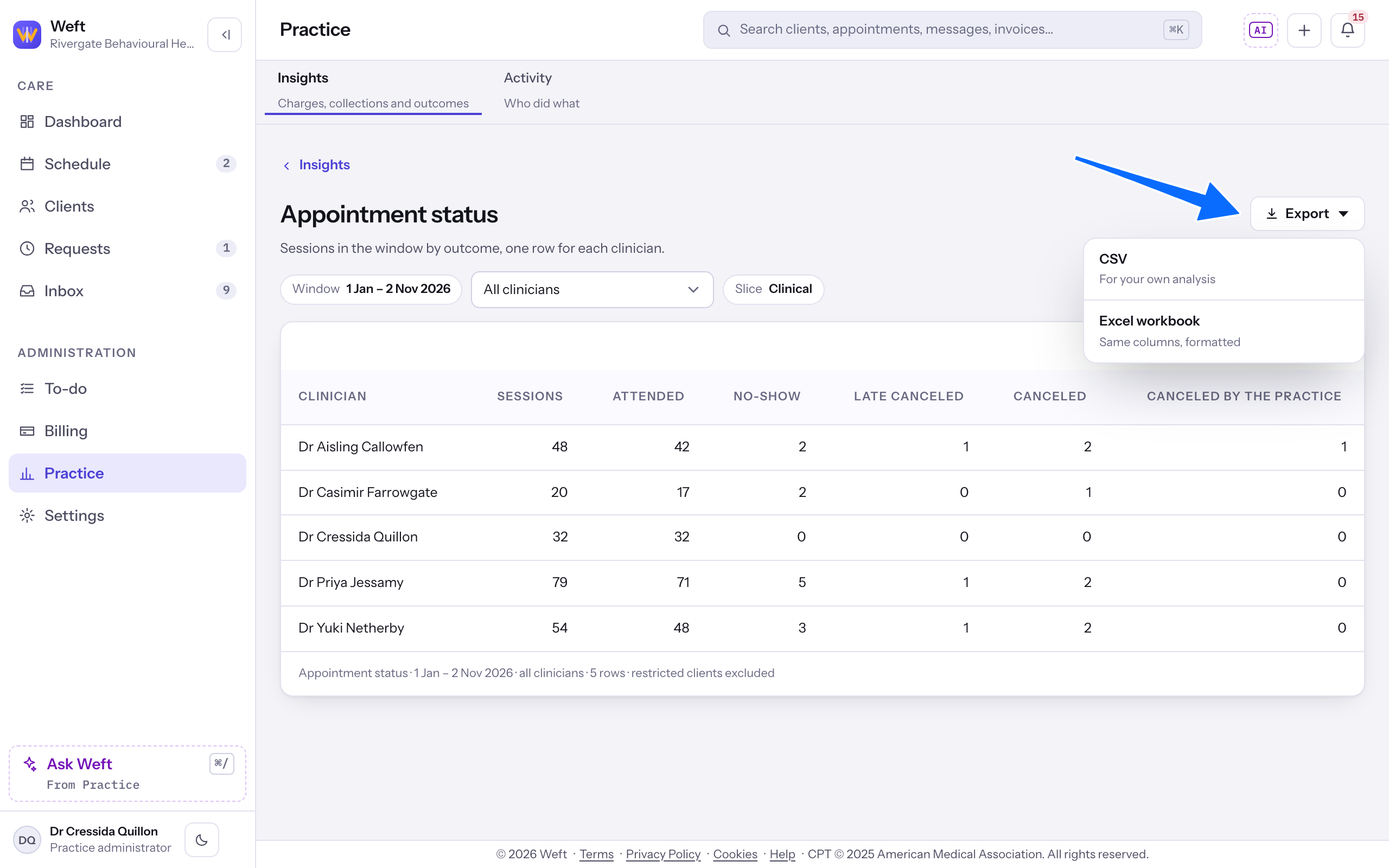
Note: Export appears only for people allowed to take client records out of the practice. That is the practice administrator, the practice manager and the scheduler, and anyone else an administrator gives it to. Everyone else reads the report on screen.
What each report lists
- Appointment status counts Attended, No-show, Late canceled, Canceled and Canceled by the practice for each clinician.
- Access and attendance lists each session with how it ended.
- Writing up lists each attended session with its note state and the days to signature.
- What the assistant is worth lists each draft the assistant made, how many characters a person changed, and whether it was signed or sent as it was, with each ask it declined.
- Charges and collections lists what was charged, discounted, received and refunded, and Payment flow lists every movement on the ledger, written off included.
- Payments received lists each payment taken, with how it was taken.
- Income allocation shows what each clinician was charged, received and refunded in the period, and what is unpaid today.
- Outstanding balances lists each client who owes, and Accounts receivable aging places the same debt in 0 to 30, 31 to 60, 61 to 90 and over 90 days.
- Claims by adjudication status lists each claim with its status and the allowed amount where the payer's remittance stated one. A denied claim shows $0.00, and a dash means none was stated.
- Unpaid insurance appointments lists each attended appointment in the period for a client with a policy on file where no claim has been paid, with the payer, the claim status or No claim, and the charge.
- Outstanding claims by payer lists each payer with the claims still waiting on the payer or on the practice, split into 0 to 30, 31 to 60, 61 to 90 and over 90 days since the service. It is as of today, so the period does not change it.
- Submitted claims lists each claim submitted to a payer in the period, by the first time it was submitted, with its status now and its charge.
- Remittances received lists each payment from a payer received in the period, with the payer, how it was paid, its status and the amount, left blank for a withdrawn payment. A payment from a payer names no clinician, so this report has no clinician list and counts every payment.
- Eligibility check history lists each eligibility check sent in the period, with the payer, the result and the plan.
- Client and payer balances lists each client with what they owe, what a payer owes and what is Not yet invoiced, as three separate figures. Where a claim is filed on an invoice, the payer's share comes out of what that invoice still owes, so the two columns never add to more than the invoice.
- Invoicing by clinician lists each clinician with the invoices issued in the period, split into Issued, unpaid, Partly paid, Paid and Void. Invoiced adds the first three and leaves out Void.
- Invoices lists every invoice issued in the period with its client, status, amount and the balance still owed. A paid or void invoice shows a balance of $0.00.
- Monthly income lists each month the period touches with what was Received, what was Refunded to clients, what a payer or card network Taken back, the Platform charges taken on card payments less any returned on a refund, and the Net left. A month with no money in it is left out.
- Client details lists each client with their Status, Clinician, Preferred contact, Insurance on file and the day they were Added. Clinician is the client's primary clinician, and Insurance on file is the payer on their first policy still in force. Choosing a clinician lists the clients that clinician looks after.
- Emails sent lists each email to a client sent in the period that the practice keeps a copy of: appointment reminders and notices, measure requests, answers to requests and unread message summaries. Choosing a clinician lists the emails to the clients that clinician looks after.
- Telehealth appointments lists each telehealth session in the period with its client, clinician and booked minutes.
Choose the columns you see
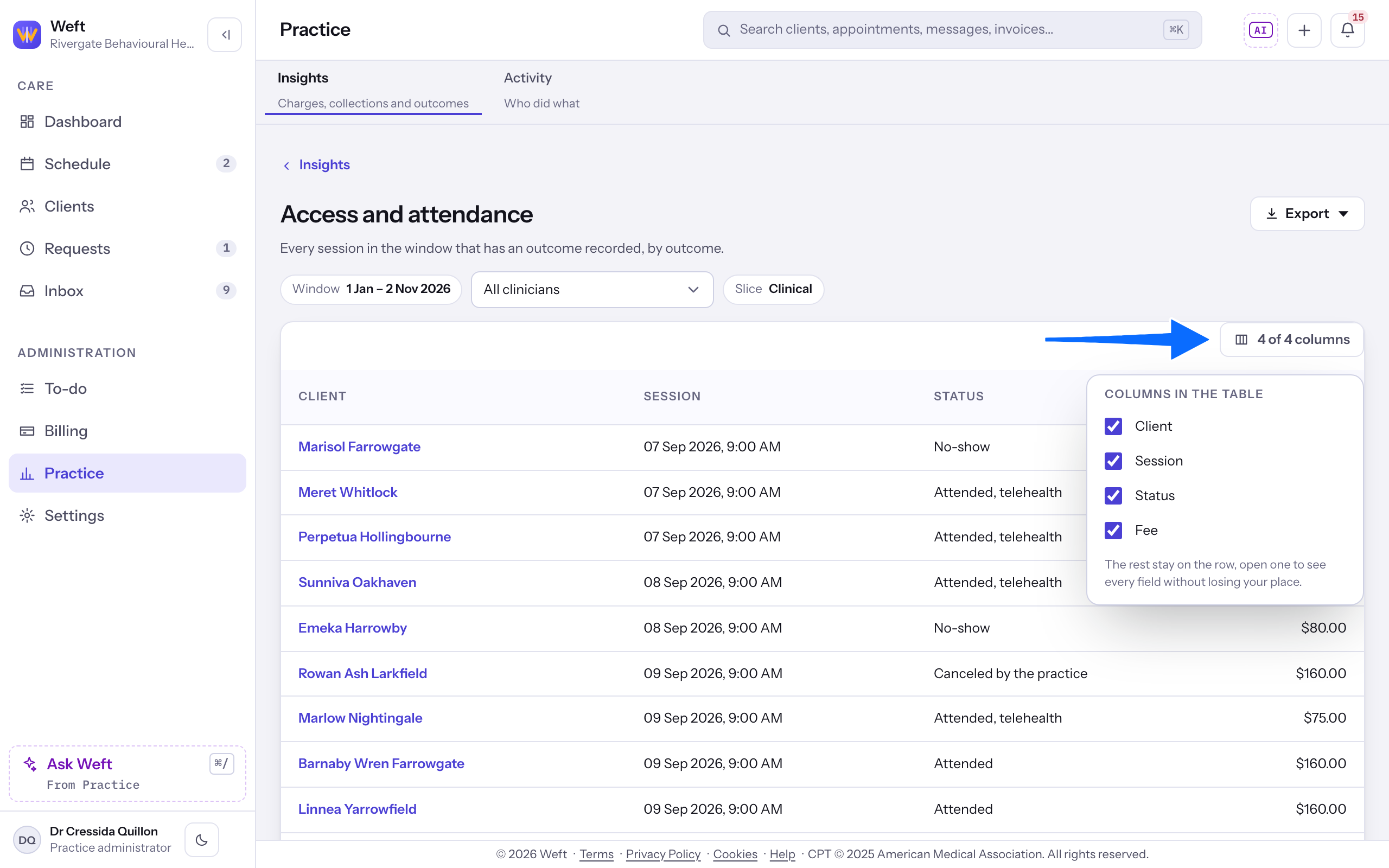
- On a wide screen, select the button above the table that counts the columns, such as 4 of 4 columns. Columns in the table opens with a box for each column.
- Untick a column to hide it, and tick it again to bring it back. The count on the button follows, and the table closes up around the columns that remain.
- A hidden column is not lost. Select a row, away from its first cell, and the hidden columns show beneath it with their values. Select the row again to close it.
- The choice changes only the table on screen. The file you export always holds every column, and the table shows them all again when you open the report again.
- On a phone or other narrow screen there is no columns button. Each row is a card, and a button such as 2 more fields opens the rest of its columns. Select Fewer details to close them.
Last checked against Weft on 02 Nov 2026. Something on your screen reads differently? Tell us at support@weftary.com.
Common questions
Why is a report missing from the list?
Reports follow your role. Ask your practice administrator if you need one you cannot see.
Why is there no Export button?
Taking rows out of the practice is a separate permission from reading them. Ask your practice administrator if you need it.