
Finding a client
Search the client list by name or record number, narrow it, sort it, and allocate a clinician to a client who has none.
Who this is for: Everyone at the practice
What the client list holds depends on your role. A clinician sees the clients on their own caseload. A scheduler, a biller and whoever runs the practice see every client.
Search and narrow the list
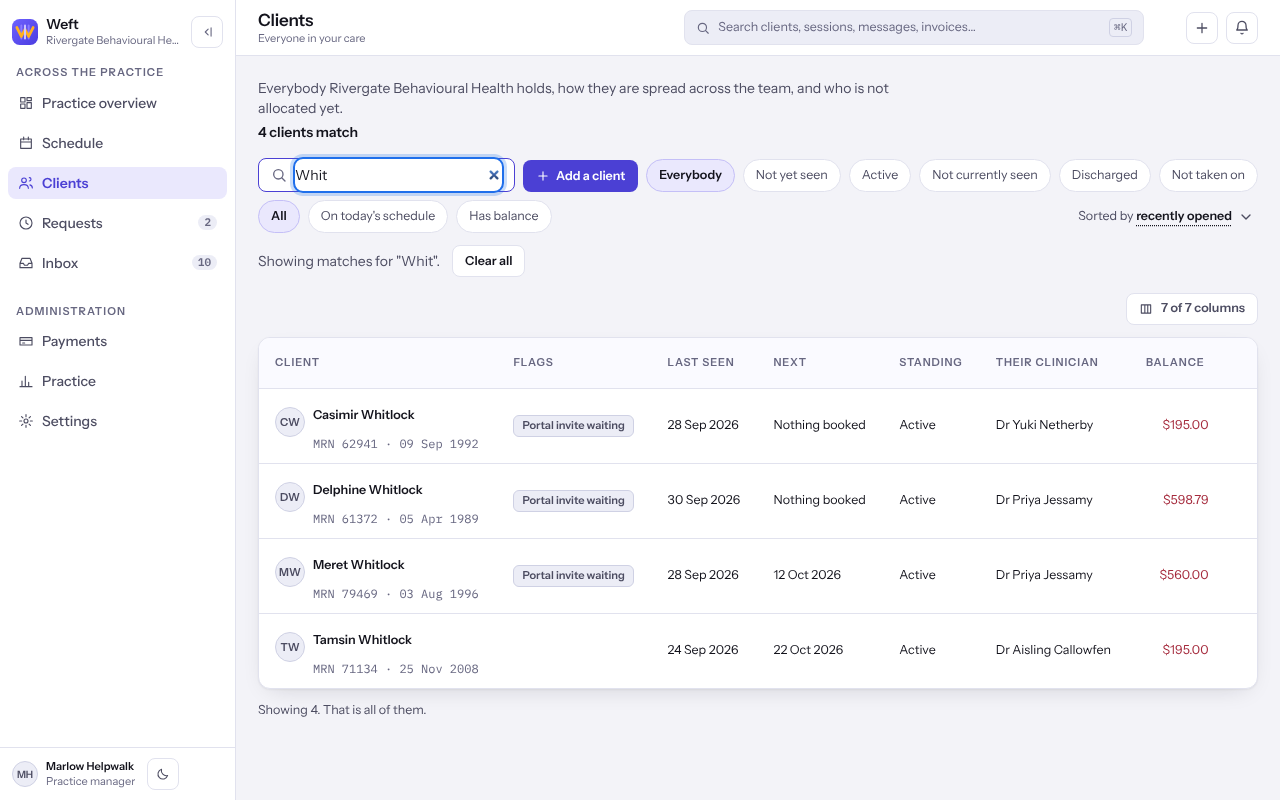
- Select Clients and type a name or record number into the search box, which reads Name or record number.
- To see one standing, choose a chip beside Everybody, for example the new clients.
- To narrow further, choose On today's schedule, Something outstanding or Has balance where your role shows them.
- Change the order with Sorted by.
- The line under the filters says what the list is showing. Select Clear all to go back to everybody.
Tip: To jump straight to a client from anywhere, use the search in the header. See Searching and moving around Weft.
Allocate a clinician
Whoever runs the practice sees a column for allocation on the practice's client list.
- On a client's row, select Assign a clinician.
- Under The colleague, choose who will carry the client.
- Select Name them. The client appears on that clinician's own list.
Last checked against Weft on 07 Oct 2026. Something on your screen reads differently? Tell us at support@weftary.com.