
Sharing a document with a client
Put a document from the chart into the client's portal, and stop sharing it.
Who this is for: Clinician, Associate clinician, Practice administrator
Share a document
- Open the client and select Documents in the chart's rail.
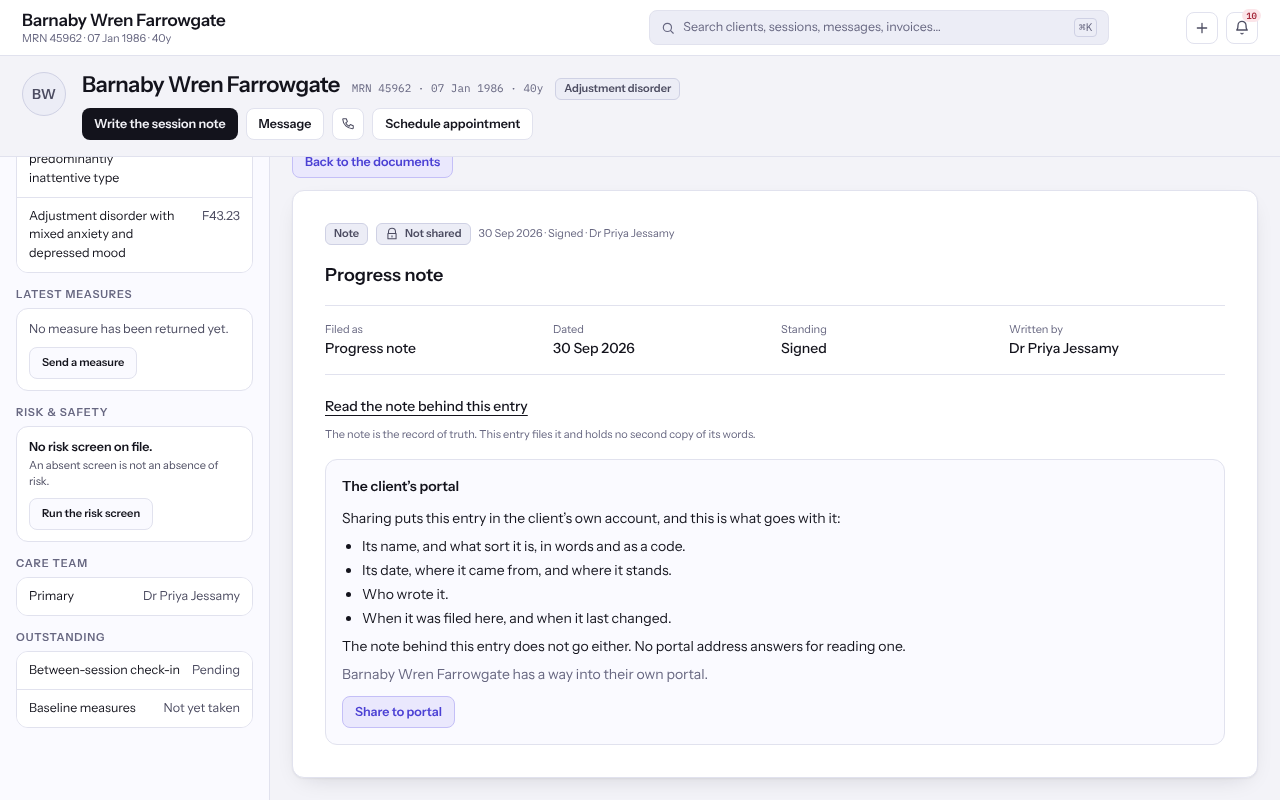
- Find the entry under Notes, forms and reports and select View.
- Under The client's portal, read what will be shared and whose login reaches the portal, then select Share to portal.
- To take it back, select Stop sharing. The client's own list keeps the row, marked no longer shared.
Note: Shared before the client has a login, the document is there from the moment one is granted.
Last checked against Weft on 07 Oct 2026. Something on your screen reads differently? Tell us at support@weftary.com.