
Sending a client a form or a measure
Ask a client to fill in an intake form or an instrument in their portal, follow where each ask got to, and read what came back.
Who this is for: Clinician, Associate clinician, Scheduler, Practice manager, Practice administrator
The client fills in what you send from their own portal, so they need portal access first. See Giving a client access to the client portal.
Send the form
- Open the client and select Forms in the chart's rail.
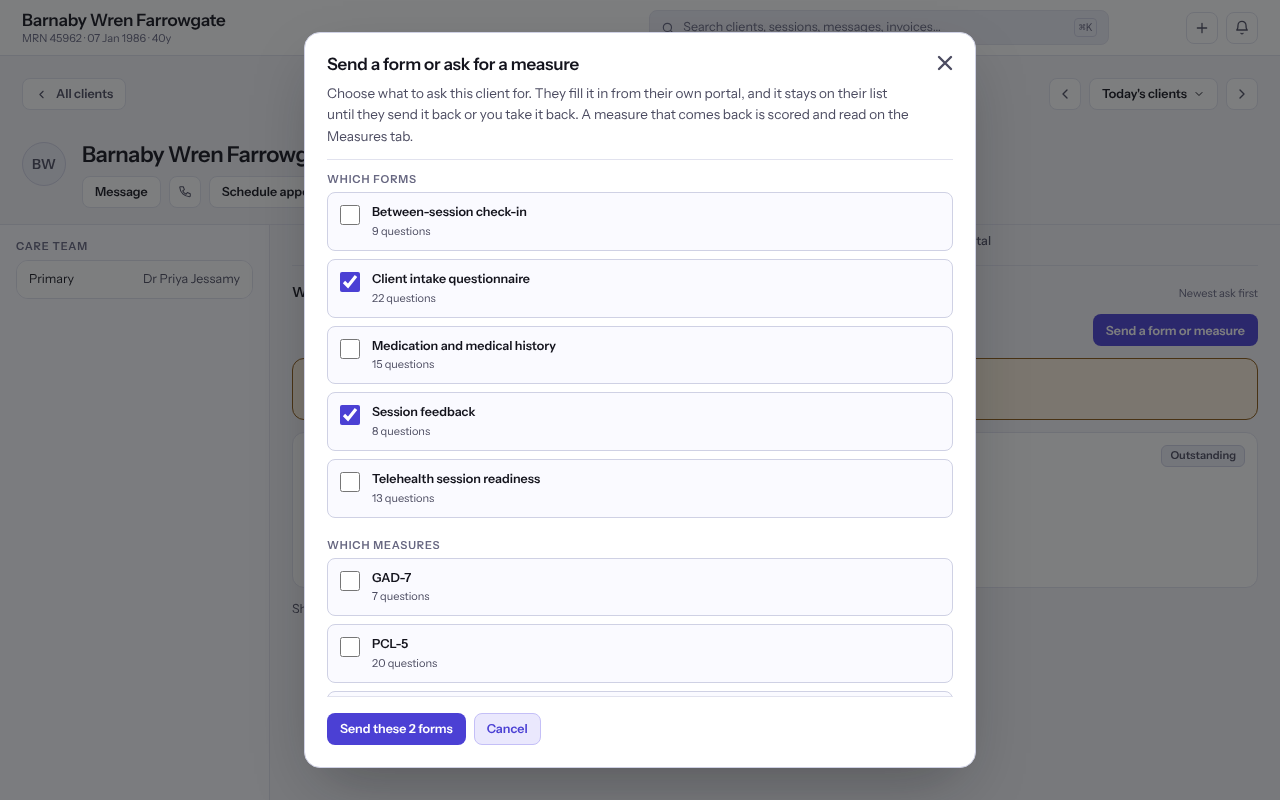
- Select Send a form or measure.
- Tick each form under Which forms and each instrument under Which measures you want back.
- Optionally give a day under When would you like it back?
- Select the send button, which names what you chose, for example Send these 2 forms.
Note: A due day that passes changes nothing for the client. The form stays on their list and they can still fill it in.
Follow and read what came back
- Under What this client has been asked for, each ask shows Outstanding, Answered or Withdrawn.
- On an answered ask, select Read the answers. A measure that comes back is also scored on Measures & vitals.
- To take back an ask sent by mistake, select Take this ask back. It stays on the list, marked withdrawn.
Tip: If the client filled one in on paper and sent a photo, it is waiting under Paper this client has sent back on Documents. Open it with Open the file and select Accept this copy.
Last checked against Weft on 07 Oct 2026. Something on your screen reads differently? Tell us at support@weftary.com.