
Building note templates, forms and instruments
Take a copy from the Weft library, fork a standard one, build your own, or bring one in from a spreadsheet.
Who this is for: Clinician, Practice manager, Practice administrator
Everything is under Settings, then Templates and forms: Note templates, Forms, Instruments, Client agreements and From the Weft library. A standard one is never edited in place; you fork it into a copy your practice owns.
Take one from the Weft library
- Under From the Weft library, search by name or choose a Kind.
- Select Take a copy. Your copy appears in its own section, ready to rename and change.
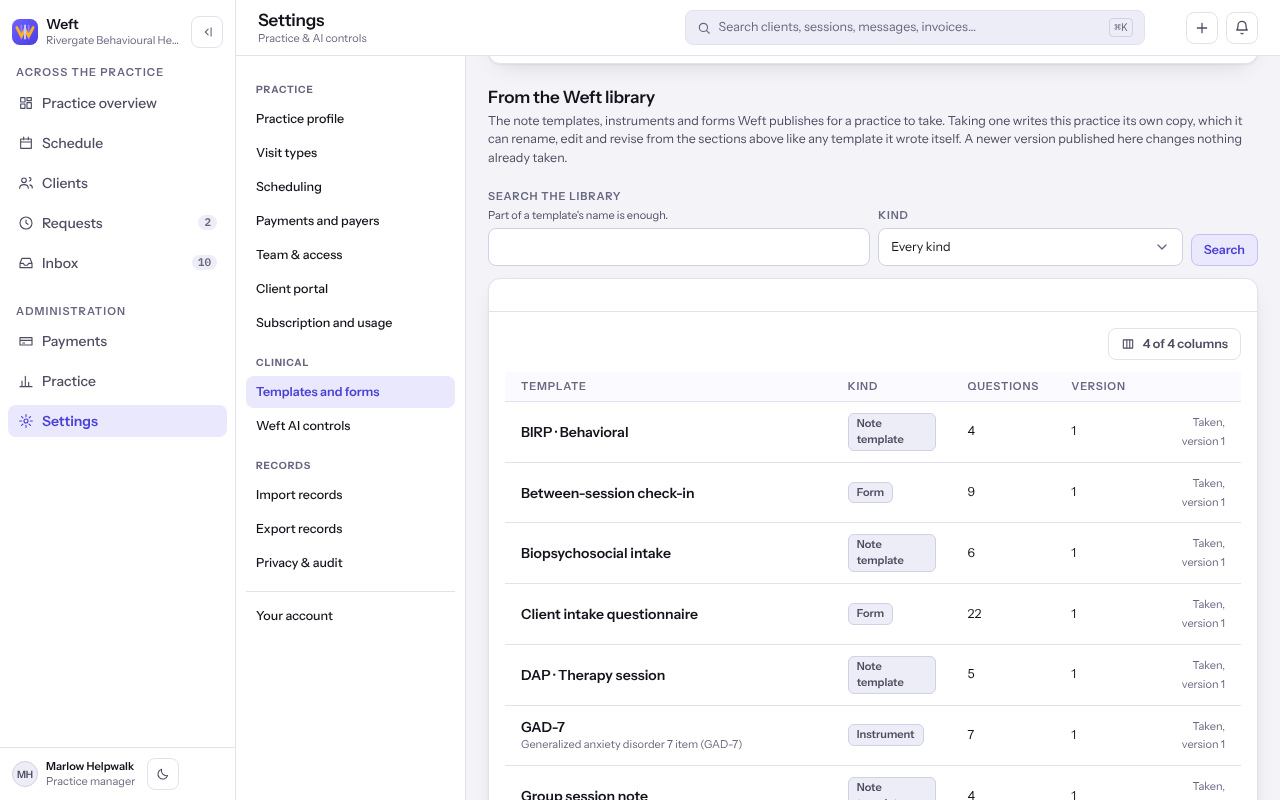
Note: When Weft publishes a newer version of something you took, it is offered under Newer versions from the Weft library. Select See what changed, then take it or select Not now.
Build your own
- Select New template, New form or New instrument in its section.
- Give it a Name. For a note template, choose the Visit type it is written for.
- Lay out the sections, or write the questions with the kind of answer each one takes.
- Select Create the template or Create the form.
Fork a standard one
- On a row marked Standard, select Fork. A copy marked Practice appears, and you change that.
Bring one in from a spreadsheet
- Select Bring a template, Bring a form or Bring an instrument and choose the file. It is read in your browser.
- Correct anything named against a question, then save. Nothing is stored until you do.
Last checked against Weft on 07 Oct 2026. Something on your screen reads differently? Tell us at support@weftary.com.
Common questions
What happens to answers when I change a form somebody has already filled in?
Publishing changes writes the next version beside the old one. Answers already given keep pointing at the wording the client saw.
How do I make a template the default for a visit type?
Under Settings, then Visit types. See Adding a visit type.