
Using the calendar
Choose a calendar view, color the blocks and work the front desk arrivals.
Who this is for: Everyone at the practice
Choose day, week or month
- Open Schedule (All schedules if you work the front desk) and select Day to see one day.
- Select Week to see the week.
- Select Month to see the month.
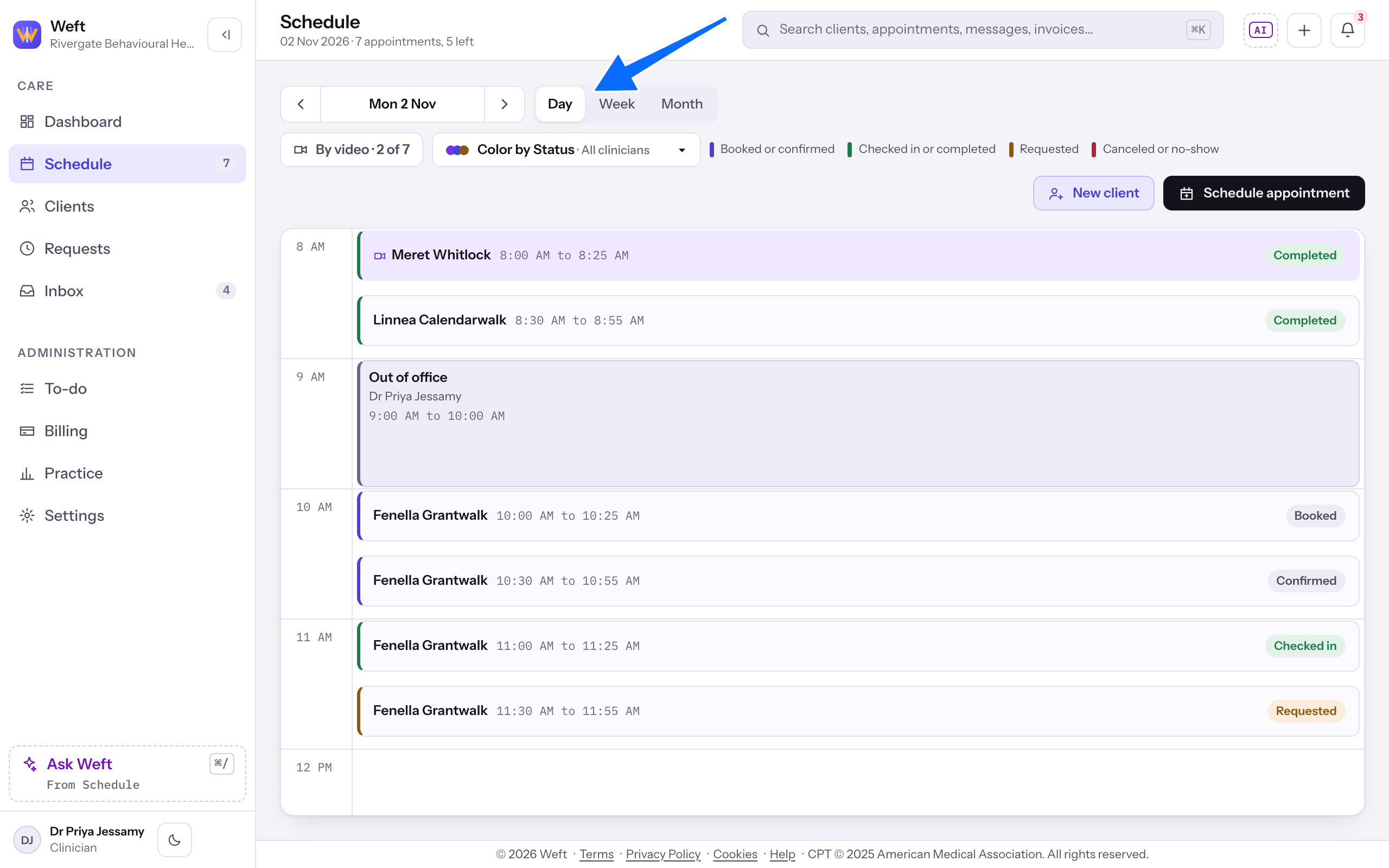
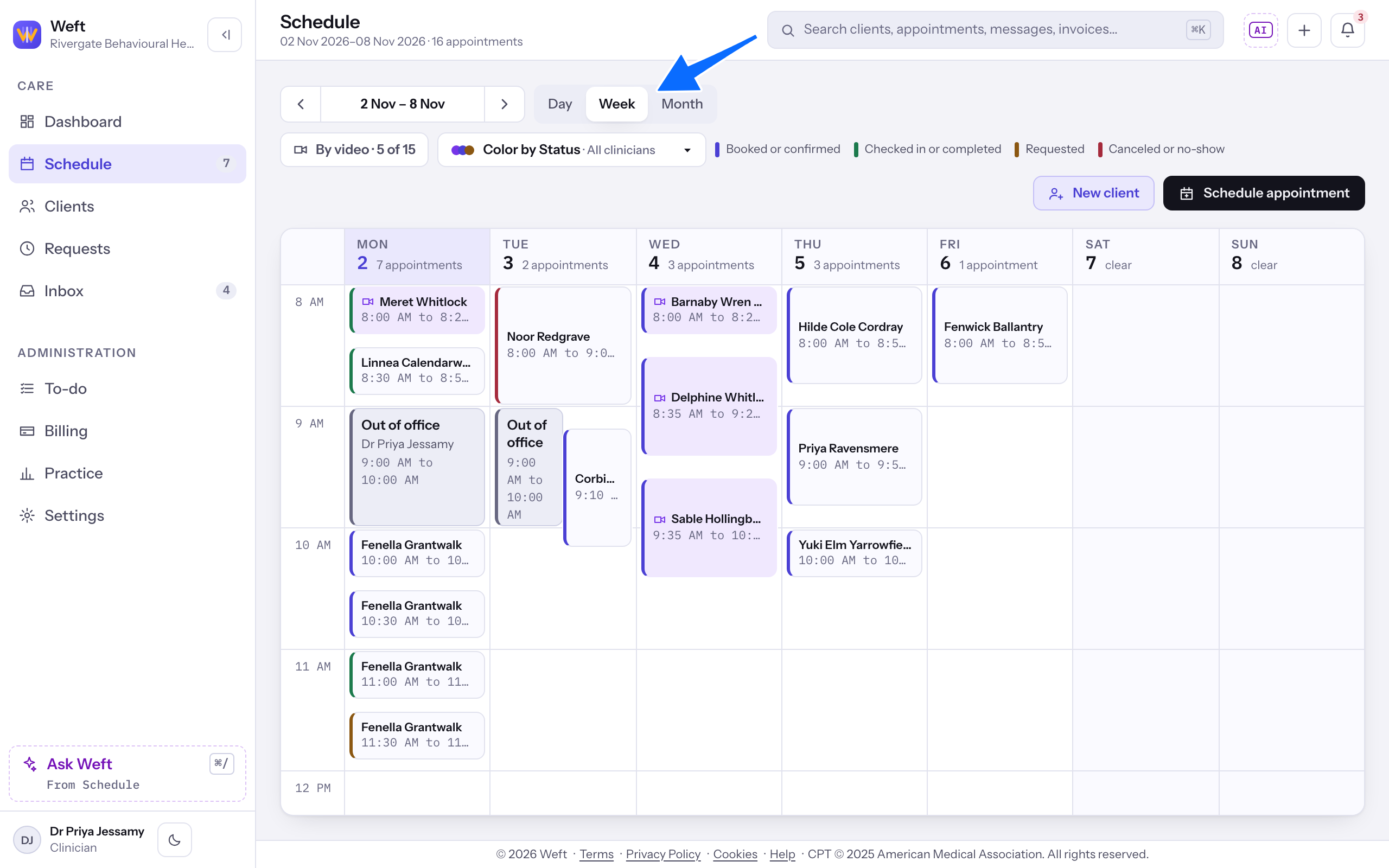
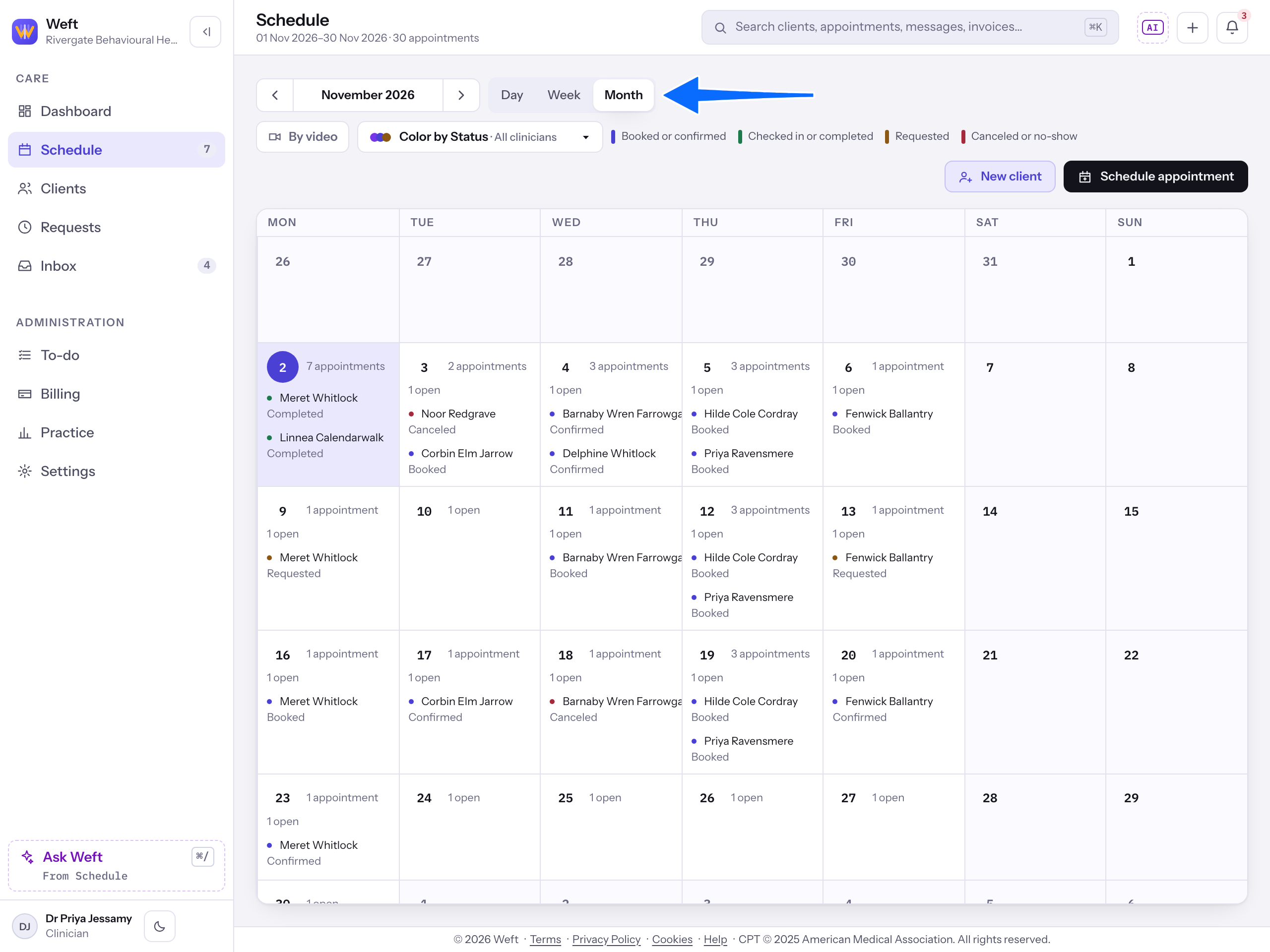
Note: On a phone width, week and month draw a day grid. The calendar available to you depends on your role: clinicians and associate clinicians see their own; the owner, practice manager and biller see the practice calendar; schedulers see the front desk calendar. A Read only account has no schedule.
Read the practice calendar
- Read the week to see how the practice's appointments are spread across its days. Each block shows the client's name, so to see whose appointment it is, open it or color the blocks by clinician as described below.
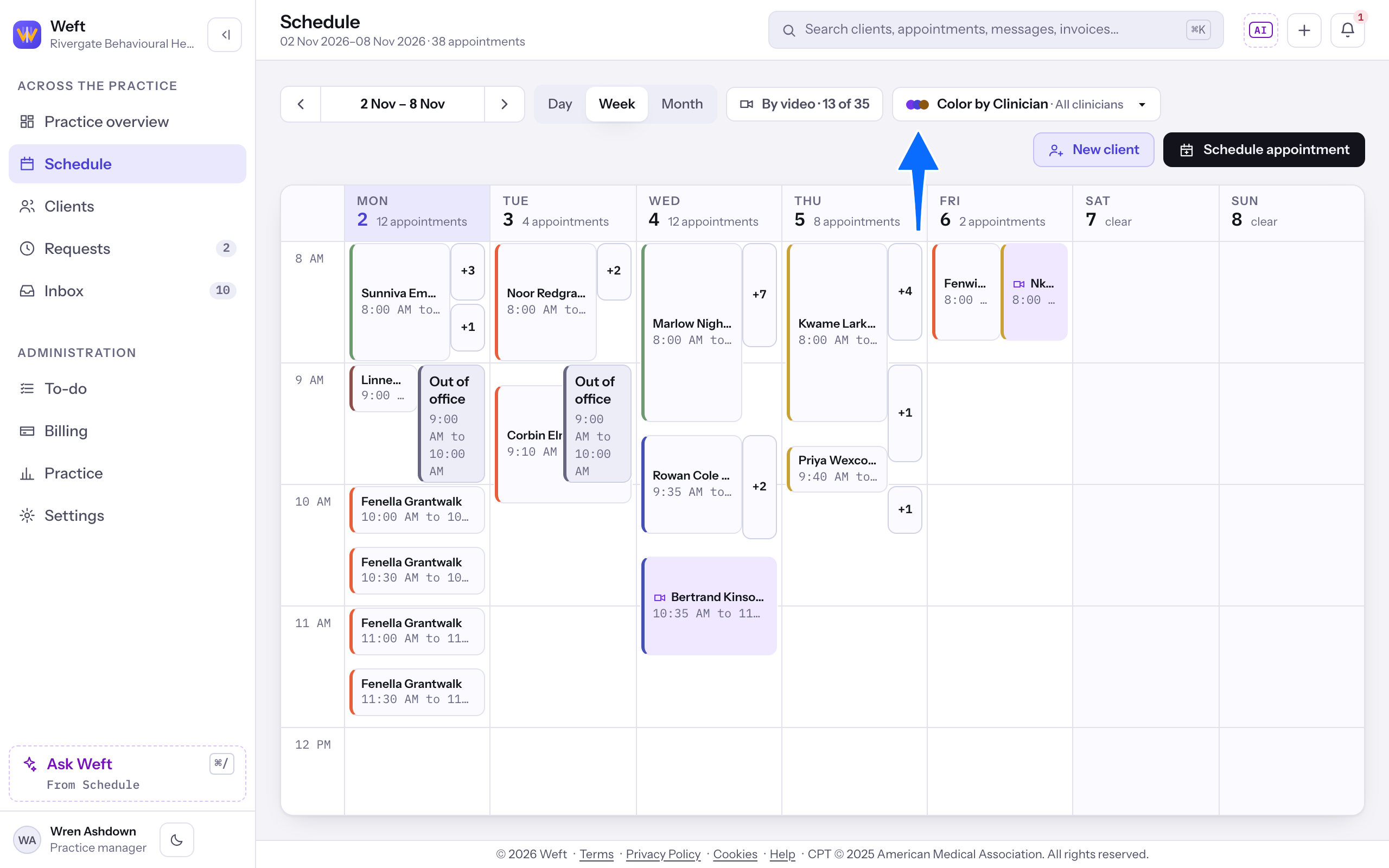
Color and filter the blocks
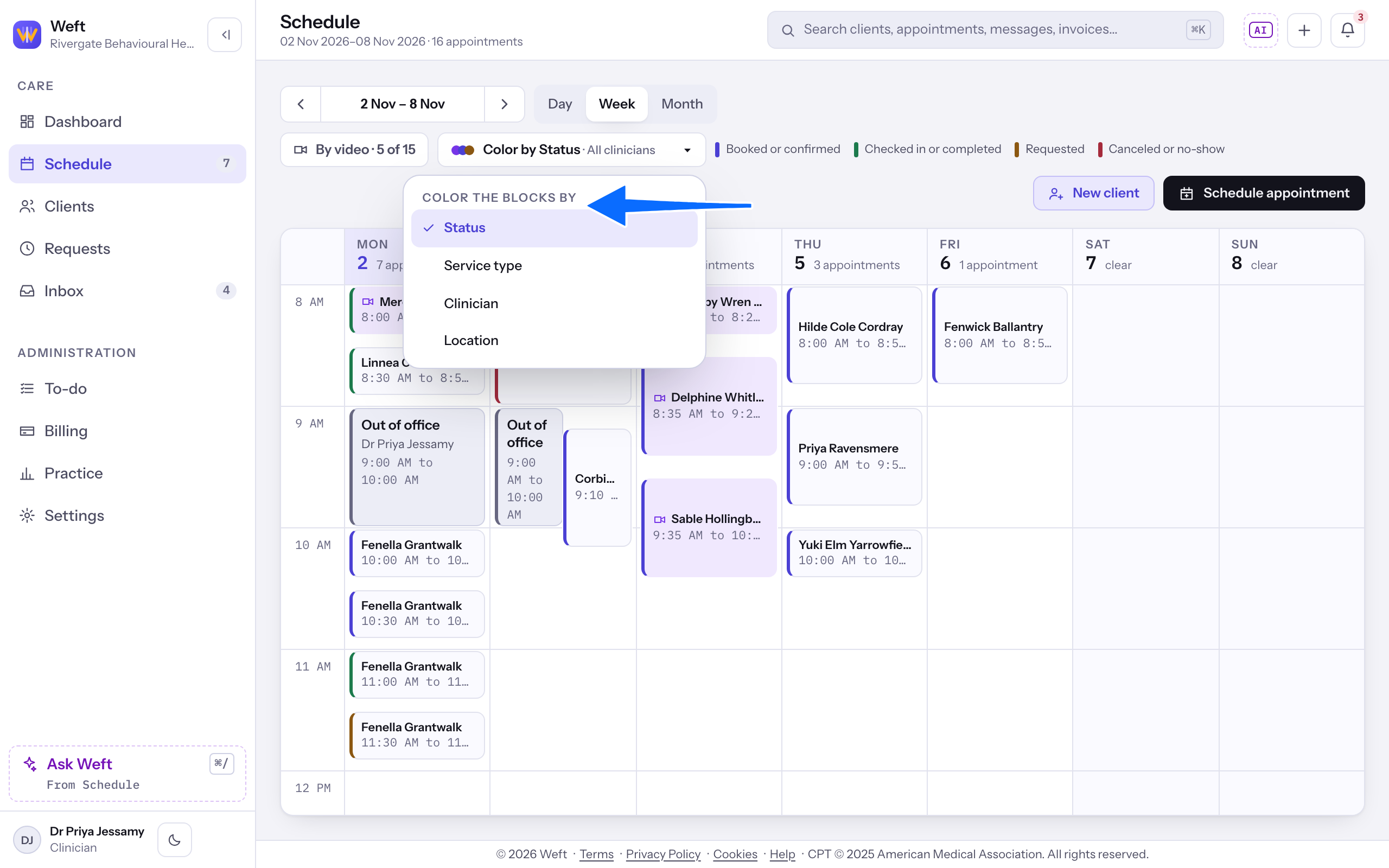
- Open the color control and, under Color the blocks by, choose Status, Service type, Clinician or Location.
- Where Show these clinicians is offered, select the clinicians to keep in view. The color control shows how many are hidden.
Work the front desk arrivals
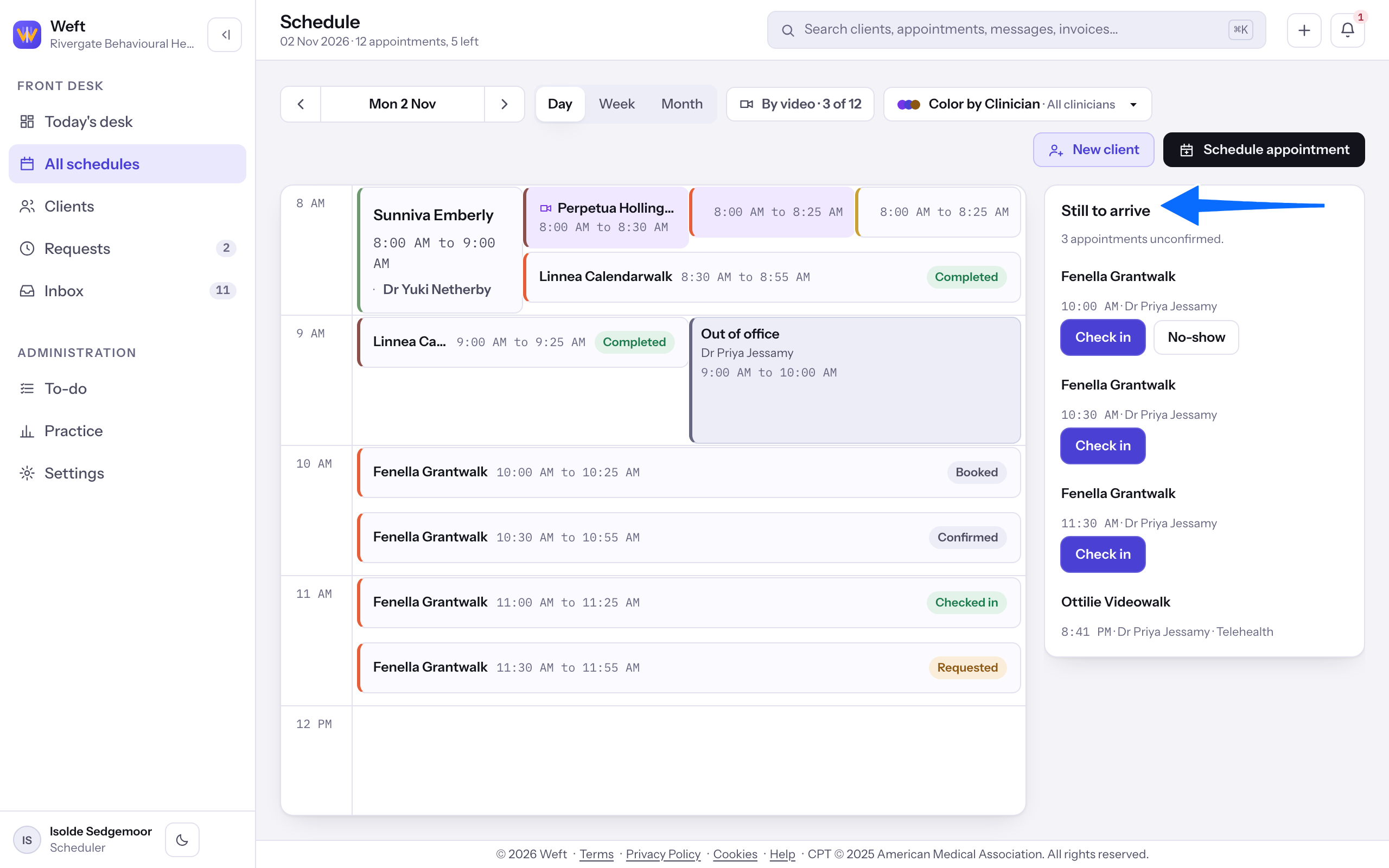
- In the front desk calendar, find the appointment under Still to arrive. Select Check in for an in-person arrival, or No-show once its start time has passed.
Last checked against Weft on 31 Oct 2026. Something on your screen reads differently? Tell us at support@weftary.com.