
Publishing a paper blank for clients
Publish a blank clients can print, complete on paper and return.
Who this is for: Practice manager
Find your published blanks
- Open Settings, then Template library, and select Documents under Kind, which is a filter in the library's list rather than a tab. Open a document to reach the Documents page. Your published blanks are in its Published documents card.
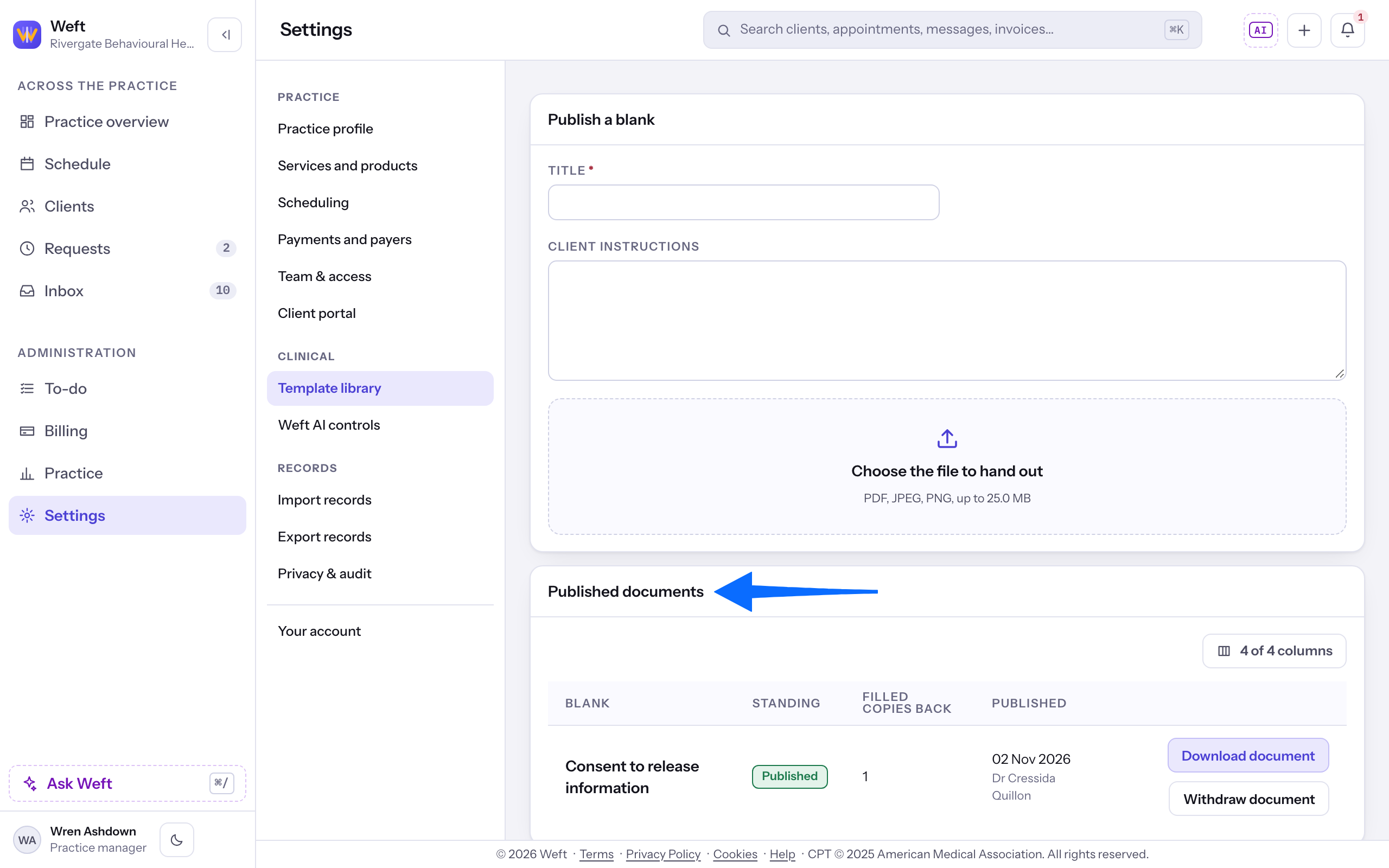
Publish a blank
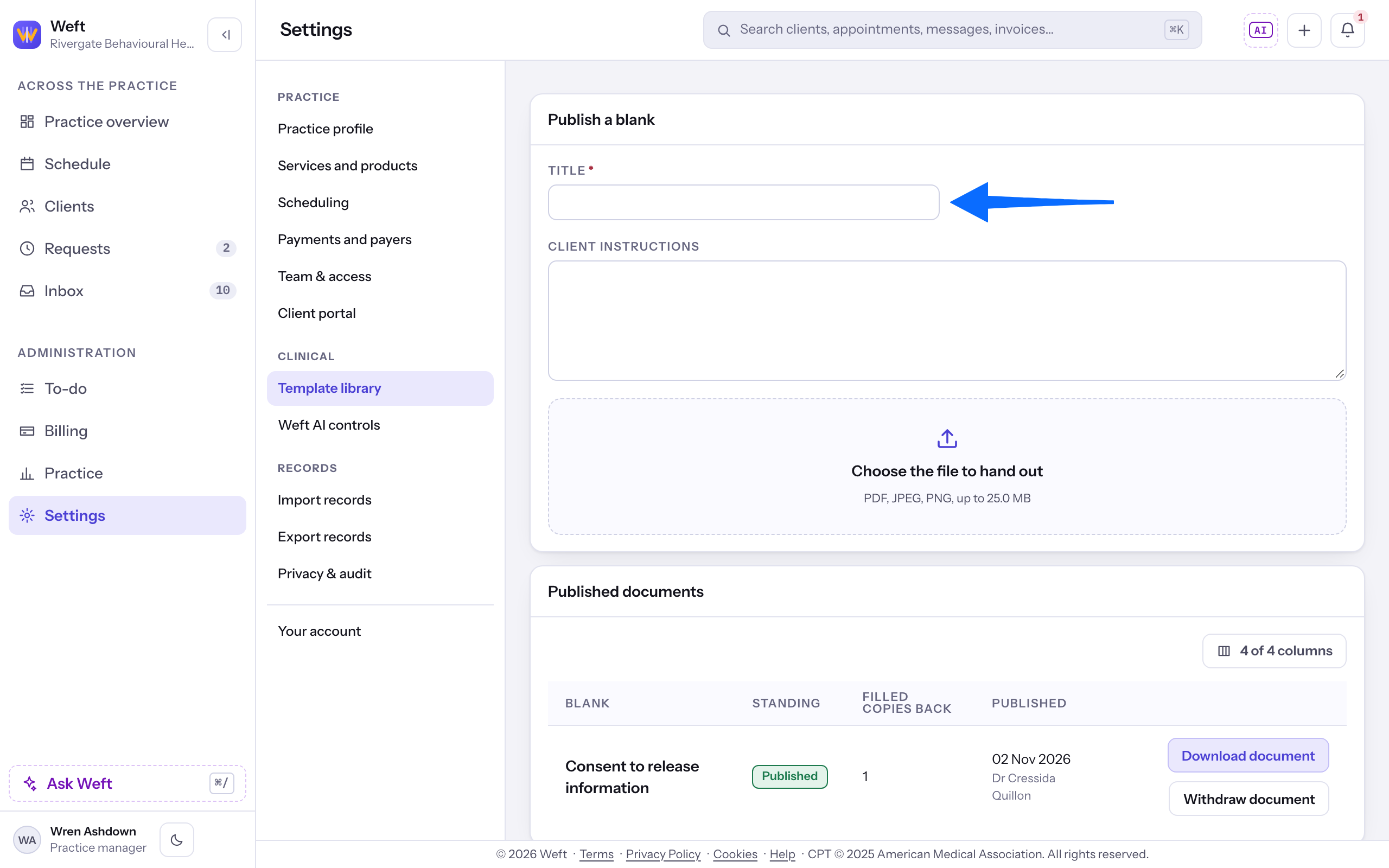
- In the inline Publish a blank card, enter Title and Client instructions.
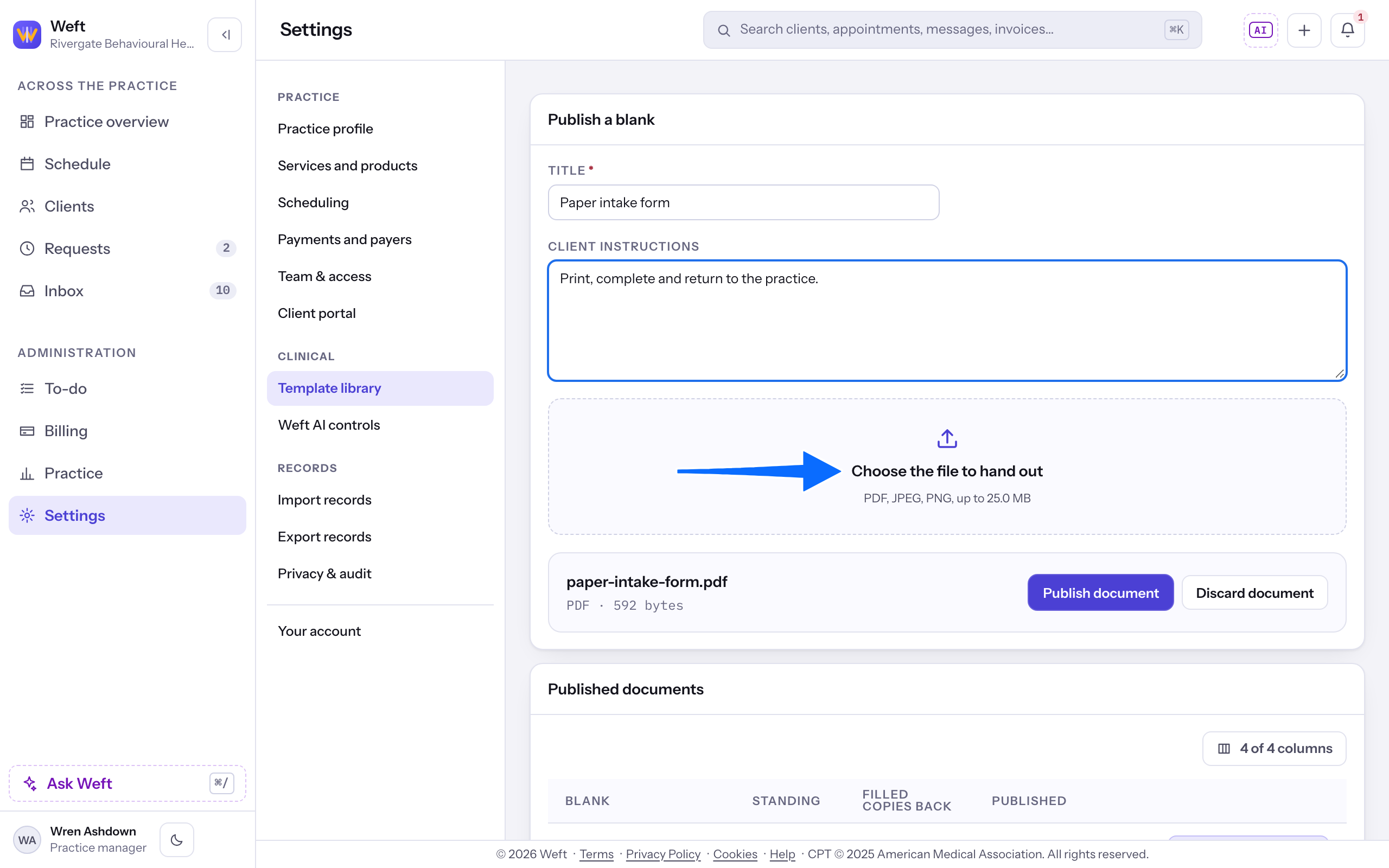
- Select Choose the file to hand out and choose the blank file. The card says which types it takes and the size limit (PDF, JPEG or PNG, up to 25.0 MB); a file outside them is refused.
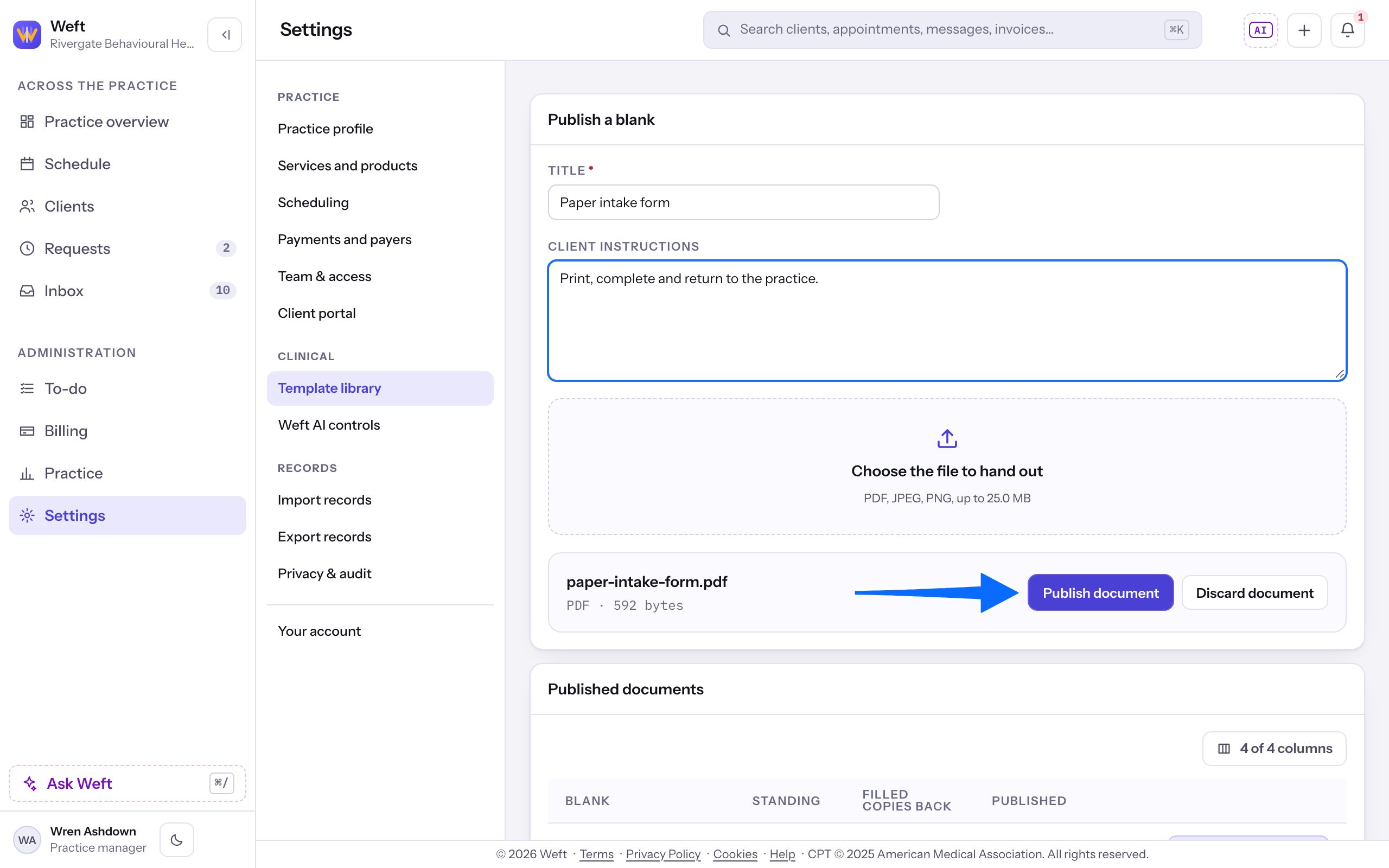
- Select Publish document. A "Published." notice shows, and the blank appears in the Published documents table with Published under Standing. Discard document drops the chosen file instead.
Find the blank in the client portal
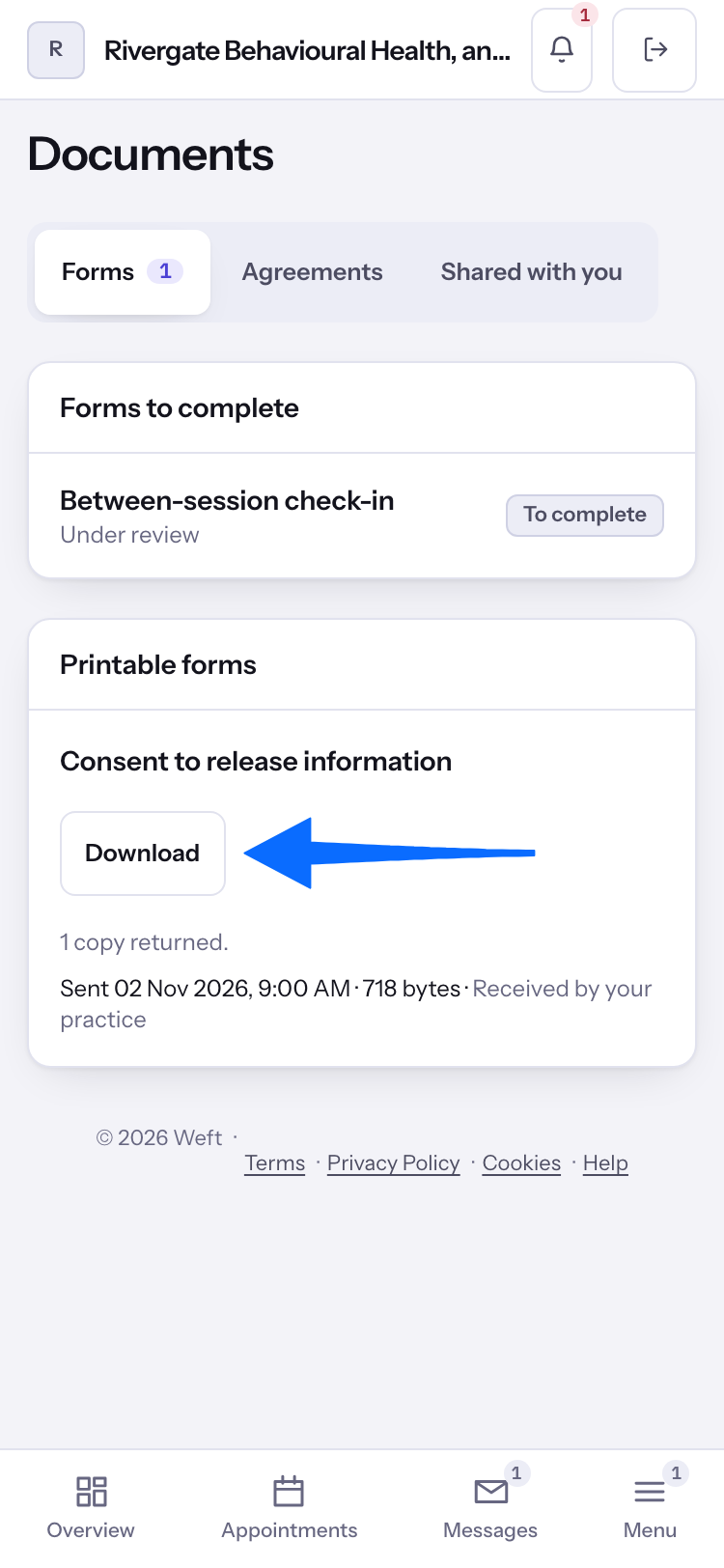
- In their documents, the client finds Printable forms and selects Download beside the blank.
Note: For the client’s next steps, see Filling in a form and Reading documents from your practice. To accept a returned copy, see Filing a document in a client’s chart.
Last checked against Weft on 31 Oct 2026. Something on your screen reads differently? Tell us at support@weftary.com.