
Setting practice hours, cancellation notice and check-in rules
Say when the practice is open, how much notice a client gives to cancel in the portal, and what has to be true before a client is checked in.
Who this is for: Practice administrator, Practice manager, Scheduler
Opening hours
- Select Settings, then Scheduling. Under Operating hours, each day of the week is listed.
- On a day, select Add hours, set when it opens and closes, and select Save these hours.
- To say the practice is shut on a day, select Say it is closed and then Save these closed days.
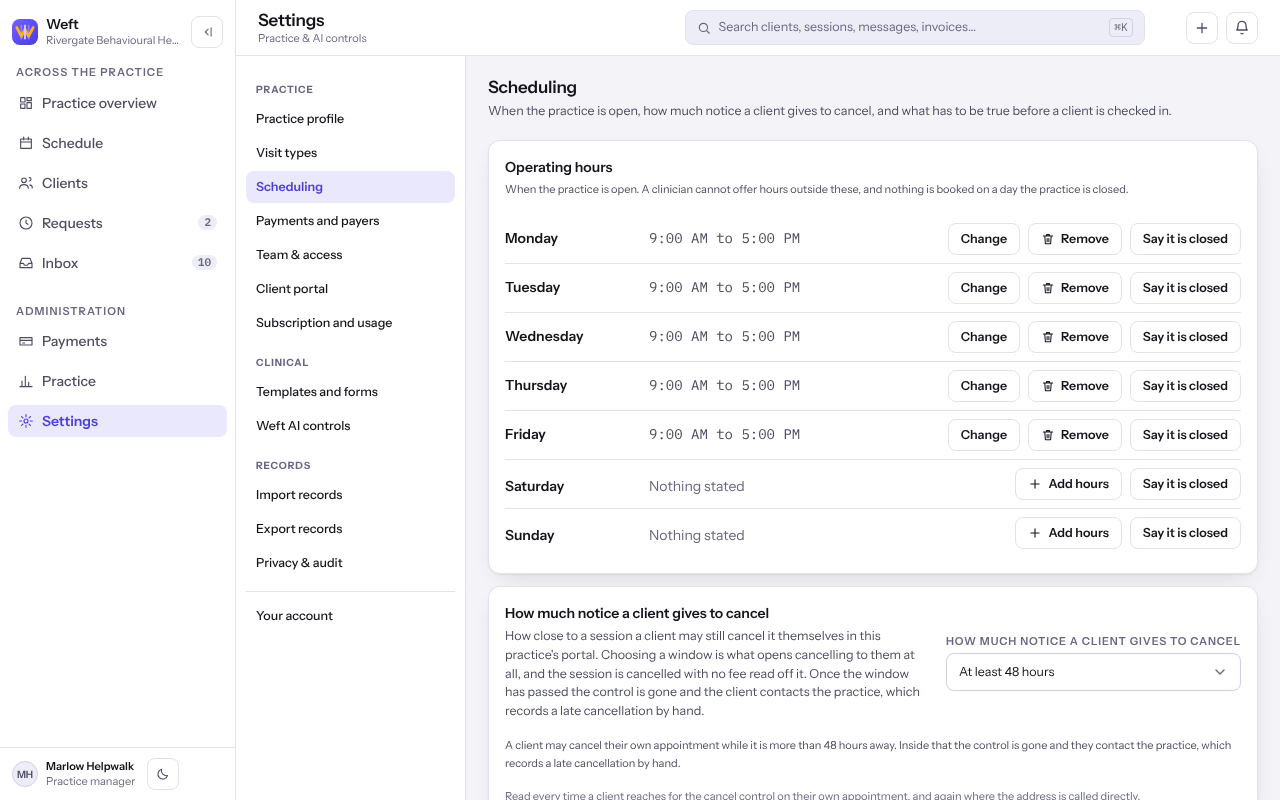
Note: A clinician cannot offer hours outside these, and nothing is booked on a day the practice is closed. A day nobody has answered for is different from one stated closed.
Cancellation notice
- Under How much notice a client gives to cancel, choose Only the practice can cancel, or At least 24 hours, At least 48 hours or At least 72 hours.
Note: Choosing a window lets clients cancel their own appointment in the portal while it is further away than that. Inside it they contact the practice.
What holds a check-in
- Under What holds a check-in, turn on any of: Hold check-in until consent to treatment is on file, Hold check-in until telehealth consent is on file, Hold check-in until the measure asked for comes back, Hold check-in until a payment method is on file and Hold check-in until the balance is clear.
Important: Each one refuses a check-in rather than warning. Turn one on only when the front desk knows how to put it right.
Last checked against Weft on 07 Oct 2026. Something on your screen reads differently? Tell us at support@weftary.com.