
Setting up your client portal
Open or close the portal, choose which parts your clients can use, whether new people can ask for a first session, and how far ahead clients may ask.
Who this is for: Practice administrator, Practice manager
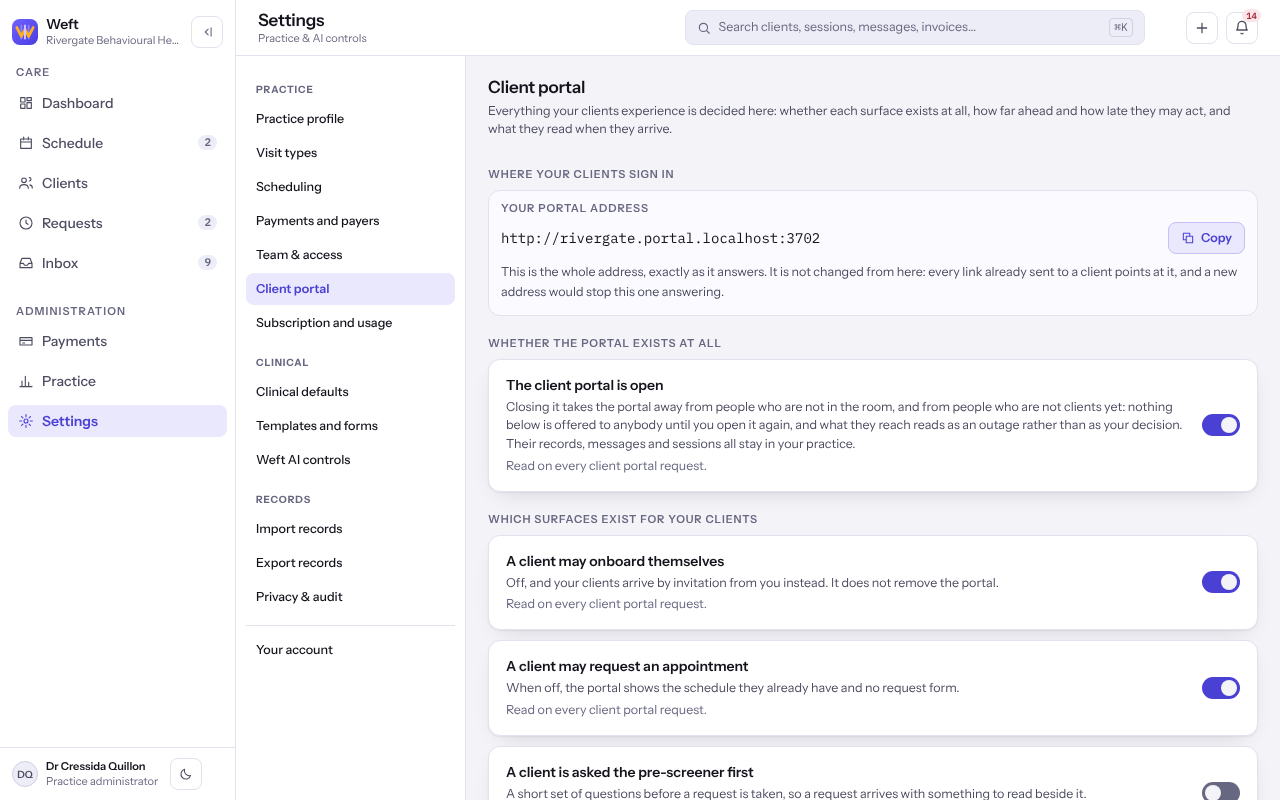
Each practice has its own portal address, shown under Where your clients sign in. It is assigned for you and does not change, so links already sent keep working.
Choose what clients can do
- Select Settings, then Client portal.
- Under Which surfaces exist for your clients, turn each part on or off, for example A client may request an appointment, A client may message their clinician, A client may fill in a form and A client may see and pay their bills.
- To let somebody who is not yet a client ask for a first session, turn on A client may onboard themselves. It needs Accept new clients on in Practice profile.
- Under Which requests the portal takes, choose whether it takes a request for one person, for a couple, or made for somebody else.
How far ahead, and who picks the clinician
- Under How far ahead, and how late, set Latest a client may request a session and select Save how late a client may ask, then set Furthest ahead a client may book and select Save how far ahead a client may ask.
- Under Who picks the clinician, choose Client chooses or Practice assigns.
Close the portal
- Turn off The client portal is open, read Close the client portal? and select Yes, close the client portal.
Important: Closing it signs every client out and stops new people asking for a session. Nothing is deleted, and opening it again brings everything back. Tell your clients before you close it.
Last checked against Weft on 07 Oct 2026. Something on your screen reads differently? Tell us at support@weftary.com.
Common questions
Can I change what one client sees?
Yes, from that client's chart. See Giving a client access to the client portal.