
Choosing privacy settings and requiring multi-factor authentication
Set the classification a new clinical record starts with, whether video sessions may be transcribed, how long transcripts are kept, and whether everybody must use multi-factor authentication.
Who this is for: Practice administrator, Practice manager
Records and transcription
- Select Settings, then Privacy & audit.
- Under Default classification on a clinical record, choose Unmarked or 42 CFR Part 2.
- Turn Session transcription on to allow sessions delivered by video to be transcribed where the client agrees.
- Set Days a transcript is kept and select Save the retention period.
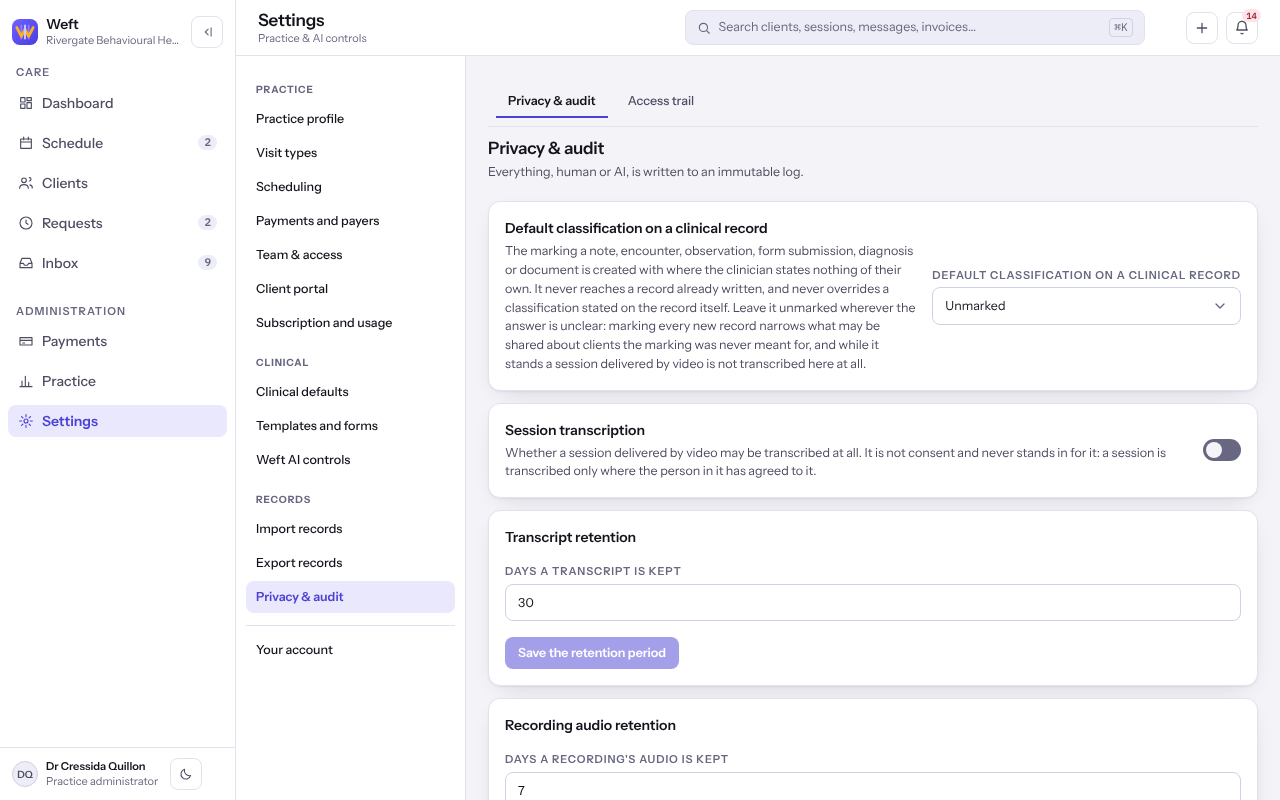
Note: While new records start marked 42 CFR Part 2, no session is transcribed, whatever the transcription switch says.
Require multi-factor authentication
- Turn Multi-factor authentication on to require it of everybody at the practice.
Important: Anybody who has not set it up, you included, is stopped at their next sign-in until they do. Tell your team first, and point them to Setting up multi-factor authentication.
Read the access trail
- Select the Access trail tab to see who opened, changed or removed a record, and when.
- Narrow it to One colleague, or to one record, and select Read the whole trail to clear the narrowing.
Last checked against Weft on 07 Oct 2026. Something on your screen reads differently? Tell us at support@weftary.com.