
Setting up multi-factor authentication
Add a passkey or an authenticator app as your second step, keep your backup codes, and manage trusted browsers and open sessions.
Who this is for: Everyone at the practice
Set up your first method
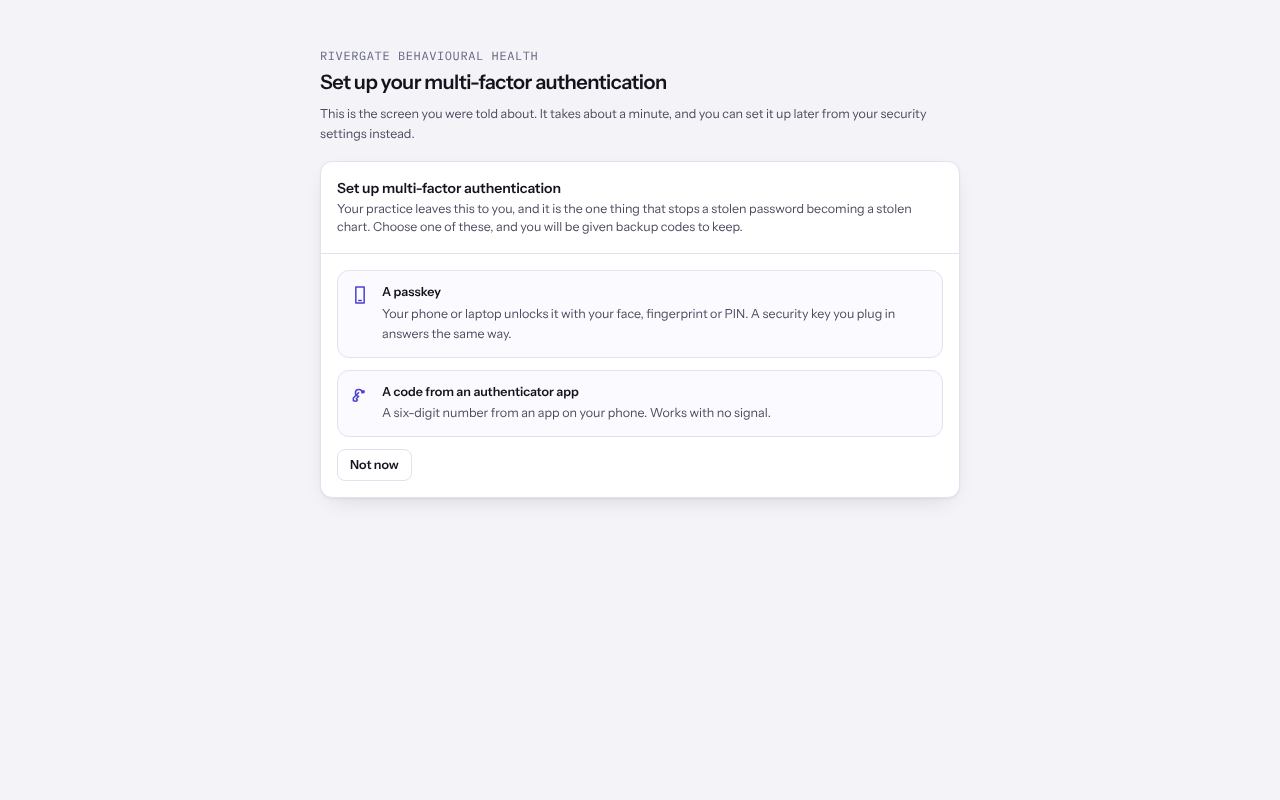
The first time you sign in, Weft shows Set up your multi-factor authentication before anything else.
- Choose A passkey to use your phone or laptop's face, fingerprint or PIN, or a security key you plug in. Choose A code from an authenticator app to use an app on your phone.
- For a passkey, answer the prompt your browser opens.
- For an authenticator app, scan the QR code or type the Setup key into the app, enter The number the app is showing, and select Finish setting it up.
- Save Your backup codes somewhere safe and away from your phone. Each code works once.
Add another method later
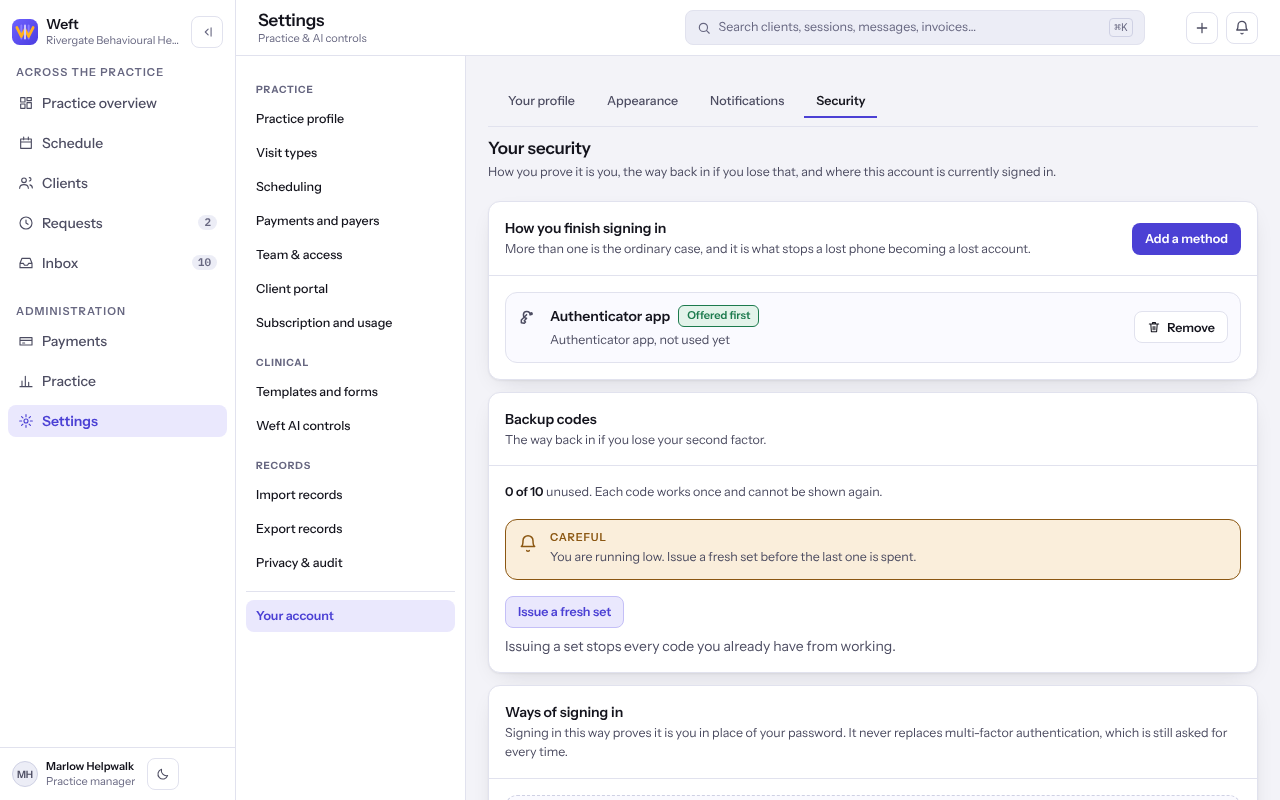
- Select Settings, then Your account, then Security.
- Under How you finish signing in, select Add a method and follow the same steps.
- To choose which method Weft opens first, select Offer this first on it. To take one away, select Remove and confirm it is you.
Tip: Two methods are better than one: a lost phone then never means a lost account.
Issue fresh backup codes
- On the Security tab, find Backup codes.
- Select Issue a fresh set and confirm. Every code you had before stops working.
Stop trusting a browser or sign out elsewhere
- Under Browsers that skip multi-factor authentication, select Stop trusting it beside a browser you no longer use.
- Under Where you are signed in, select Sign out the other sessions to end every session but the one you are using.
Last checked against Weft on 07 Oct 2026. Something on your screen reads differently? Tell us at support@weftary.com.