
Finishing setting up your practice
Complete the setup panel and return to the work left on the dashboard.
Who this is for: Practice administrator
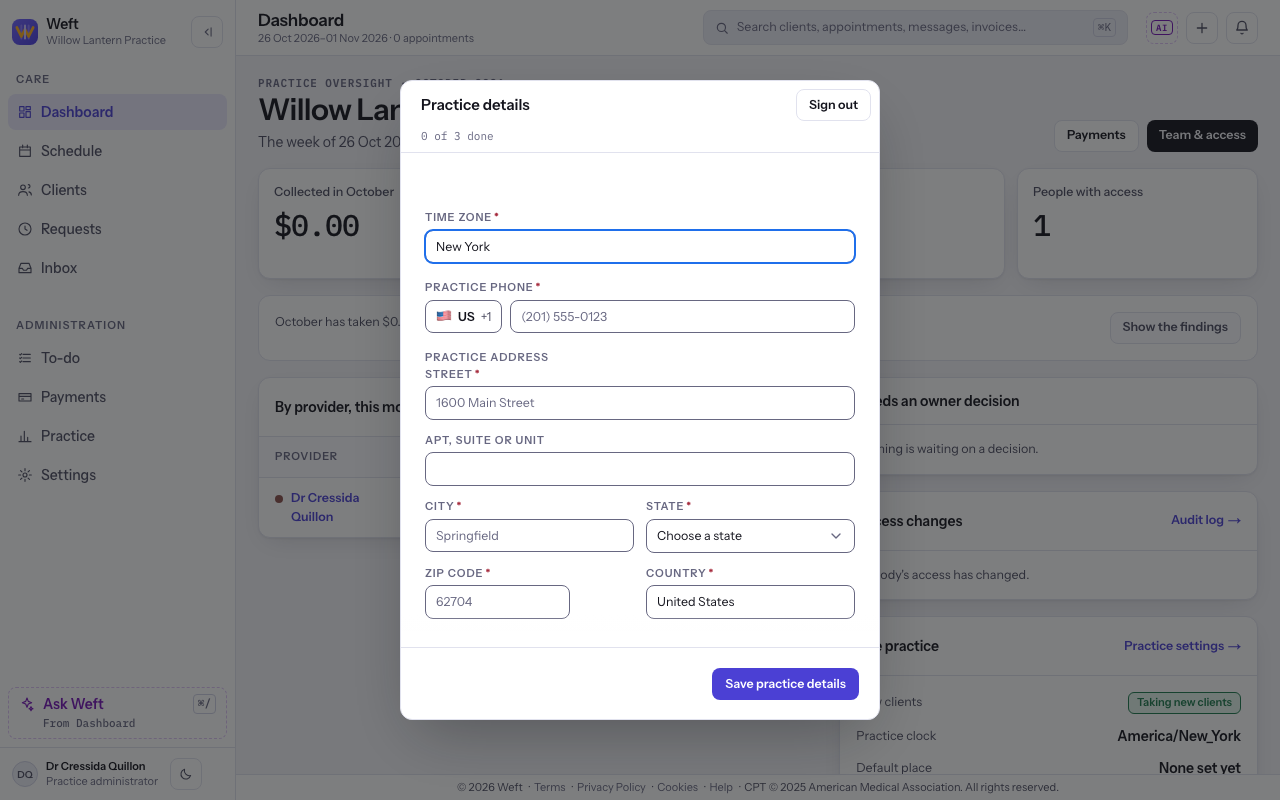
Enter your practice details
- Enter the Time zone, Practice phone and Practice address under Practice details, then select Save practice details.
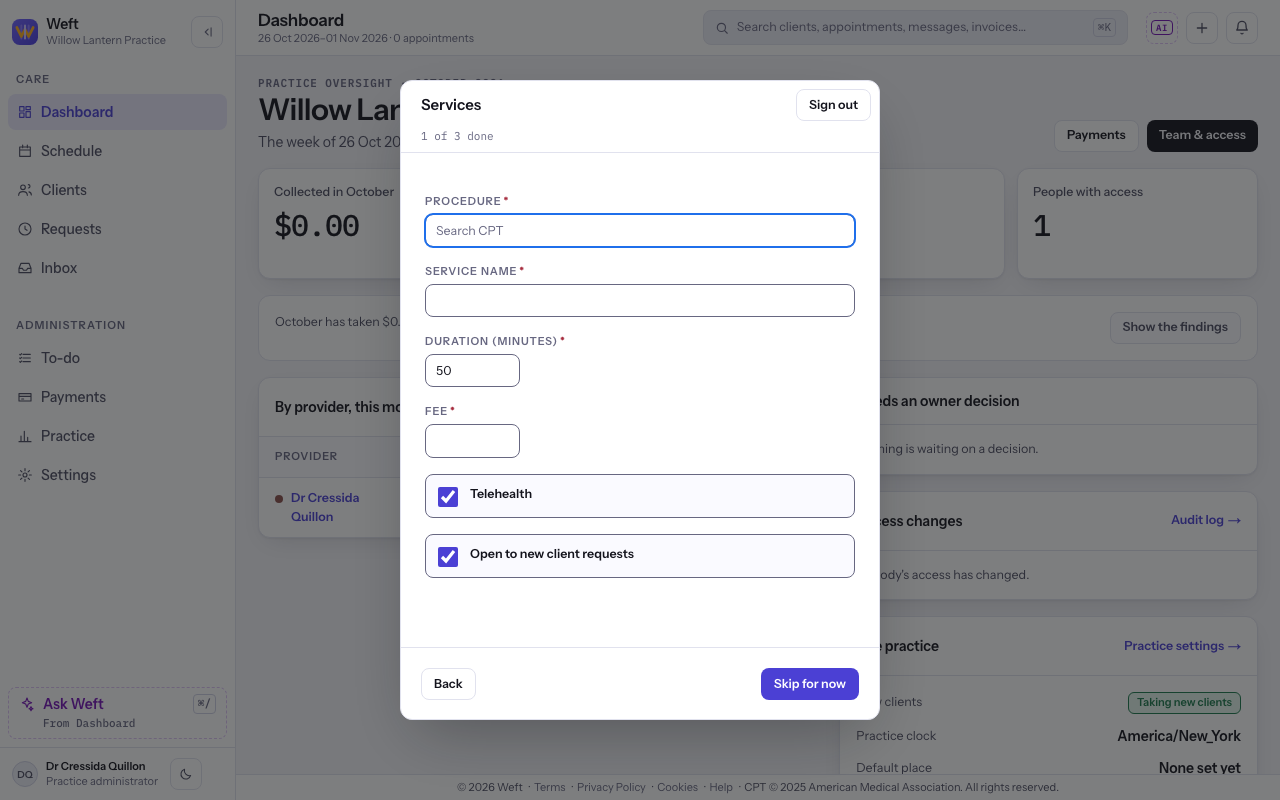
Add services
- On Services, add a service or select Skip for now to return to it later. Follow Adding a visit type for the service fields.
Set practice hours
- On Practice hours, choose the days and times the practice is open. Select Finish setup on the last page. See Setting practice hours.
Read your progress
- Read the count at the top of the panel to see how many steps are done. Use Back to revisit an earlier page.
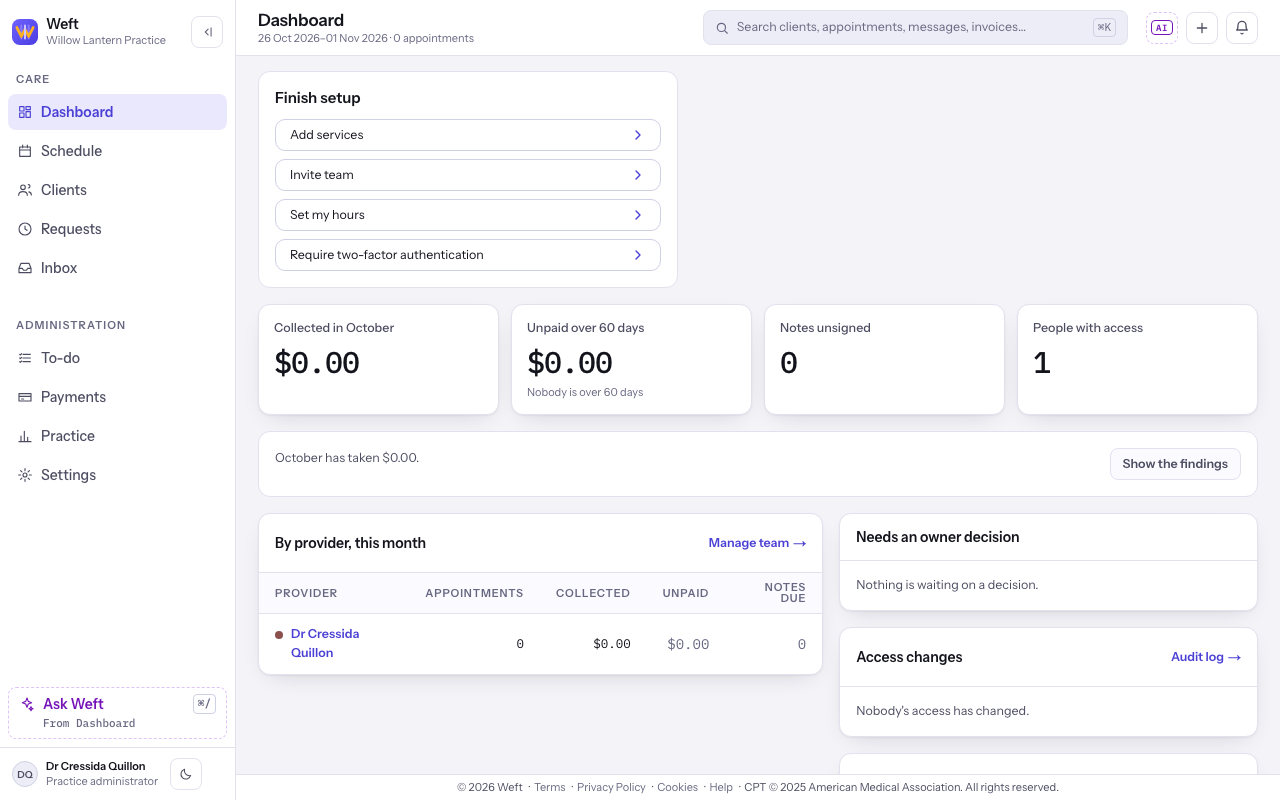
Return to unfinished setup
- On the dashboard, find Finish setup. Each row leaves the card when that work is done; completed rows do not remain as a ticked checklist.
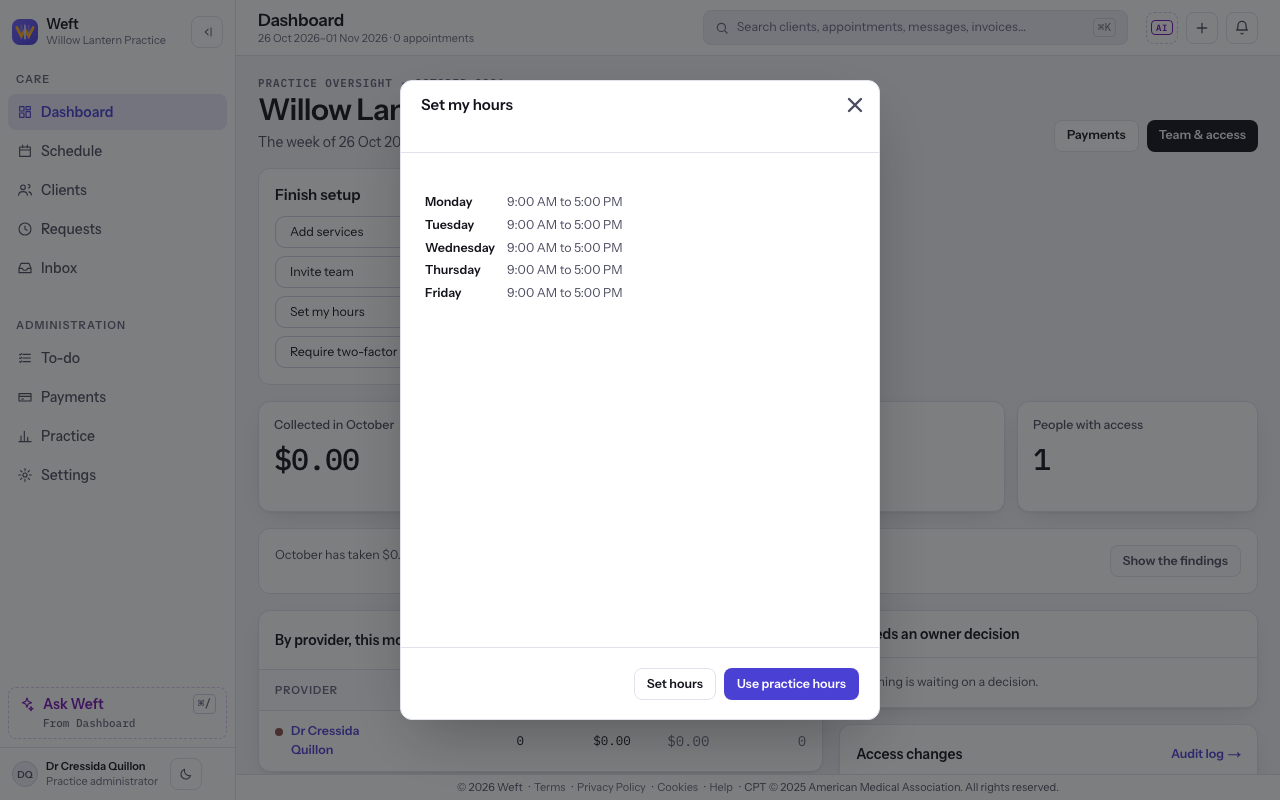
Set your working hours
- If you see clients, select Set my hours. Select Set hours to choose your own, or Use practice hours to keep the practice's. See Setting your working hours.
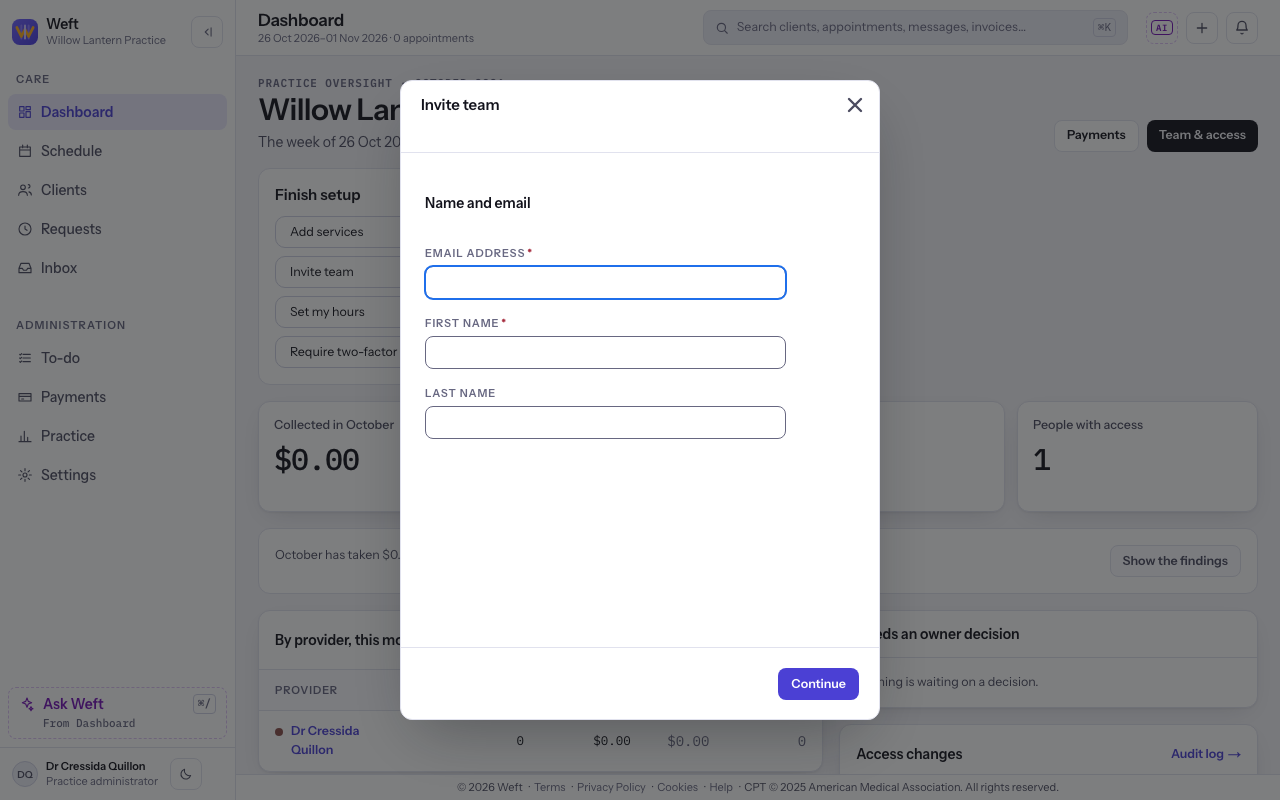
Invite team members
- Select Invite team to open the invitation panel. Follow Inviting a colleague to send an invitation.
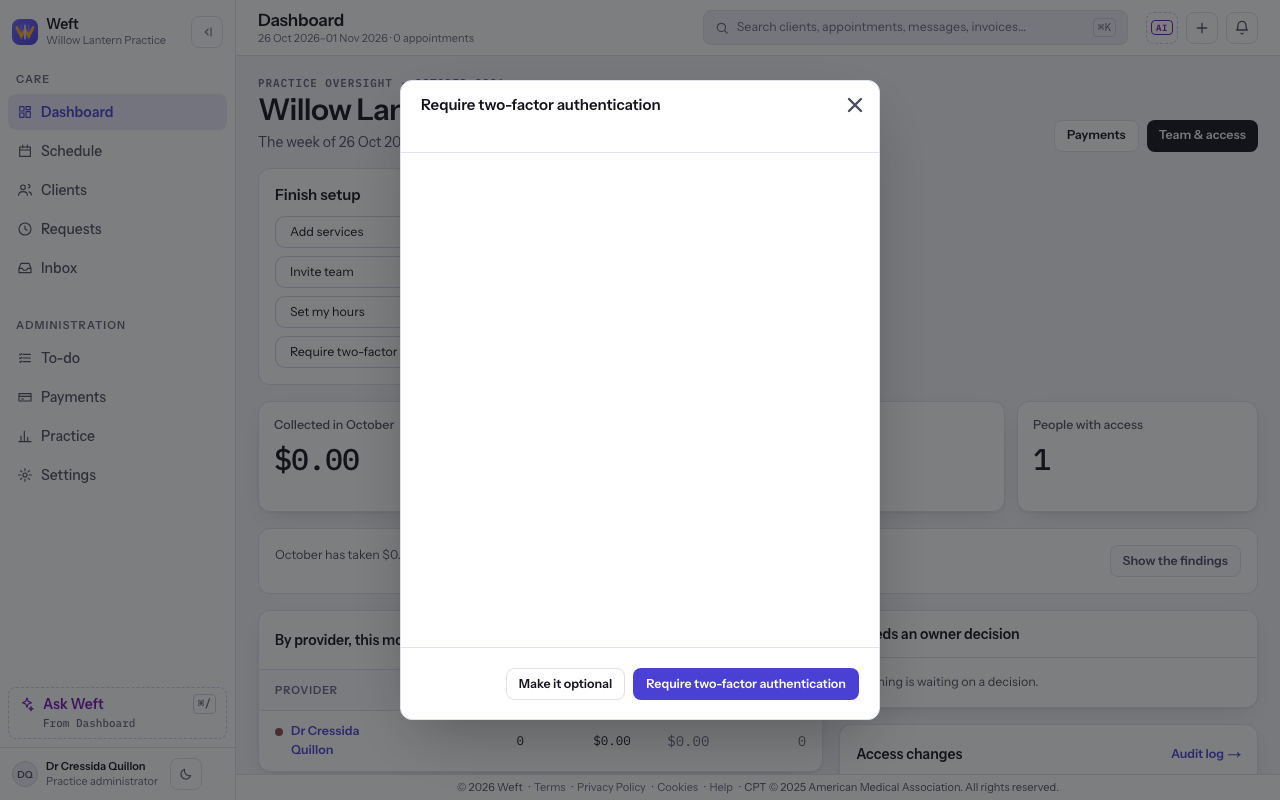
Choose two-factor authentication
- Select Require two-factor authentication to ask everyone at the practice to use a second step, or Make it optional to leave it to each person. For your own second step, follow Setting up two-factor authentication.
Last checked against Weft on 31 Oct 2026. Something on your screen reads differently? Tell us at support@weftary.com.