
Assemble and send a claim
Turn a finished appointment into a claim, correct anything the checks name, send it to the payer and follow its progress.
Who this is for: Biller, Practice manager, Practice administrator
A claim is assembled from the appointment, the client's policy and your practice's details. This is the sixth stage of insurance from start to finish.
Assemble the claim
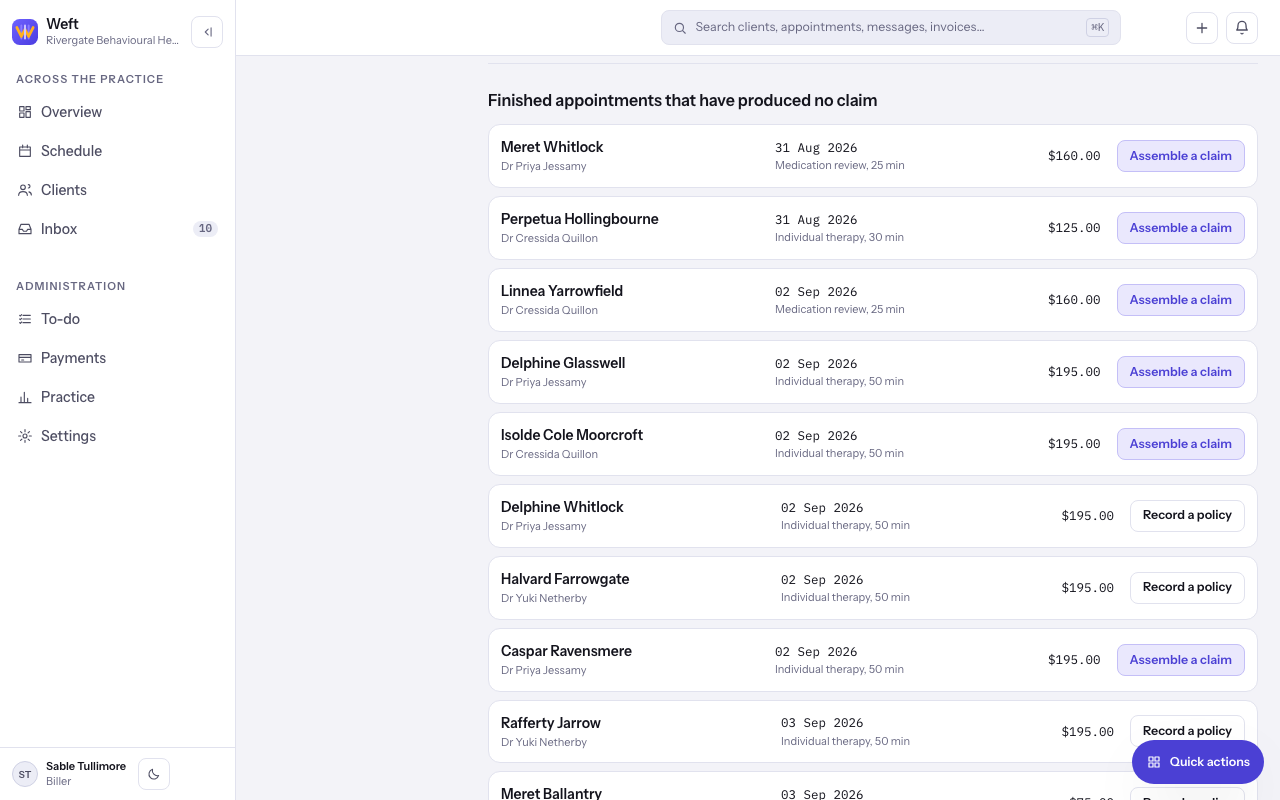
- Go to Insurance. Under Finished appointments that have produced no claim, select Assemble a claim beside an appointment.
- If more than one policy covered the day, choose which policy to bill.
- The claim opens filled in from the appointment, the client's policy and your practice's details. Each box shows whether it was assembled or typed.
Correct and check it
- Select Correct this claim to open the form. Boxes are numbered as on the CMS-1500.
- Fix anything a check names. Each issue opens the box it is about.
- Select Save and check again. Nothing is stopping this claim shows when every check passes.
Tip: A box filled from somewhere else, such as the practice's tax identifier or a colleague's NPI, links to where it is kept, so you correct it there once.
Send it
- Select Send to the payer.
- Read Send this claim to the payer and select Send it. The claim's history shows each step from here.
- To ask where it has got to, select Check the claim's status, then Ask them.
Note: Once a claim has left, correcting it means replacing it rather than editing it. See fixing a rejected or denied claim.
Last checked against Weft on 29 Oct 2026. Something on your screen reads differently? Tell us at support@weftary.com.