Choosing the language of your portal
Read your portal in English or Spanish.
Who this is for: Client
Choose English or Español
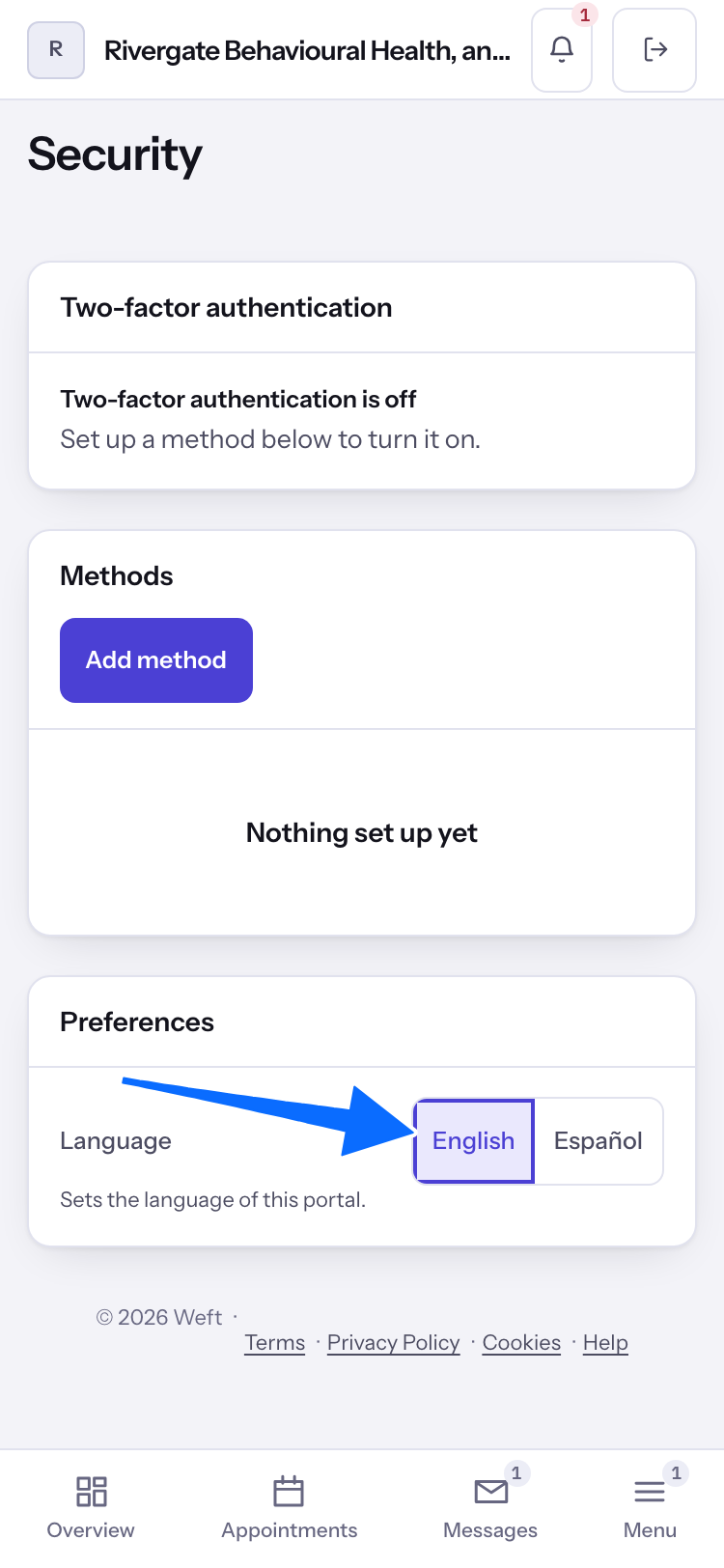
- Open Security from the menu.
- Under Preferences, find Language and choose English or Español. The portal changes to that language straight away.
Tip: If Not saved appears, your choice did not go through and the portal stays in the language it was in. Choose again.
What changes and what stays the same
The portal's own words change: its menus, headings, buttons, labels and messages, along with dates and times. What your practice wrote stays in the language it was written in, such as the practice's name, messages from your practice, the text of forms and agreements, and documents they shared with you.
Note: The choice is yours and goes with you when you sign in on another device. The sign-in screens use the language last chosen on the device you are holding.
Note: The emails the portal sends you follow your choice too: password setup and reset, sign-in links, email address confirmation, appointment notices and reminders, form requests, the unread message summary, answers to your requests, video visit passes, and invoice and payment links. A guarantor or guest with no portal login gets English.
Important: These help articles are in English only. Choosing Español does not translate this guide or any other.
Last checked against Weft on 02 Nov 2026. Something on your screen reads differently? Tell us at support@weftary.com.
Common questions
Can I read this help guide in Spanish?
Not yet. The help articles are in English only, whichever language your portal is in.