Protecting your portal account with a second step
Add an authenticator app or passkey and manage your second step.
Who this is for: Client
Add a method
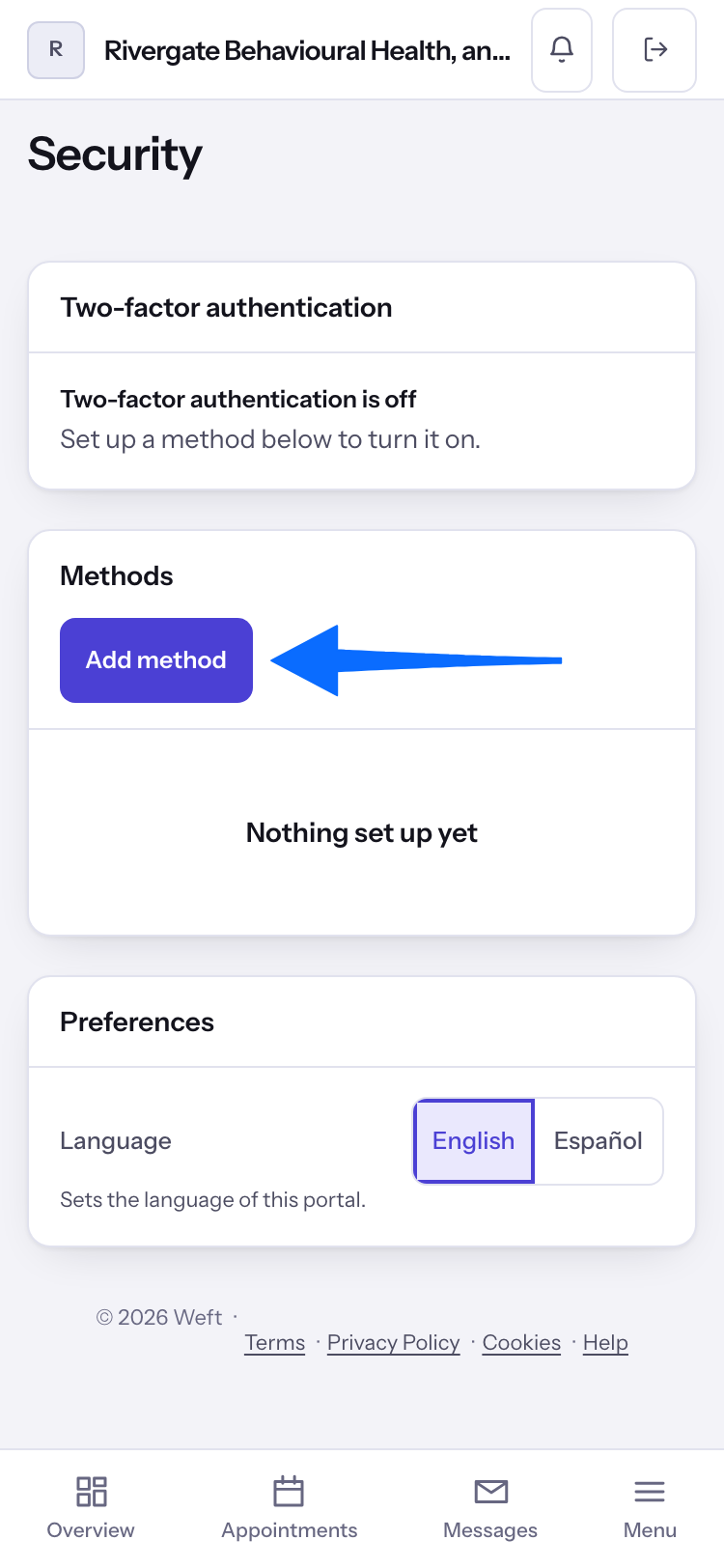
- Open Security. Under Methods, select Add method.
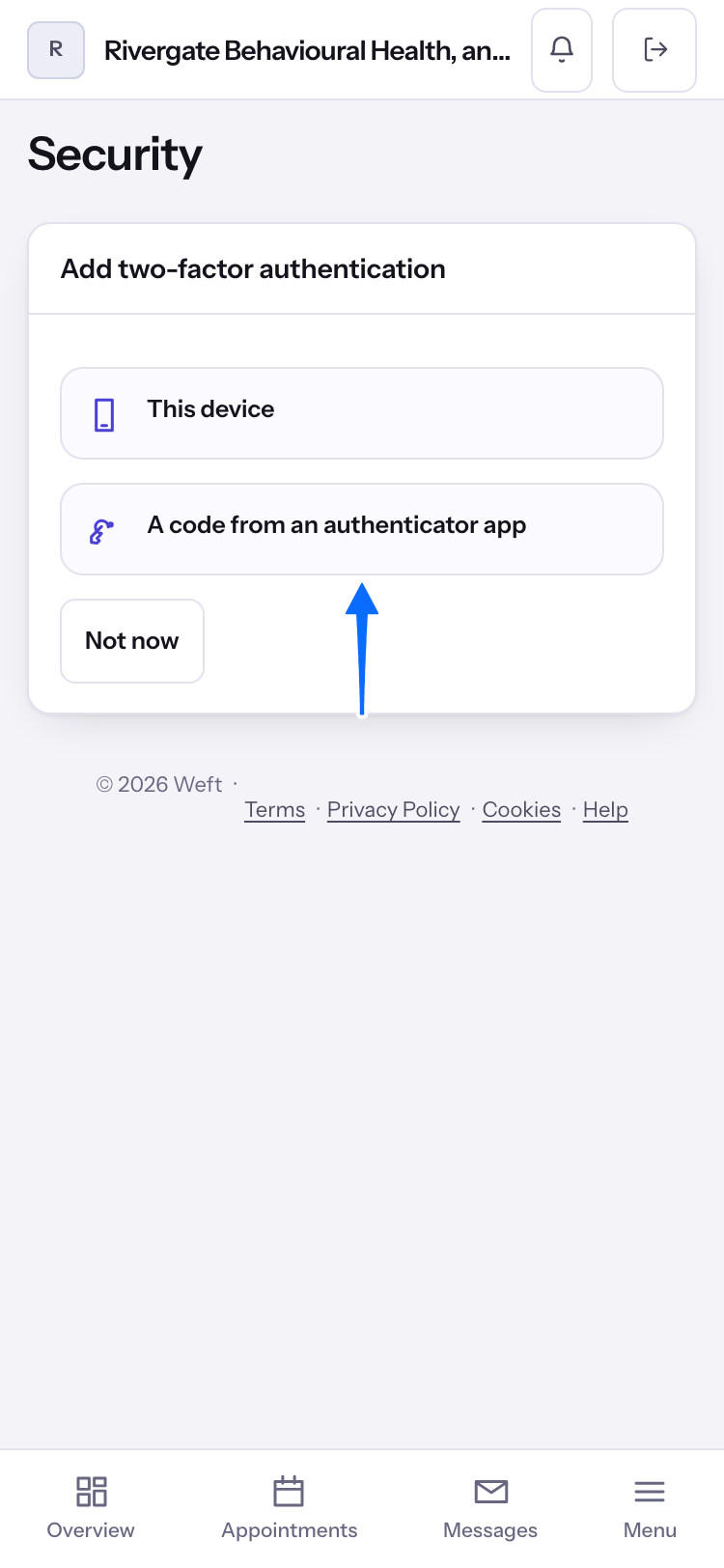
- Choose This device for a passkey if offered, and follow your device prompt. Or choose A code from an authenticator app.
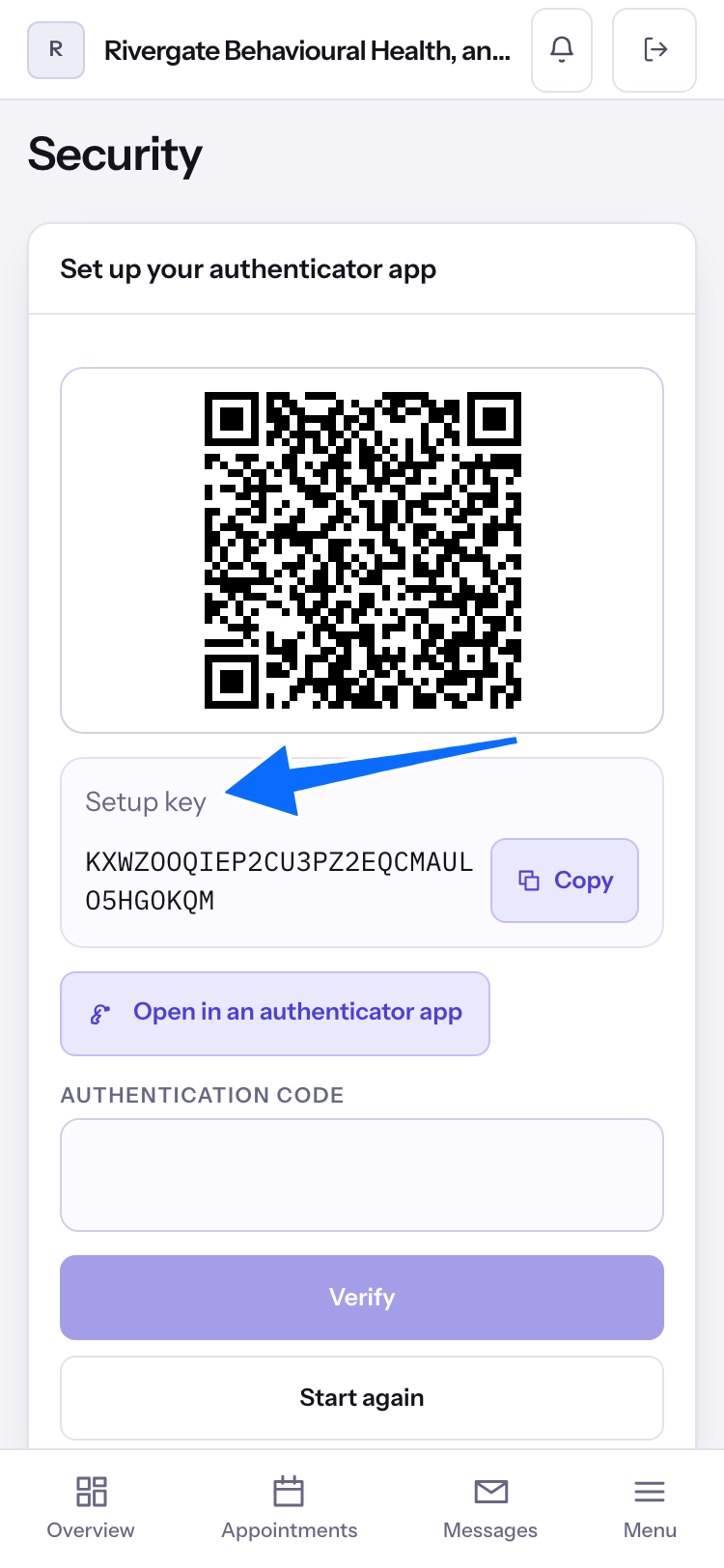
- On Set up your authenticator app, scan the QR code or enter the Setup key in your app. Enter its Authentication code and select Verify.
- Save the backup codes shown after your first method is confirmed, then select Codes saved. Adding the first method turns on the second-step requirement.
Name methods and keep backup codes
- Select Rename, enter a Name in Rename method, and select Save. Select Cancel to keep the existing name.
- Select Make preferred beside a method to offer it first at sign-in. It is marked Preferred.
- Under Backup codes, select Generate new codes for a replacement set. Confirm the request and complete Verify identity with a current method, then select Generate codes. Save the replacement codes and select Codes saved.
Turn the requirement on or off
- Use Require two-factor authentication to turn the requirement on or off once you have a method. Turning it off opens Verify identity. Type the current code in Six-digit code, or use your Passkey, then select Turn off. Backup codes cannot authorize this change.
Answer the second step at sign-in
- After your usual sign-in, the page is headed with your method. Under Authenticator app, type the current code in Six-digit code and select Continue. Under Passkey, select Use passkey. Under Backup code, type a saved code and select Continue. A backup code signs you out of the second step: the page says it was accepted, and you sign in again.
- When you have more than one method, Use another method is a heading above a button for each other method, such as Passkey or Backup code. Select the button for the method you want. For the first sign-in step, see Signing in to your client portal.
Remove a method
- Under Methods, select Remove beside the method you want to drop, such as a lost phone or an old passkey.
- On Remove this method?, select Remove method. Select Cancel to keep it. The box reminds you to add another method first, or turn off two-factor authentication.
- On Verify identity, type the current code in Six-digit code, or use your Passkey, then select Remove method.
Last checked against Weft on 01 Nov 2026. Something on your screen reads differently? Tell us at support@weftary.com.