Signing in with a link or code from your practice
Open an emailed sign-in link or use a PIN code from your practice.
Who this is for: Client
Open your sign-in link
- Open the sign-in link in your email. It works once. Use the newest link if you ask for another.
- If That link did not work appears, select Ask for a fresh link. An expired or already used link asks you to request a new one. For password sign-in, see Signing in to your client portal.
Use a PIN code
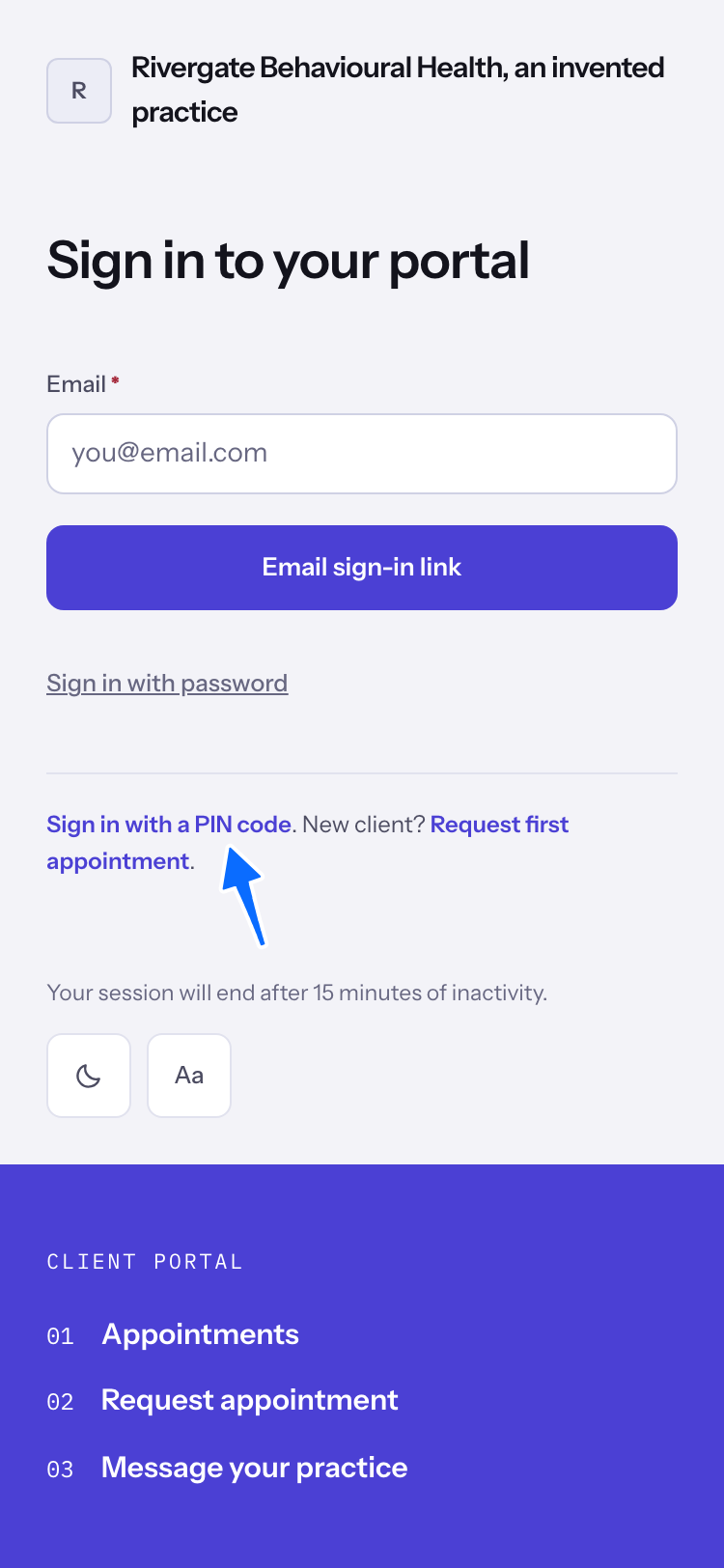
- On the sign-in page, under the form, select Sign in with a PIN code. The page shows your practice's telephone number. Call it and ask for a PIN code over the phone. If the page says Phone number not available. Use the number on your appointment email or on their website., use that number. If it cannot load the number, select Retry.
- Enter your Email and the six digits in PIN code, then select Sign in. The code works once and lasts a day.
- Select Back to sign in to return to the sign-in page.
Last checked against Weft on 01 Nov 2026. Something on your screen reads differently? Tell us at support@weftary.com.