Finding your way around your portal
Use the overview, phone menu and account controls to find what you need.
Who this is for: Client
Start on Overview
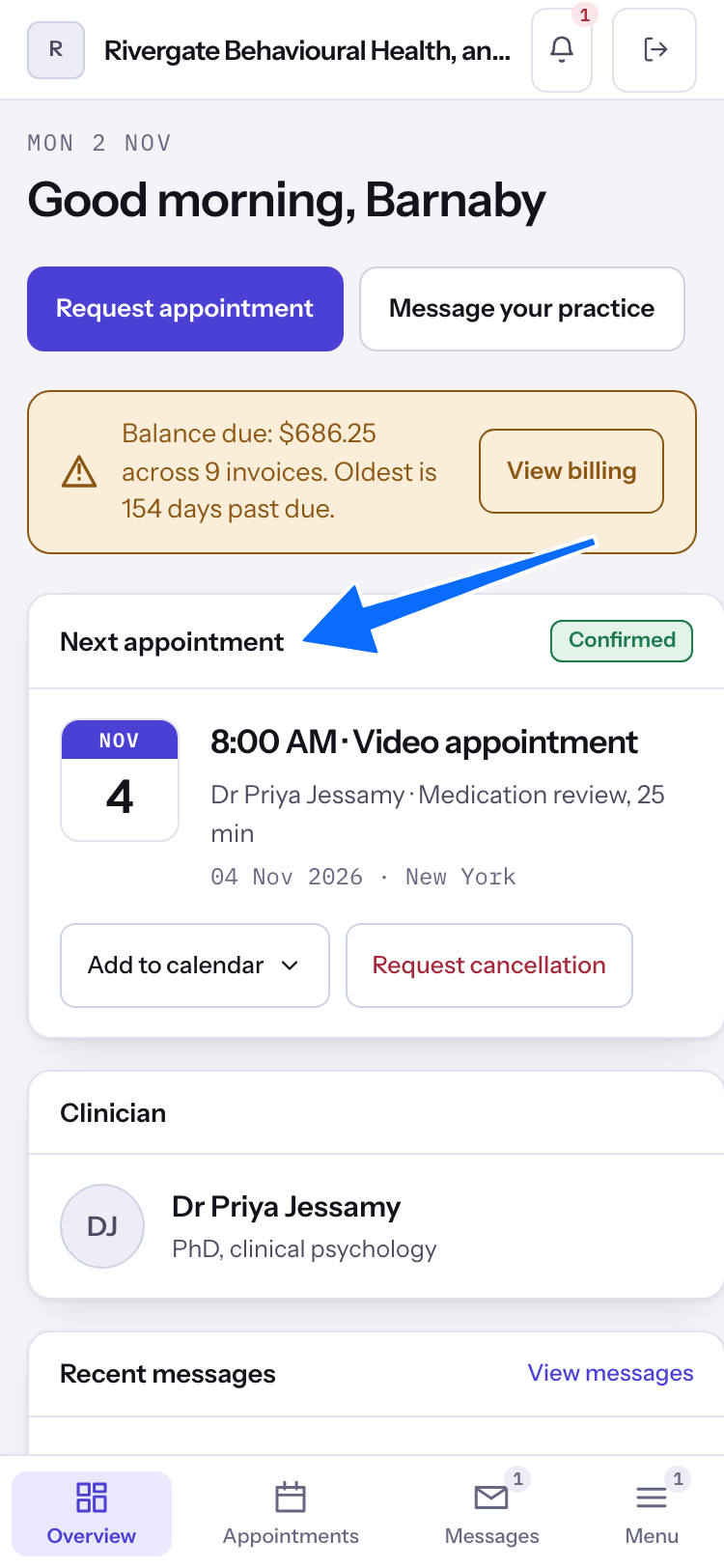
- After signing in, the overview greets you by name. Look for Next appointment, Clinician, Recent messages and To do. Your next appointment may be shown as Appointment now when it is underway.
- Use Request appointment to ask for an appointment, or Message your practice to send a message. Open an item under To do to fill in a form or sign an agreement.
Find a page on your phone
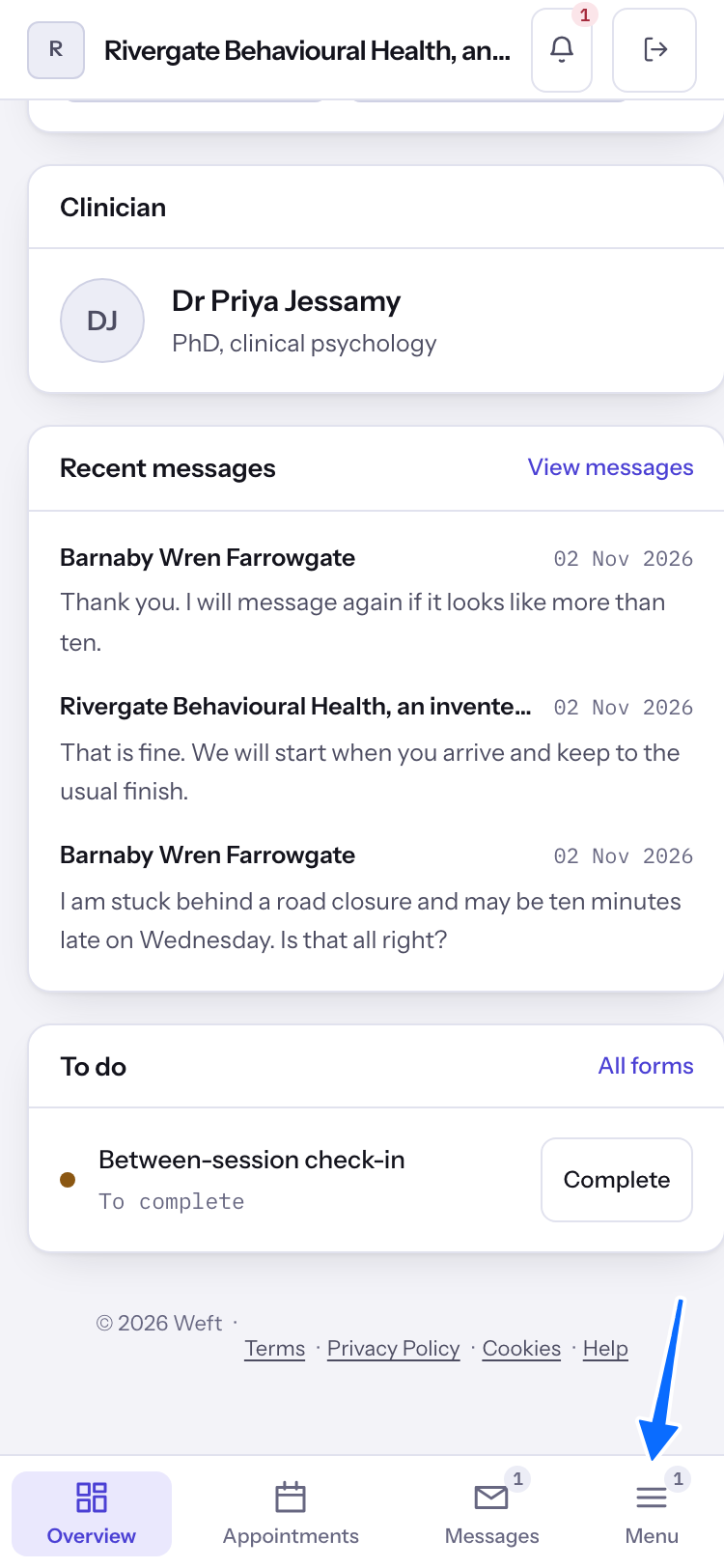
- The phone tab bar has Overview, Appointments, Messages and Menu. Select Menu to open the other destinations.
- Choose Overview, Appointments, Messages, Documents, Billing, Insurance, Notifications or Security. Documents holds the Forms, Agreements and Shared with you tabs. Billing, Insurance and Notifications are left out when your practice has turned them off. Select Overview to go back to the overview.
- In Appointments, use Add to calendar on an upcoming appointment when offered.
- See reading documents, paying an invoice, insurance and notifications for those pages.
Choose a client and adjust your view
- If your login reaches more than one client, the account block in the Menu shows Client above a button with the name of the client you are reading. Select it, with Change beside it, and choose the child or other client whose portal you want to open.
- Use Appearance and Text size in the menu to adjust your view. Select Sign out when you are finished. To read the portal in another language, open Security and choose English or Español beside Language under Preferences.
Last checked against Weft on 01 Nov 2026. Something on your screen reads differently? Tell us at support@weftary.com.