
Finding your way around a client's chart
Move between chart tabs, appointments and the timeline.
Who this is for: Clinician
Read the chart overview
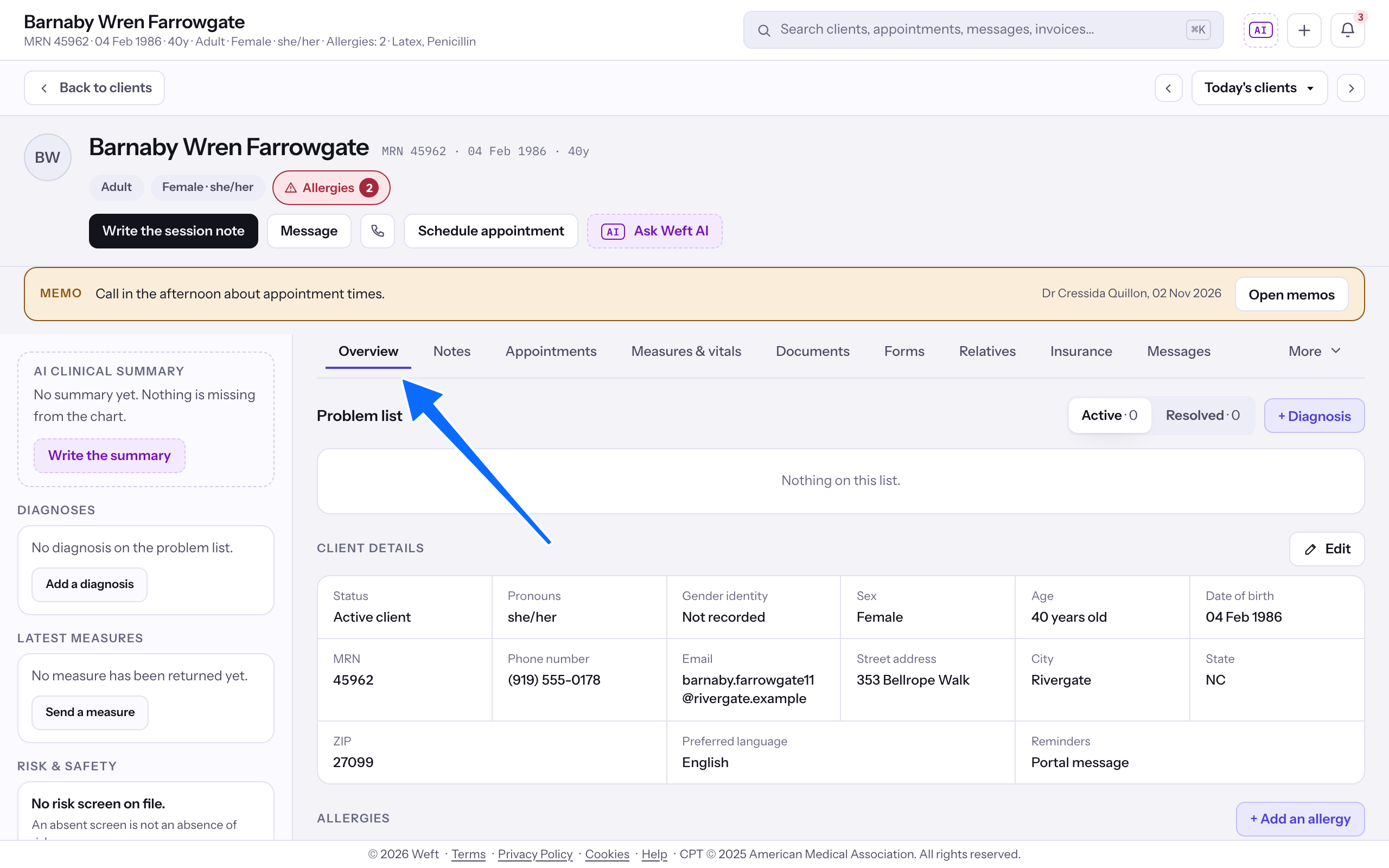
- Open the client on Overview. The summary strip shows their name, record number, age and date of birth, with chips for age group, sex and pronouns, and allergies when you may read them.
- Choose a tab: Notes, Appointments, Payments, Measures & vitals, Documents, Forms, Relatives, Insurance, Messages, Client portal or Timeline.
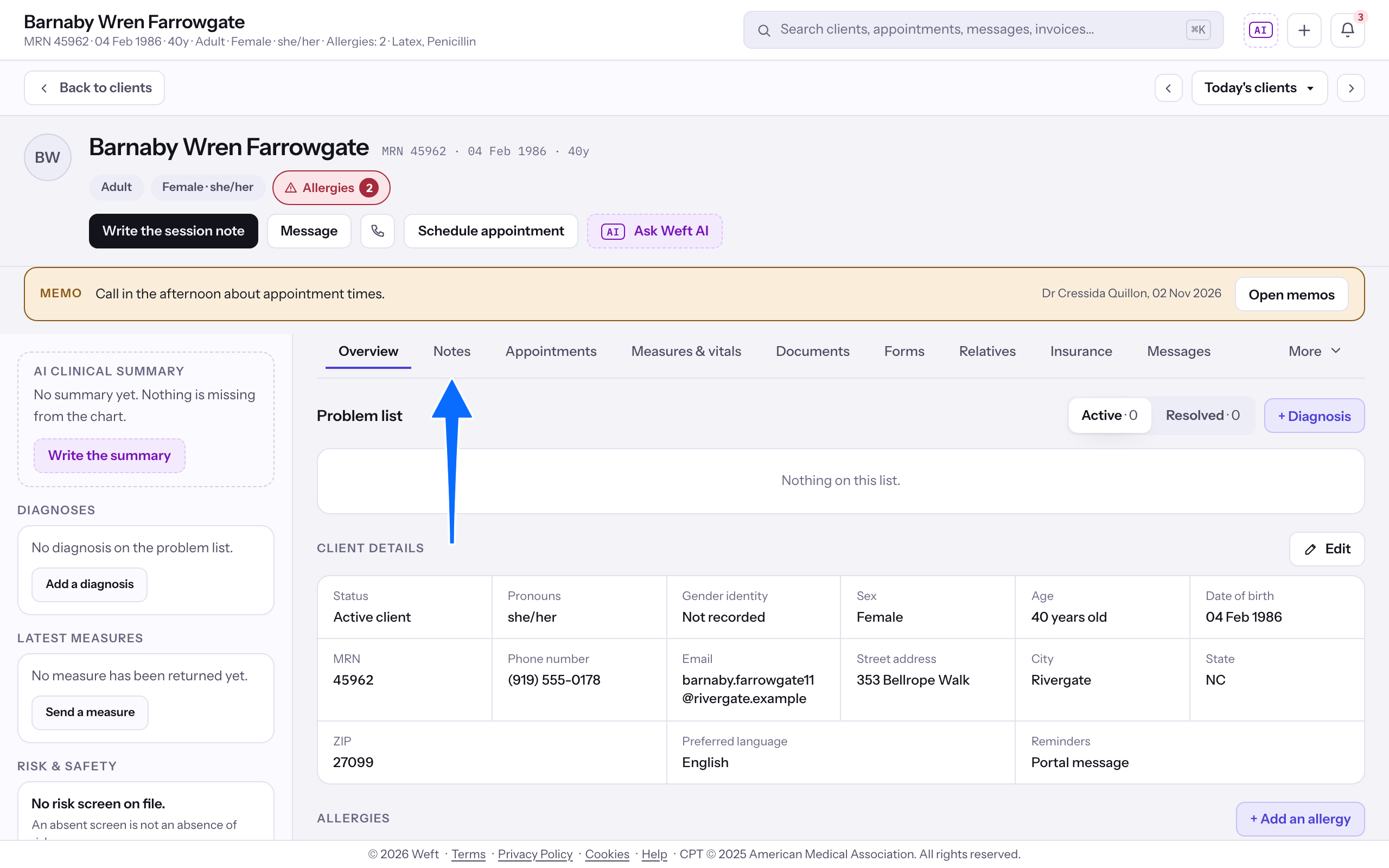
Note: Some tabs, such as Payments, show only to roles that may see them. Insurance also depends on whether the practice offers insurance billing.
Move through appointments
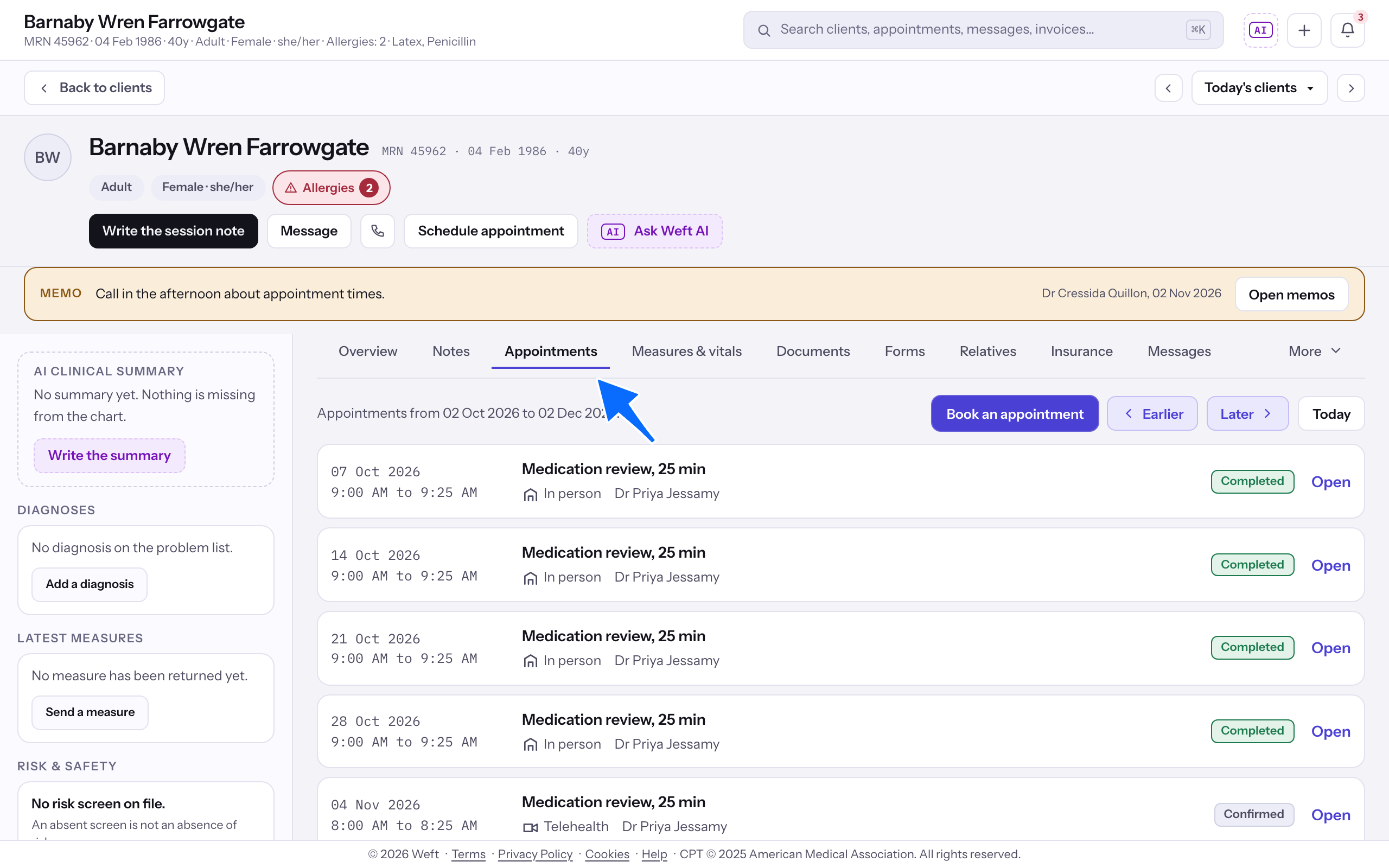
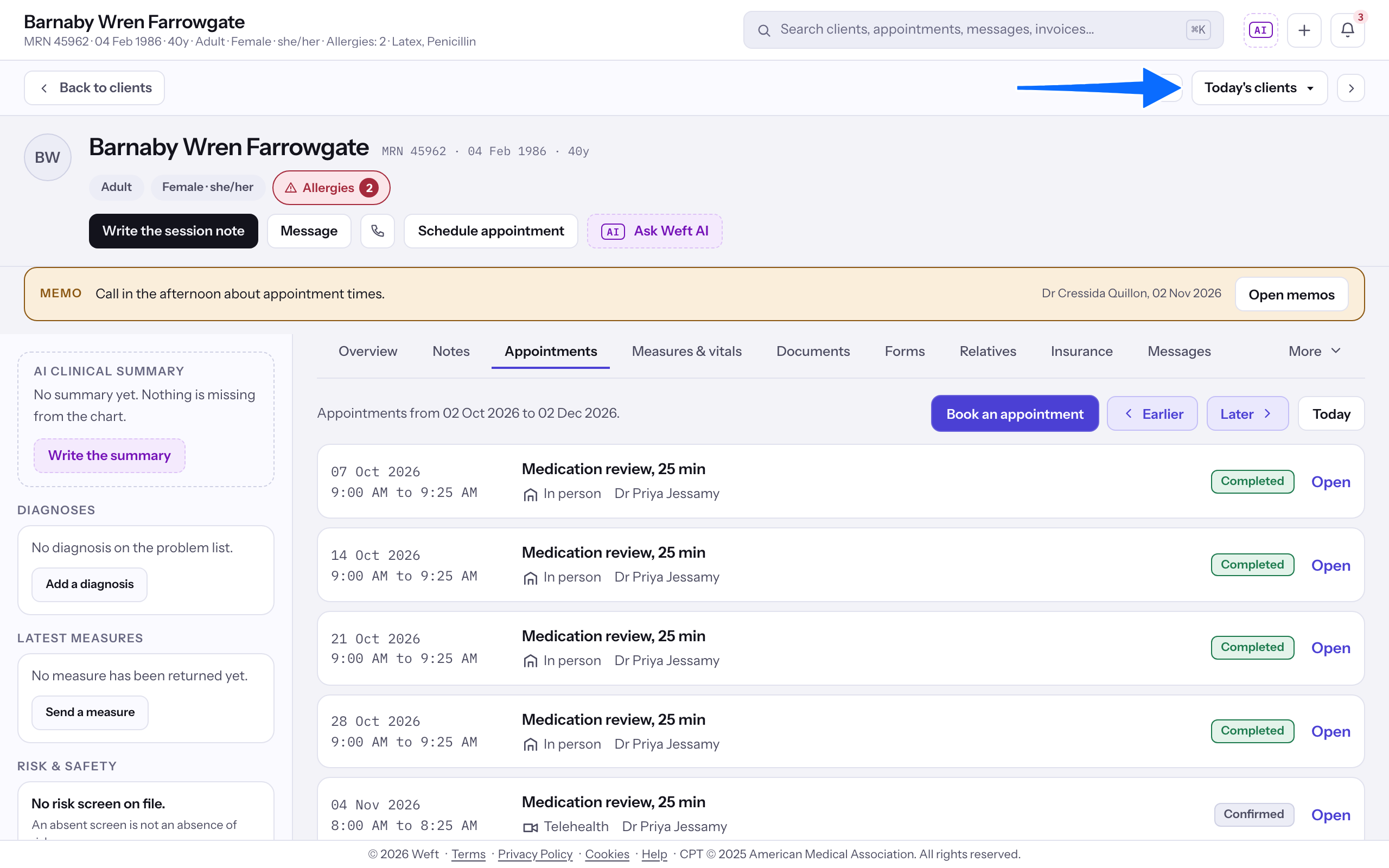
- Select Appointments to read the date window above the list.
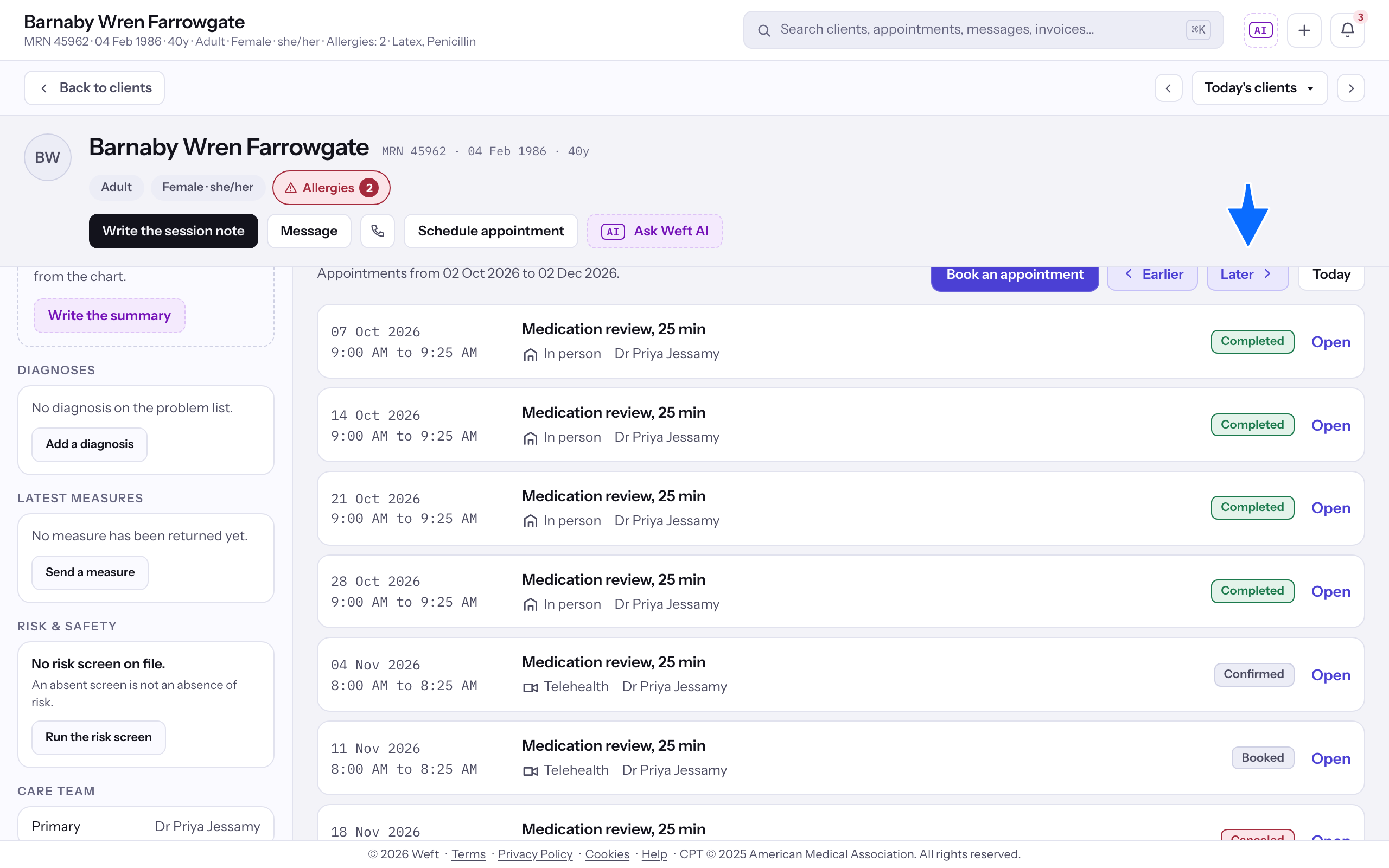
- Select Earlier or Later to move the window.
- Select Today to return to the current window.
Read the timeline
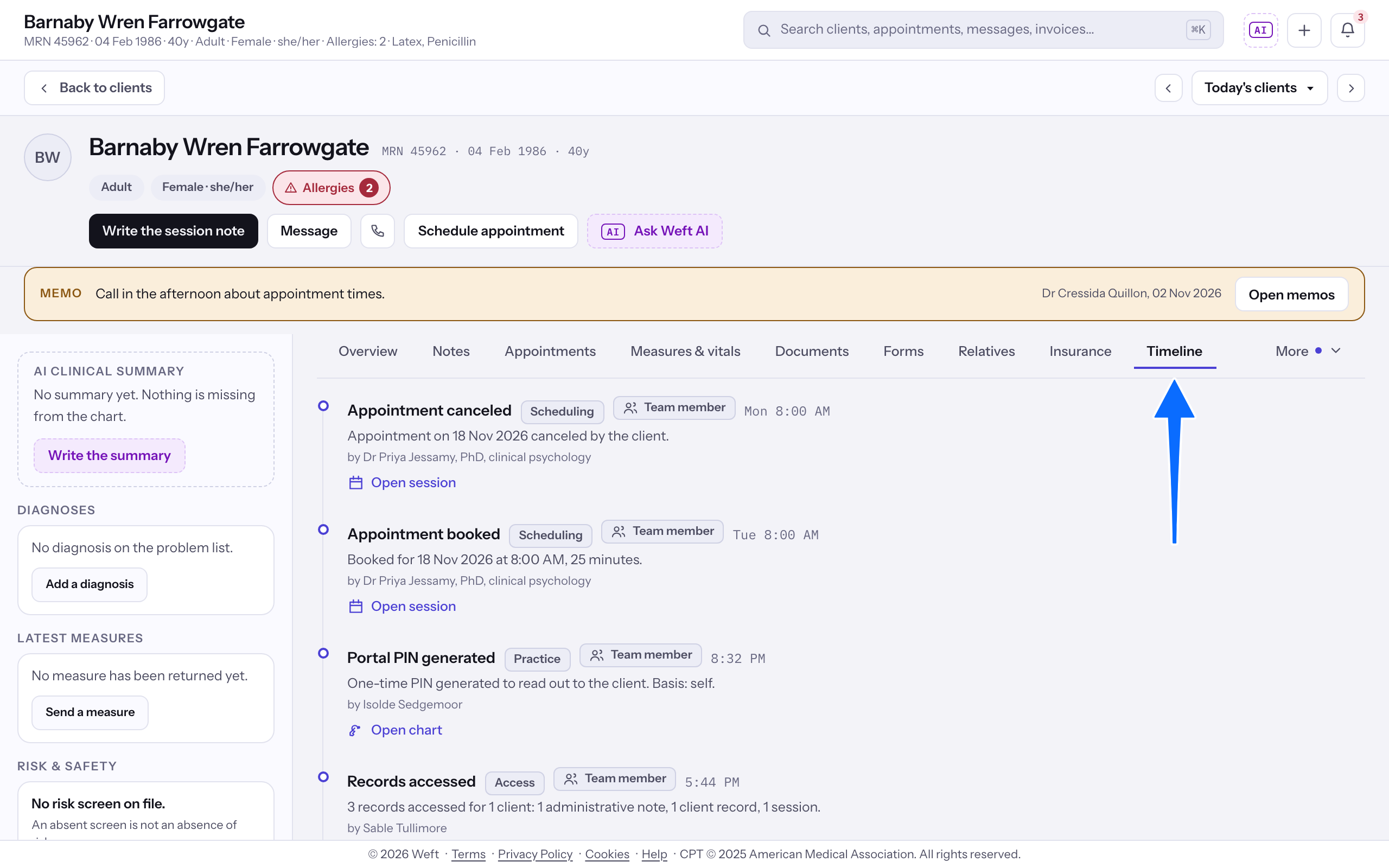
- Select Timeline to read entries about the client, newest first.
Last checked against Weft on 31 Oct 2026. Something on your screen reads differently? Tell us at support@weftary.com.